Gain and confirm email subscribers
Your emails only go to subscribers who confirmed their signup. Here you learn how someone signs up and what you can set.
On this page
How someone becomes a subscriber
You find all related options in your Settings in the Email area under Marketing emails. The path always has three steps: someone signs up, confirms the email, and then gets your campaigns and automations.
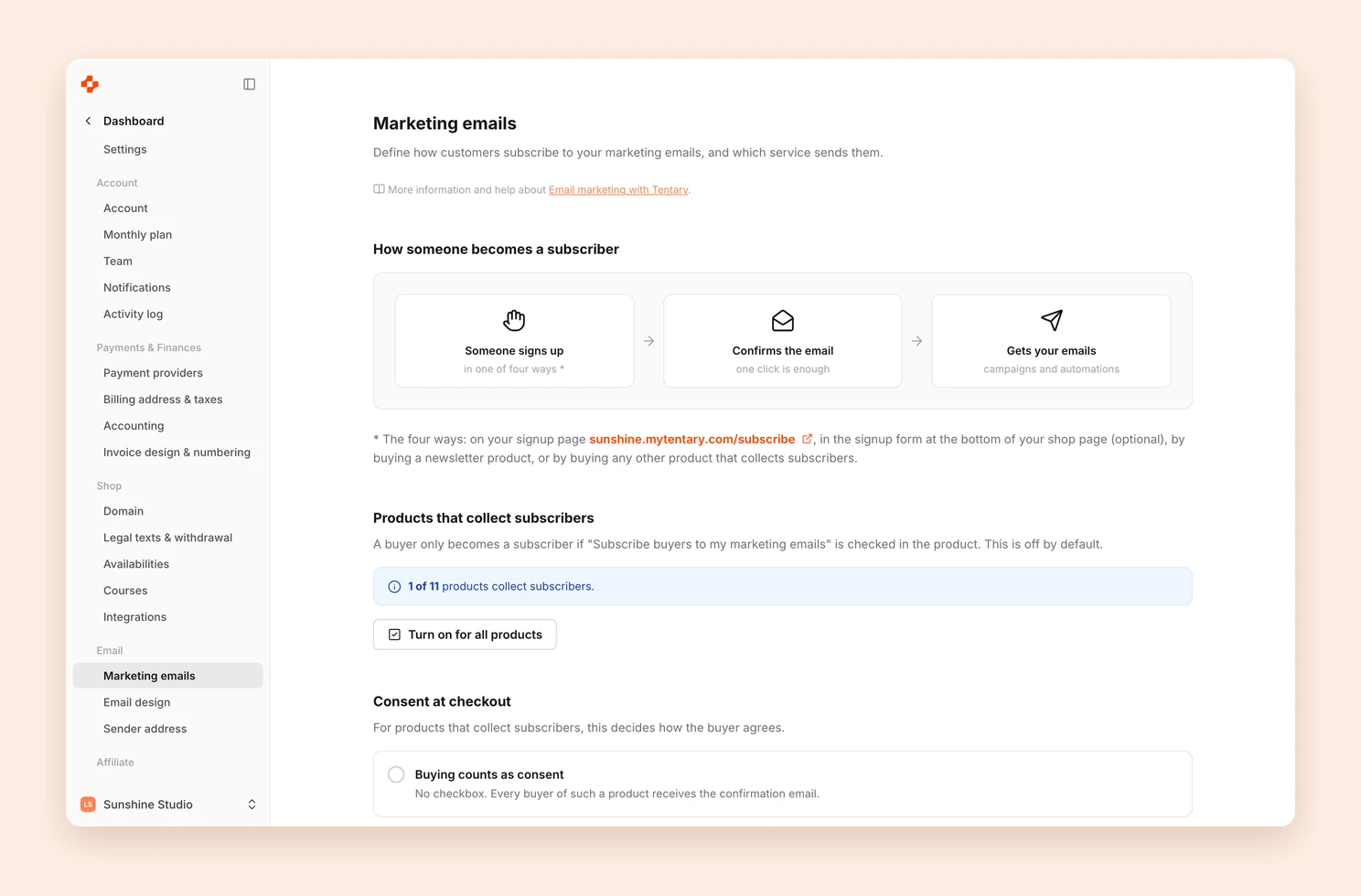
Someone can sign up in four ways:
- On your signup page. Every shop has a ready-made page at
yourshop.mytentary.com/subscribe. You also find the link on the Email Marketing page. - With the form on your shop page. You turn it on under Online Store › Design in the Subscribe form area with Display subscription form on shop page.
- By buying a newsletter product. This is a separate product type for the signup. See Create a new product: Newsletter.
- By buying another product that collects subscribers. See below.
On your own landing page, you can also add your own signup form. You bring in existing contacts with an import, and with a lead magnet you offer a free product in return for the signup.
Products that collect subscribers
Buyers only become subscribers if you turned this on in the product. It is off by default.
- Open your product.
- Check Subscribe buyers to my marketing emails in the Settings area.
- Save the product.
The Marketing emails page shows how many of your products collect subscribers. Turn on for all products switches the option on for all of them at once.
Consent at checkout
Under Consent at checkout, you set how buyers of these products agree:
- Buying counts as consent: There is no checkbox. All buyers get the confirmation email.
- Ask with a checkbox: Only buyers who tick the box get the confirmation email. You can write the checkbox text yourself.
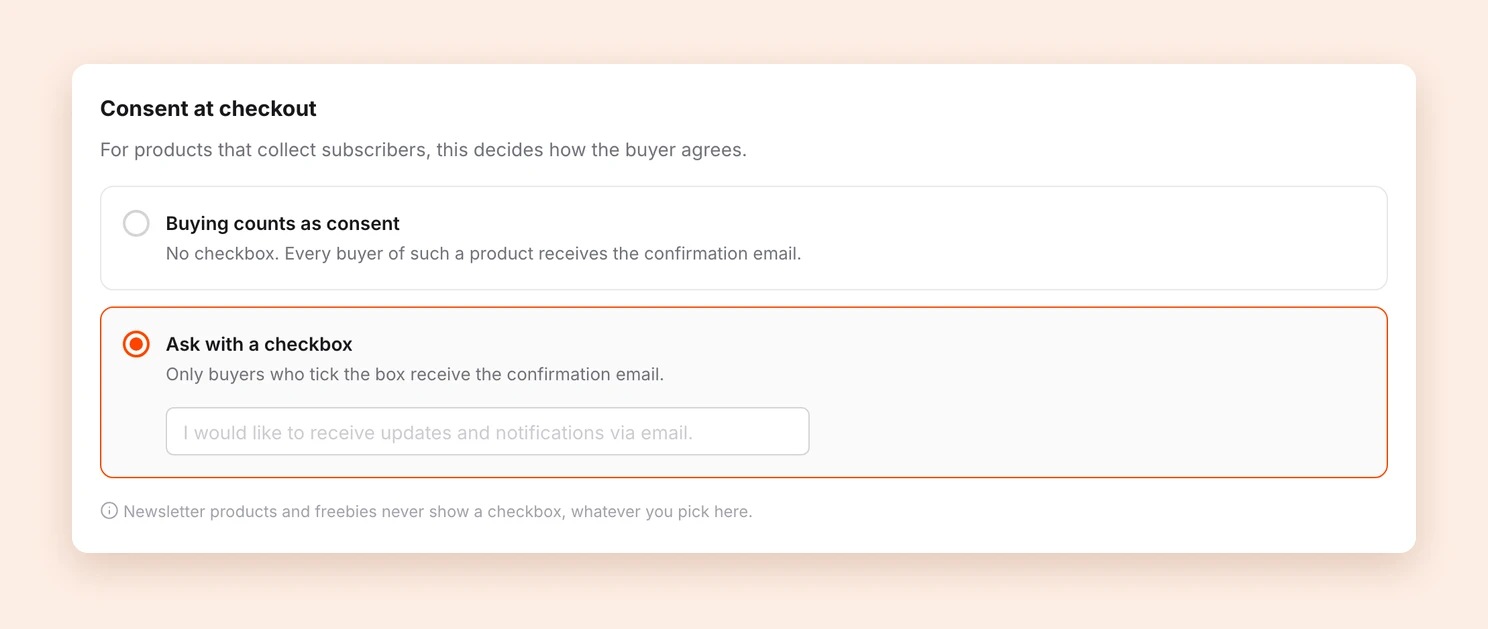
Newsletter products and freebies never show a checkbox, whatever you pick here.
The confirmation email
Tentary automatically sends all new subscribers an email with a confirmation link (double opt-in). Only after they click the link are they subscribed and get your emails. You cannot turn this step off, because it is required or recommended in many countries.
Customize the confirmation email lets you change the text. On the right you see a preview, both for a normal signup and for a freebie.
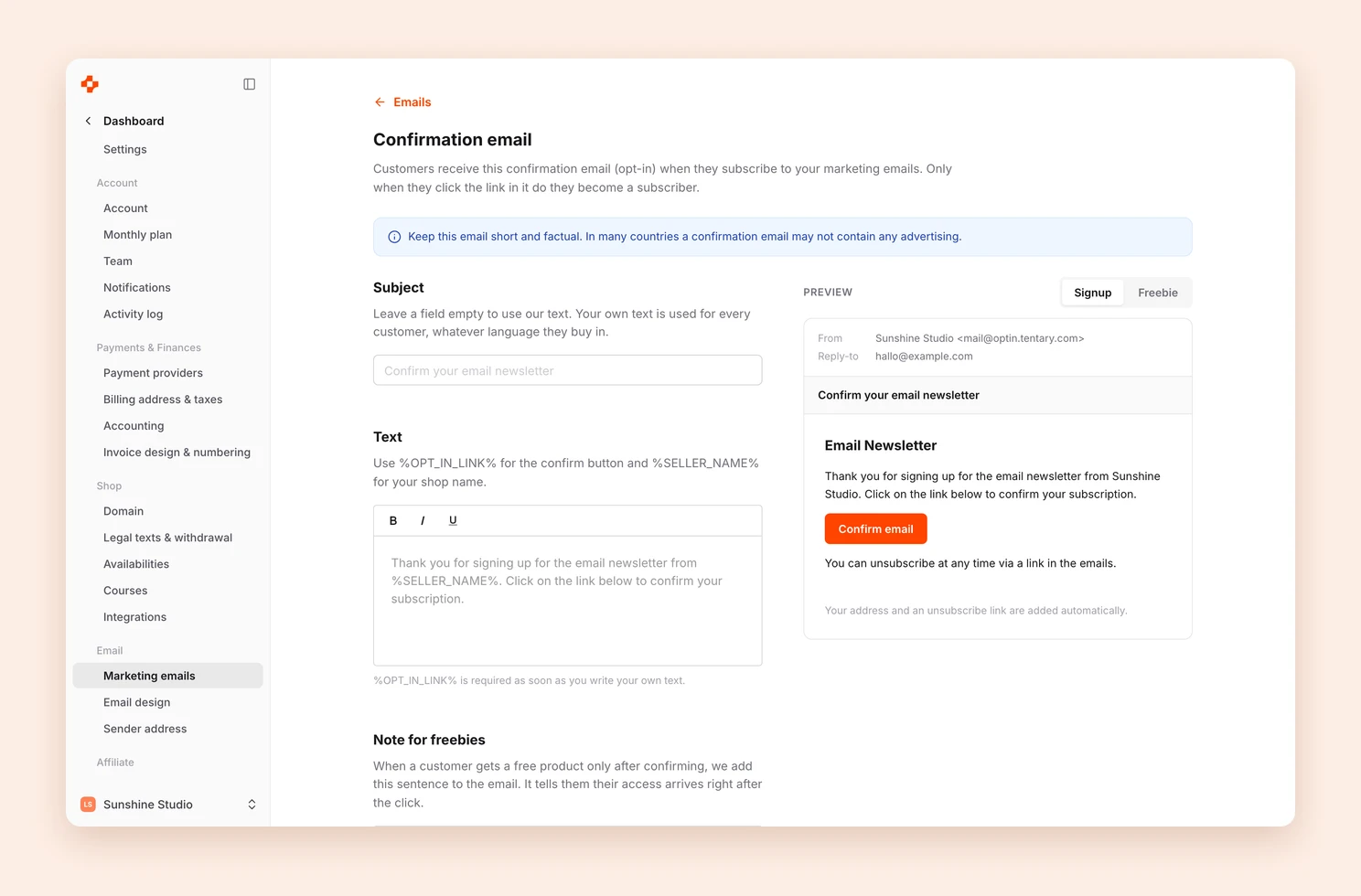
- Subject and Text: If you leave a field empty, Tentary uses the default text. Your own text applies to all customers, whatever their language.
- Placeholders:
%OPT_IN_LINK%stands for the confirm button and is required as soon as you write your own text.%SELLER_NAME%stands for your shop name. - Note for freebies: This sentence appears when someone only gets a free product after confirming. With
%FREEBIE_NOTE%you decide where it goes in the text.
Important: Keep the email short and factual. In many countries, a confirmation email may not contain any advertising.
Who is subscribed
Under Customers, the Opt-in column shows who is subscribed. On a person’s detail page, you can send the confirmation email again or unsubscribe them. See Manage customers.
Your subscribers can unsubscribe at any time with the link that is automatically at the bottom of every email.
Frequently asked questions
Why does someone get no emails even though they bought something?
Check these points:
- Subscribe buyers to my marketing emails is not turned on in the product.
- You ask with a checkbox, and the person did not tick it.
- The person has not confirmed their signup yet.
Can I get notified when someone subscribes?
Yes, with Notification about new confirmed subscribers. It is off by default. See Email notifications.
Last updated November 6, 2026