Connect AI apps to Tentary
Connect ChatGPT, Claude or another AI app to your Tentary account through the Tentary MCP server. Then you ask about your sales, customers and products in plain words, and the AI does tasks for you.
On this page
- How it works
- What is MCP?
- Who can connect AI apps
- Two ways to connect an app
- Sign in with Tentary
- Sign in with API key
- Permissions
- What the AI can do
- Look things up
- Change at once
- Only after your confirmation
- What you do yourself in Tentary
- The confirmation in Tentary
- Safety and control
- Feedback to Tentary
- If something does not work
How it works
You connect an AI app to your Tentary account, for example ChatGPT, Claude, Grok, Codex, Claude Code or Cursor. Then you simply ask your questions in the chat of the app. The AI uses the Tentary tools for this: it looks up data, changes things for you and asks for your permission before important steps.
For example, you can ask:
- “How much revenue did I make last month, by product?”
- “Which customers bought my course this week?”
- “Create a 20% coupon for my course, valid until Sunday.”
- “Write an email campaign about my new e-book and send me a test email.”
- “Fill in my legal texts with the Tentary templates.”
Everything about the connection is in Tentary in the menu under AI & API. The feature is part of all plans and Tentary does not charge for it.
Note: The same functions are also available as a REST API for developers. See the API Reference.
What is MCP?
MCP (Model Context Protocol) is an open standard that lets AI apps work with other services. Tentary has its own MCP server:
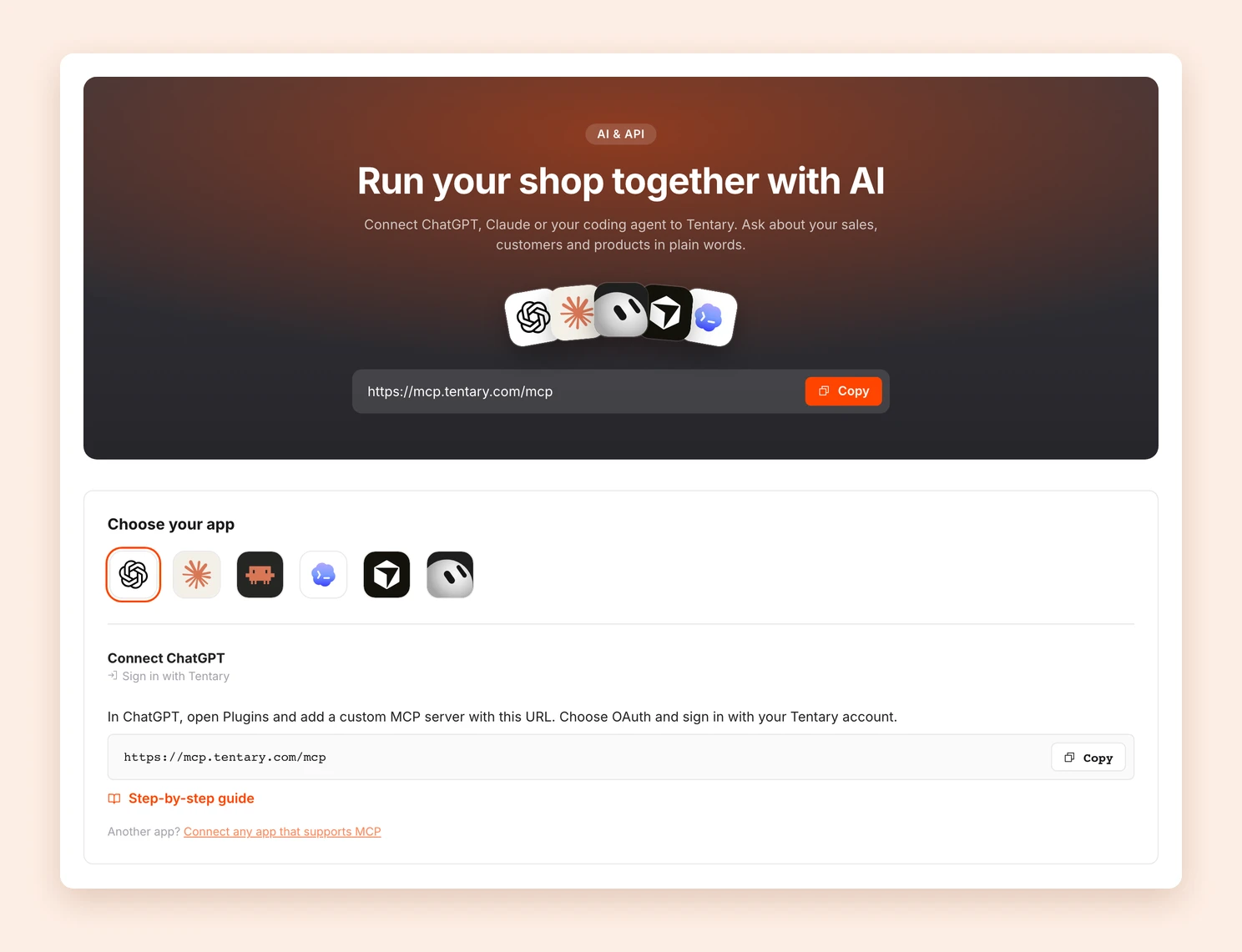
https://mcp.tentary.com/mcpYou do not need to write code. You add this address in your AI app, depending on the app as a connector, a plugin or an MCP server, and then connect your Tentary account. The guides below show how this works in your app.
Who can connect AI apps
- Only the account owner. Team members and support logins do not see the page AI & API and cannot connect apps.
- Your account must be activated.
Two ways to connect an app
On the page AI & API, choose your app under Choose your app. For each app you see the steps and a link to the Step-by-step guide.
| App | Way | Guide |
|---|---|---|
| ChatGPT | Sign in with Tentary | Connect ChatGPT |
| Claude | Sign in with Tentary | Connect Claude |
| Grok | Sign in with Tentary | Connect Grok |
| Codex | Sign in with Tentary | Connect Codex |
| Claude Code | Sign in with API key | Connect Claude Code |
| Cursor | Sign in with API key | Connect Cursor |
Other AI apps that support MCP servers connect in one of the two ways. See Connect other AI apps.
Sign in with Tentary
This is how you connect ChatGPT, Claude, Grok, Codex and many other apps:
- At the top of the page AI & API, copy the address of the MCP server:
https://mcp.tentary.com/mcp - Add this address in your AI app, depending on the app as a custom connector, as a plugin or with a command.
- The app sends you to Tentary. If you are not logged in, you log in first.
- Tentary shows a page with the name of the app, for example ChatGPT wants to access your Tentary account. Check the details and the permissions and click Allow access. Cancel stops the connection.
On this page you see:
- Verified domain: the checked domain of the app. This line only shows if the app has one, for example ChatGPT and Claude.
- Sends you back to: where you return after you allow access.
- Your account: the email address that you are logged in with.
- The app may: the permissions. All are selected. You can clear some, but at least one must stay.
If an app registered itself, the page shows a warning instead: This app registered itself. Tentary cannot check its name, so only continue if you started the connection yourself. This is normal for Codex, Cursor and Grok.
After the connection you get the email New app connected to your Tentary account.
Important: The app sends data from your account, including names and email addresses of your customers, to its AI provider. Check that this is allowed under your privacy policy.
Sign in with API key
This is how you connect Claude Code, Cursor and your own scripts:
- On the page AI & API, click New API key.
- Give the key a name, for example “Claude Code on my laptop”.
- Under The key may:, choose the permissions. All are selected by default.
- Click Create key.
- In the window Your new API key, copy the key at once. You will not see it again.
In the same window, under Use it in your app, Tentary shows ready commands and texts for Claude Code, Cursor and the REST API that already contain your key.
A key starts with tnt_. Tentary does not store the key itself, so it cannot show it to you again. If you lose a key, simply create a new one. The list shows only the start and the last 4 characters of each key. You can have at most 10 active keys and create at most 20 new keys per day. For each new key you get the email New API key for your Tentary account.
Important: A key can read and change your data. Keep it secret.
Permissions
When you connect an app, you choose what it may do. On the page AI & API you see the permissions of each app and each key as short tags.
| Permission | Tag | What it allows |
|---|---|---|
| See your products, orders, customers and revenue | Read data | Look up everything and send feedback to Tentary |
| Change products, prices, courses, coupons and your shop | Edit catalog | Change products, files and images, courses, modules and lessons, coupons, HTML landing pages and legal texts; archive or delete them (with confirmation) |
| Change customer data and give customers access | Edit customers | Give and remove access, reactivate customers, deactivate external customers (with confirmation) |
| Write emails and campaigns (sending always needs your confirmation) | Write emails | Write campaign drafts, automations and their emails, test emails to you; send, activate, deactivate and delete (with confirmation) |
| Refunds and subscription cancellations (always need your confirmation) | Manage orders | Refund orders, stop subscriptions and installment plans (both with confirmation) |
Good to know:
- Changing does not include reading. Without “Read data”, an app can change things, but it cannot look anything up or send feedback.
- An app that you connected earlier keeps the permissions of that time. When a new permission is added, disconnect the app and connect it again to allow everything.
What the AI can do
The AI works with a fixed set of tools. The full list is in What the AI can do in Tentary.
Look things up
The AI reads your account overview and setup status, products, courses with modules and lessons, orders, customers, revenue, subscriptions (also recurring revenue and cancellations), visits per product, affiliates and their sales, legal texts and templates, coupons, email campaigns and automations, landing pages and the help center.
Change at once
These changes are live at once:
- Create products (all types except bookings) and edit them, with images, files, variants and content. For bookings, only the name, price, sales page, files and the texts that buyers get can be edited.
- Courses, modules (also the module image for the cards layout) and lessons, and the hour at which lessons unlock
- Coupons, also archive them
- HTML landing pages
- Legal texts, with the Tentary templates for your country
- Drafts of email campaigns and automations. Changes to an active automation email apply at once, also to emails that already wait to be sent.
- A test email to your own login email address
- Give and remove access to products. When someone gets access, Tentary sends them an email with the access link, unless the app turns this off.
- Reactivate paused external customers
- Send feedback to Tentary
Only after your confirmation
These actions only happen after you confirm them in Tentary:
- Send or schedule a campaign
- Activate or deactivate an automation or an email of an automation
- Archive a product or a course. For a product, earlier buyers keep their access. Buyers cannot open an archived course until you restore it in the app.
- Delete a module, a lesson, a landing page (not the home page of your shop), a campaign draft, or an inactive automation or automation email
- Refund a one-time order in full, if it is not older than 179 days, was not free and has no dispute
- Stop the future payments of a subscription or an installment plan
- Deactivate an external customer
What you do yourself in Tentary
Some things you still do directly in Tentary, mostly around money, access and your account: payment providers, plan and billing, partial refunds, invoices, password, team members and API keys. Shop design, the page builder and creating bookings also only work in Tentary.
The confirmation in Tentary
For sending campaigns, switching automations on or off, archiving, deleting, refunds, cancellations and deactivating customers, the AI app gives you a link that starts with https://app.tentary.com/ai/confirm/.
- Open the link. You must be logged in as the owner of the same account.
- The page Confirm an AI action shows which app asks, what will happen and a link to the object in Tentary. For a campaign you see, for example, the subject, the estimated number of recipients and Open the e-mail campaign.
- Click Confirm or Do not do it.
The link is valid for 5 minutes, and the action runs once only. If the object changed after the request, for example the text of the campaign, Tentary does not run the action. Then ask the AI app again.
Safety and control
- Activity log: Every change shows in the Activity log in your settings, as “AI app: name of the app” or “API key: name of the key”. A confirmed action also shows there with the app that asked.
- AI activity: On the page AI & API you see, for the last 30 days, the requests by AI apps, the active connections, a chart per day and the top 5 areas. Below are your API keys and your connected apps with their permissions and last use.
- Disconnect: With Disconnect for an app or Revoke for a key, the app loses access at once.
- Password change: If you change your password or your login email address, all connections and keys end. Then you connect your apps again and create new keys.
- Expiry: A connection through “Sign in with Tentary” ends if you do not use it for 30 days. An API key does not expire by itself. It works until you revoke it or change your password or login email address.
- What the AI never gets: Tentary never passes this data to an AI app: payment and payout data (for example IBAN, PayPal and the account IDs of your payment providers), addresses and tax numbers of your affiliates, download links of your files, access links of your buyers and Zoom links. The app does see other data of your customers, for example names, email addresses, addresses, VAT IDs and checkout details.
- Protection against instructions from others: Texts that your buyers typed, for example names, notes or form answers, are marked as data for the AI. This helps the AI not to follow instructions in them. It is not a guarantee: how the AI handles them depends on your AI app.
- Limits: So that an app cannot overload your account, Tentary limits the requests. The limit depends on the number of requests and on how much work they take. When the limit is reached, the app gets a message to wait a moment.
- Log: Tentary keeps each call for 90 days with the time, app, tool and result, but without content.
Feedback to Tentary
Do you miss something, or does a tool not work as expected? Simply tell your AI app: “Send this as feedback to Tentary.” The app then sends a bug, a missing feature, something confusing or an idea to our team.
If something does not work
The most common problems and their solutions are in Solve problems with AI apps.
Last updated October 28, 2026