Set Individual Tax Settings for a Product
Is your product subject to a tax rate other than the standard or reduced VAT rate? In this article, we’ll explain when a tax adjustment is necessary, where to find this option, and what settings you can configure.
On this page
Activate and configure individual tax settings
Based on your details under Billing address and the information your customers provide during checkout, Tentary automatically calculates the right VAT rate. See how taxes are calculated.
In addition to the standard VAT rate, there is a reduced rate that applies, for example, to eBooks. You can enable this directly in the product. You can find more information about this in the article Taxation of eBooks.
There are also exceptions to both the standard and reduced VAT rates. For example, because a product belongs to a specific category or a service is tied to a profession with different tax rules. In such cases, you can use the individual tax settings to adjust the tax rate.
Activate and configure individual tax settings
The option Set individual tax settings for this product is available for all product types except the direct link.
When creating a new product, scroll all the way down to the product settings. Have you already created a product for which you want to adjust the tax settings? Then open your product overview, click the Edit button for the relevant product, and scroll to the settings.
To define individual tax settings, first activate the option Set individual tax settings for this product by checking the box next to it.
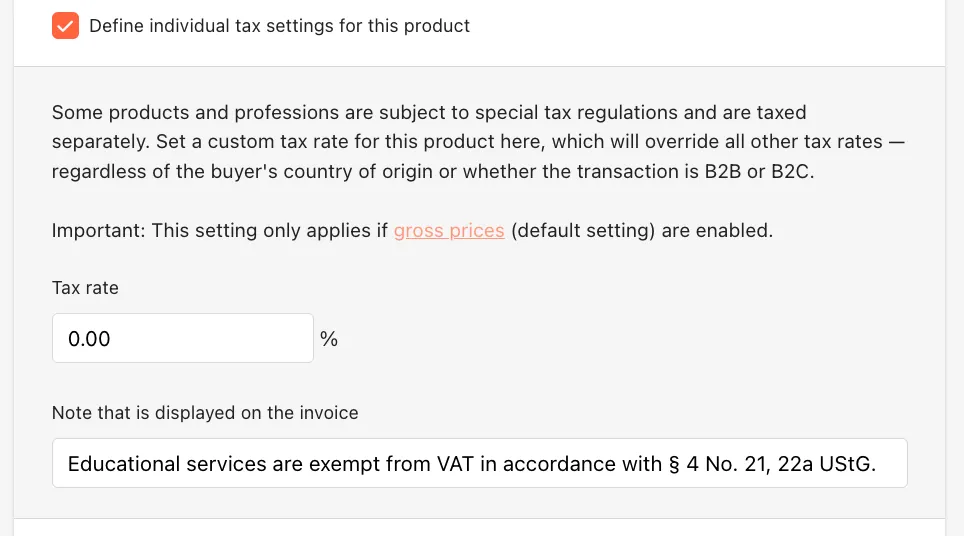
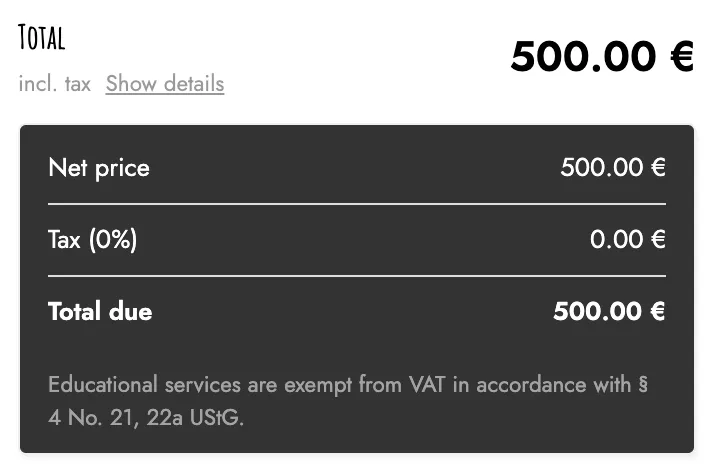
You then see two fields: Tax rate for the rate itself, and Note that is displayed on the invoice. Your customers see the note on the invoice and on the checkout page.
The individual tax rate overrides all other tax rates, no matter which country your customers come from and whether they buy as a business or privately.
In this field, you can specify why your product or service deviates from the standard or reduced VAT rate. This helps ensure clarity for your customers as well as for your accounting.
On the checkout page, the individual tax rate and the note will be displayed to your customers as follows after they click Show details:
Note: The individual tax settings only apply if you chose the default Gross prices (incl. tax) - recommended for Display product prices as under Billing address. See gross price.
Last updated October 13, 2026