View and manage sales
Sales lists every order in your shop. Here you learn how to find and export orders and what you can do inside an order.
On this page
All sales at a glance
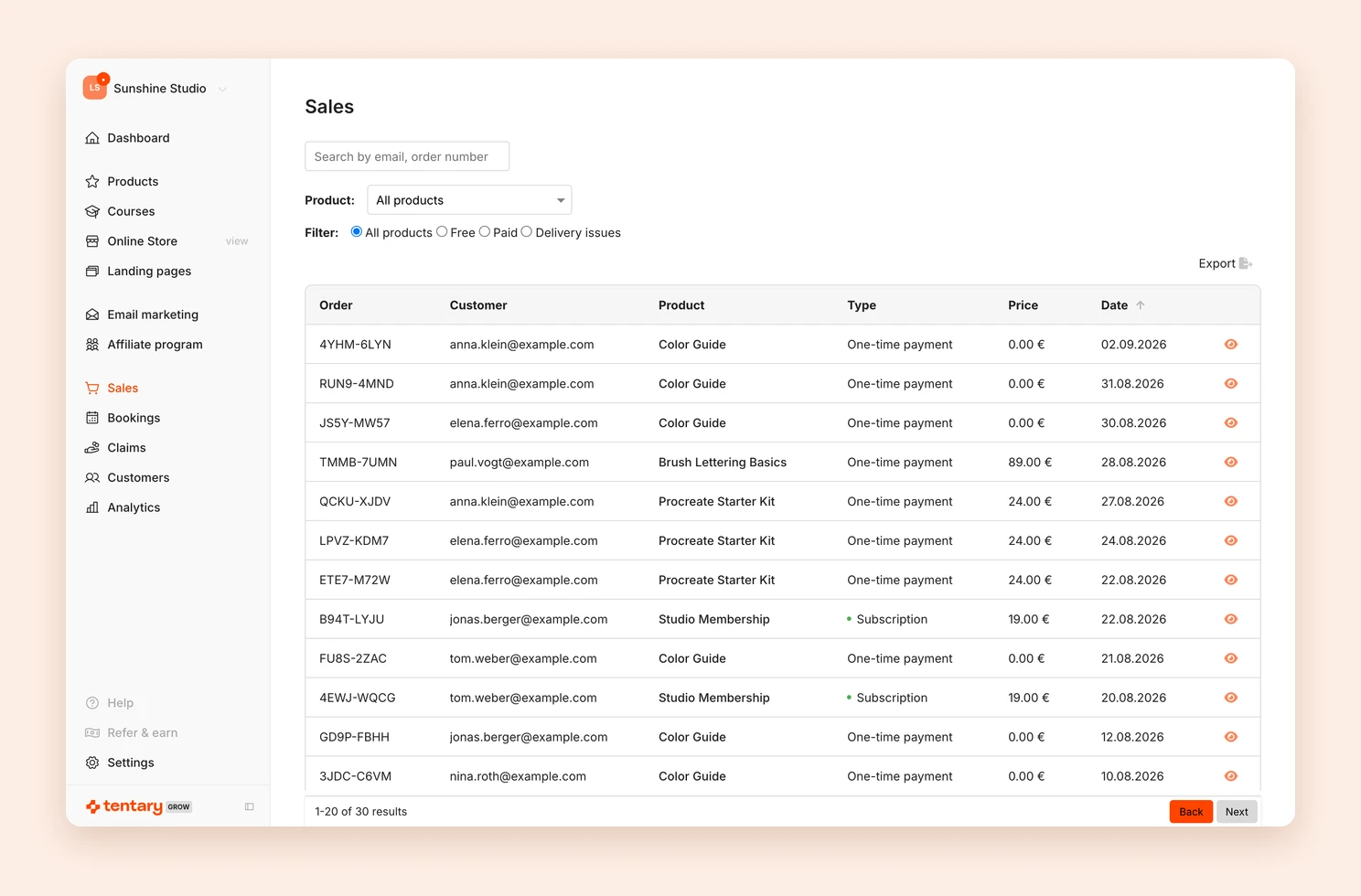
Open Sales in the menu. The list shows all orders with order number, customer, product, type, price and date. The type tells you whether it was a One-time payment, a Subscription, an Installment payment, an Order bump or an Upsell. If an order is still waiting for a bank transfer, it says Bank transfer pending.
Find and filter orders
- Search by email, order number: Enter an email address or an order number.
- Product: Shows only the orders of one product. If you choose an appointment booking, you also see the Meeting column with the booked time.
- Filter: Shows only Free or Paid orders. With Delivery issues you find orders whose purchase confirmation could not be delivered.
If you choose Paid, you can narrow it down under Paid product type to Subscription, Installment or One-time payment. For subscriptions you then filter by Subscription status, for example Cancelled / has access. For installment payments, Overdue under Installment payment status shows all orders with an unpaid installment.
Export sales
With Export you download your data as a CSV file, separated by commas or semicolons:
- Orders: one row per order.
- Payments: one row per payment. This is useful for subscriptions and installment payments, which consist of several payments.
The order details
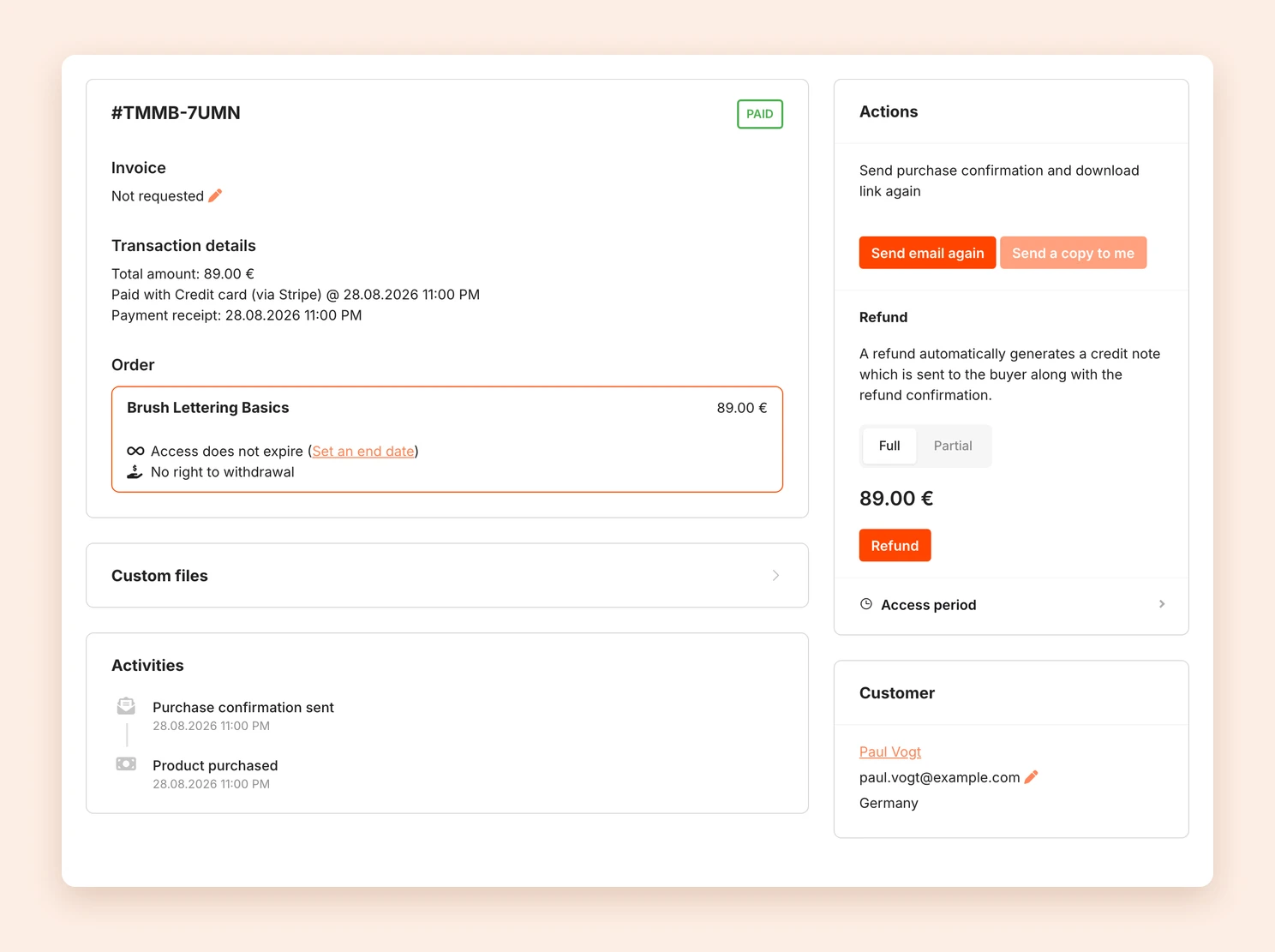
Click a row to open the order. There you find:
- Invoice: whether an invoice was created, with a download. If it is missing, you can create it afterwards.
- Transaction details: amount, payment method and time of payment.
- Order: the purchased product with variant, taxes and right of withdrawal. For courses you see the Course progress, for form fields in the checkout the Custom fields.
- Activities: the history of the order, for example when the purchase confirmation was sent or whether an email could not be delivered.
- Customer: name, email address and country. Click the name to open the customer page.
What you can do in an order
Under Actions and in the boxes below it, these options are available, depending on the order:
- Send email again or Send a copy to me: see Resend the purchase confirmation.
- Refund: Pay back the full amount or part of it. See Refunds and chargebacks.
- Delete purchase: Only for free orders. The purchase disappears from your reports, and for appointment bookings the slot becomes free again.
- Manage a subscription or installment payment: Cancel a subscription or collect outstanding installments. See Manage subscriptions and installments.
- Custom files: Give the person their own files. See Send individual files.
- Change the email address: Click the pen icon under Customer. See Correct a buyer’s email.
- Correct the invoice: See Correct an invoice.
Set an access period
Under Access period you decide until when the person has access to the product. This also works if the product was sold without an access duration. Next to the product it then says Access does not expire with the link Set an end date.
- Click Access period to expand it.
- Untick Access does not expire.
- Choose a date under Access until 23:59 on. The 30 days and 90 days buttons extend the period by that number of days.
- Click Save.
The person keeps access up to and including the chosen day. They are not notified about the change. Subscriptions do not have this setting, because their access follows the subscription. To set the access duration in the product itself, see Limit access duration.
Assign an affiliate
If an order came in without an affiliate link although someone from your affiliate program referred it, you can assign it afterwards. Click Assign affiliate, pick the person under Choose an affiliate and click Assign. The commission is created within a few minutes.
Redeem a voucher
If you sold a voucher, mark it as redeemed with Redeem / void once it has been used. Undo reverts this.
Last updated October 14, 2026