Forgot Password and Resetting It
Forgot the password for your Tentary account? Here is how to reset it in a few steps.
On this page
- Open the Tentary login and click Forgot password? above the password field.
- Enter the email address of your Tentary account and click Reset password.
- You receive an email from us with the subject Reset password. Click the Reset password button in it.
- Under Set new password, enter your new password. It needs at least 6 characters.
- Click Reset password. From now on you sign in with your new password.
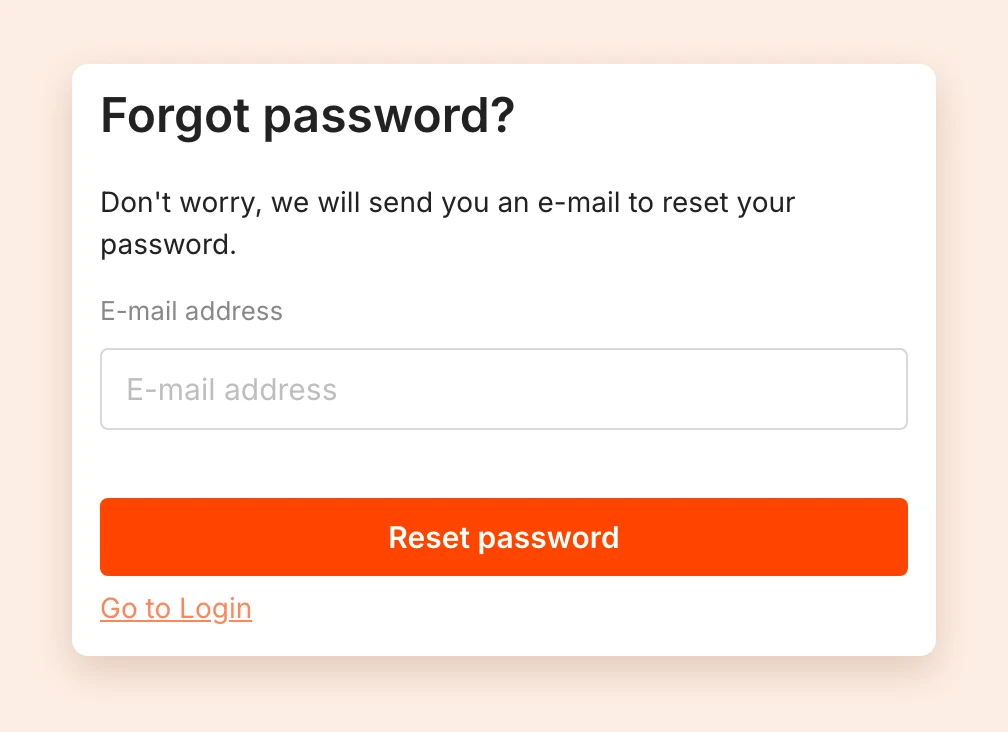
If you request the link more than once, only the link from the most recent email works.
Didn’t get an email?
If you see Password reset error! Please try again. after submitting, there is no Tentary account registered under this address. Check which address you signed up with. When you registered, we sent a confirmation email to that address, which you should find in your inbox.
If the address is correct, also check your spam folder. After several attempts in a short time, we block further requests for a while. In that case, wait a little and try again.
Passwords for team members
Team members reset their password the same way. They enter the email address they were invited to the team with. For team members, the link in the email is valid for one hour.
Tip: You still know your password and only want to change it? You can do that directly in your Account in the New password field. See Change email address.
Last updated October 13, 2026