Find and manage customers
Under Customers you find everyone who bought from you, signed up for your emails or was imported by you. The customer page shows everything about one person at a glance.
On this page
The customer list
Open Customers in the menu. For each person, the list shows Name, E-mail, the number of Orders, the Opt-in for your marketing emails and the date under Created on.
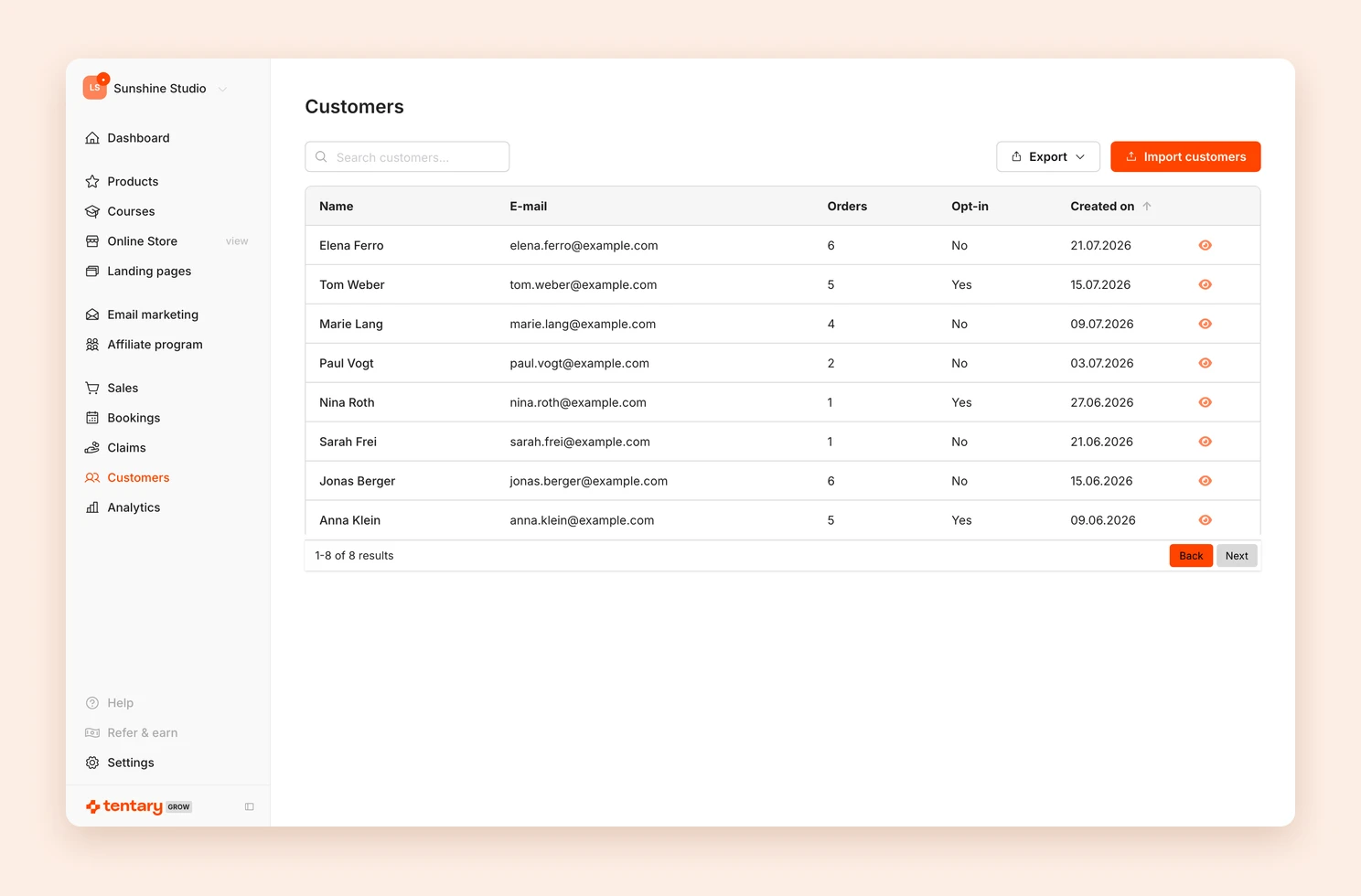
- Search customers…: Find a person by name or email address.
- Export: Downloads the list as a CSV file, separated by commas or semicolons.
- Import customers: Brings in customers from another platform. See Import customers.
A customer is created automatically with their first purchase or when they sign up for your newsletter. If the same person buys again, Tentary recognizes them by their email address.
The customer page
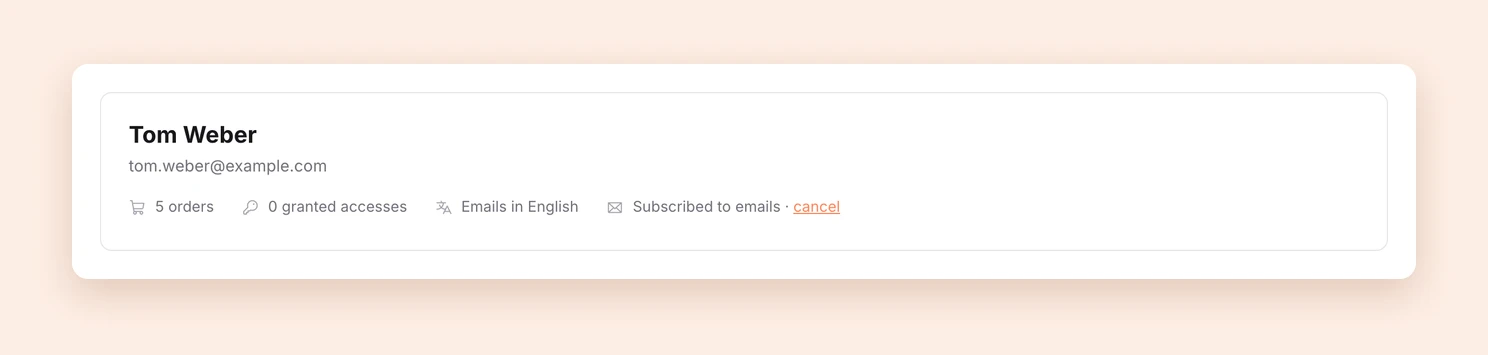
Click a row to open the customer page. At the top you see the name, the email address and a short overview:
- the number of orders and granted accesses,
- the language in which the person receives your emails, for example Emails in English,
- the status for your marketing emails.
Below that you find all Orders of the person, each linked to the order, and the Access section with products you unlocked without a purchase. To learn how, see Grant access manually.
Marketing emails
Next to the email status you find a matching link, depending on the situation:
- Subscribed to emails with cancel: Unsubscribes the person from your marketing emails.
- Not subscribed to emails with send opt-in manually: Sends the person an email with which they can sign up for your marketing emails. They are only subscribed once they confirm.
- opt-in pending with resend: Sends the confirmation email once more in case the first one got lost. This works once.
If it says Unsubscribed automatically due to delivery issues or spam complaint, Tentary could not reach the address, or the person marked one of your emails as spam. To learn more about your emails, see Email marketing.
Add to an automation
If the person is subscribed to your emails and matches the trigger of an active automation without being enrolled, the Add to automation section appears. This happens when you created the automation after their purchase or signup. See Add customers to automations.
Deactivate imported customers
If you imported a person and they have never bought from you, they count as one of your external customers. Their customer page then shows Deactivate.
After deactivating, data and course progress are kept. But the person no longer has access to your products, receives no emails and no longer counts towards your limit of external customers. Reactivate reverses this, as long as your plan has room. To learn more about the limit, see Import customers.
FAQ
How do I change a customer’s email address?
You do this in one of the person’s orders. See Correct a buyer’s email.
Last updated October 14, 2026