Connect Grok to Tentary
Connect Grok to your Tentary account. Then you ask Grok about your sales, customers and products and let it do tasks for you.
On this page
To learn what a connected AI app can do, see Connect AI apps to Tentary.
Before you start
- You are the owner of the Tentary account. Team members cannot connect apps.
- Your Tentary account is activated.
- Your browser allows pop-ups for grok.com. The sign-in to Tentary opens in its own window.
- In Grok Business and Enterprise, a team admin adds the connector in the xAI console.
Connect Grok
- In Tentary, open the page AI & API and copy the address of the MCP server at the top:
https://mcp.tentary.com/mcp - Open grok.com/connectors.
- Click New Connector and then Custom.
- Enter the address
https://mcp.tentary.com/mcp. - Grok opens a window with Tentary. Sign in with your Tentary login if you are not logged in yet.
Allow access: Grok is called “Cursor / Grok” here
The page where you allow access does not say “Grok”. Instead you see:
- Cursor / Grok wants to access your Tentary account
- Sends you back to www.cursor.com
- the warning This app registered itself. Tentary cannot check its name, so only continue if you started the connection yourself.
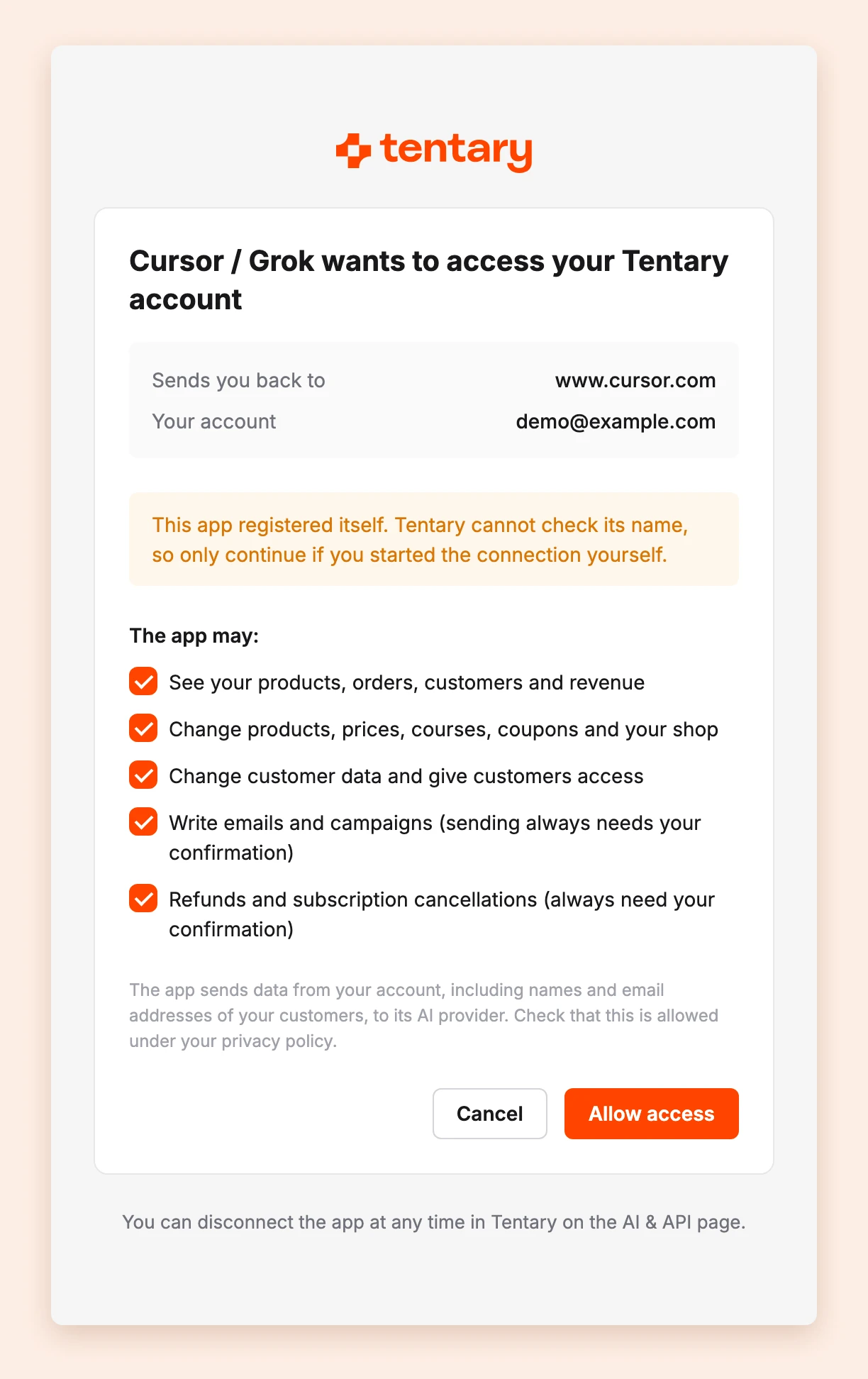
This is correct for Grok. Grok registers with Tentary under the name “Cursor” and the return address www.cursor.com. So Tentary cannot tell it apart from Cursor and shows it as “Cursor / Grok”. If you just started the connection in Grok yourself, you can continue.
- Check the permissions under The app may:. All are selected. You can clear some, but at least one must stay.
- Click Allow access.
Then you get the email New app connected to your Tentary account. Later, Tentary also calls Grok “Cursor / Grok”:
- on the page AI & API under Connected apps
- in the Activity log as “AI app: Cursor / Grok”
| Permission | What it allows |
|---|---|
| See your products, orders, customers and revenue | Look up everything and send feedback to Tentary |
| Change products, prices, courses, coupons and your shop | Change products, courses, coupons, HTML landing pages and legal texts |
| Change customer data and give customers access | Give and remove access to products |
| Write emails and campaigns (sending always needs your confirmation) | Write campaigns and automations |
| Refunds and subscription cancellations (always need your confirmation) | Refund orders, stop subscriptions |
There is more about permissions in the overview.
Important: Grok sends data from your account, including names and email addresses of your customers, to xAI. Check that this is allowed under your privacy policy.
What to ask first
- “How much revenue did I make last month, by product?”
- “Which customers bought my course this week?”
- “Create a 20% coupon for my course, valid until Sunday.”
Sending campaigns, switching automations on or off, archiving, deleting, refunds, cancellations and deactivating customers always need your confirmation in Tentary. See The confirmation in Tentary.
Disconnect
In Tentary, open the page AI & API and under Connected apps click Disconnect next to “Cursor / Grok”. Grok loses access at once.
Something does not work, for example the sign-in window does not open? See Solve problems with AI apps.
Note: The menus of Grok change often, and xAI can change how Grok registers with Tentary. We last checked this guide on 26 October 2026.
Last updated October 28, 2026