New product: Direct Link
You can easily insert a direct link into your Tentary shop to redirect customers to an external page. In this article, we’ll show you how.
On this page
Note: If you want to sell a link/access, check out this article instead. The product type Direct Link redirects customers directly to the external page you specify, without requiring payment.
Create a Product
To create a new product, navigate to the Products page. Then click on + New Product. A pop-up will appear where you can select the product type Direct Link. This product type is fixed and cannot be changed later.
Settings
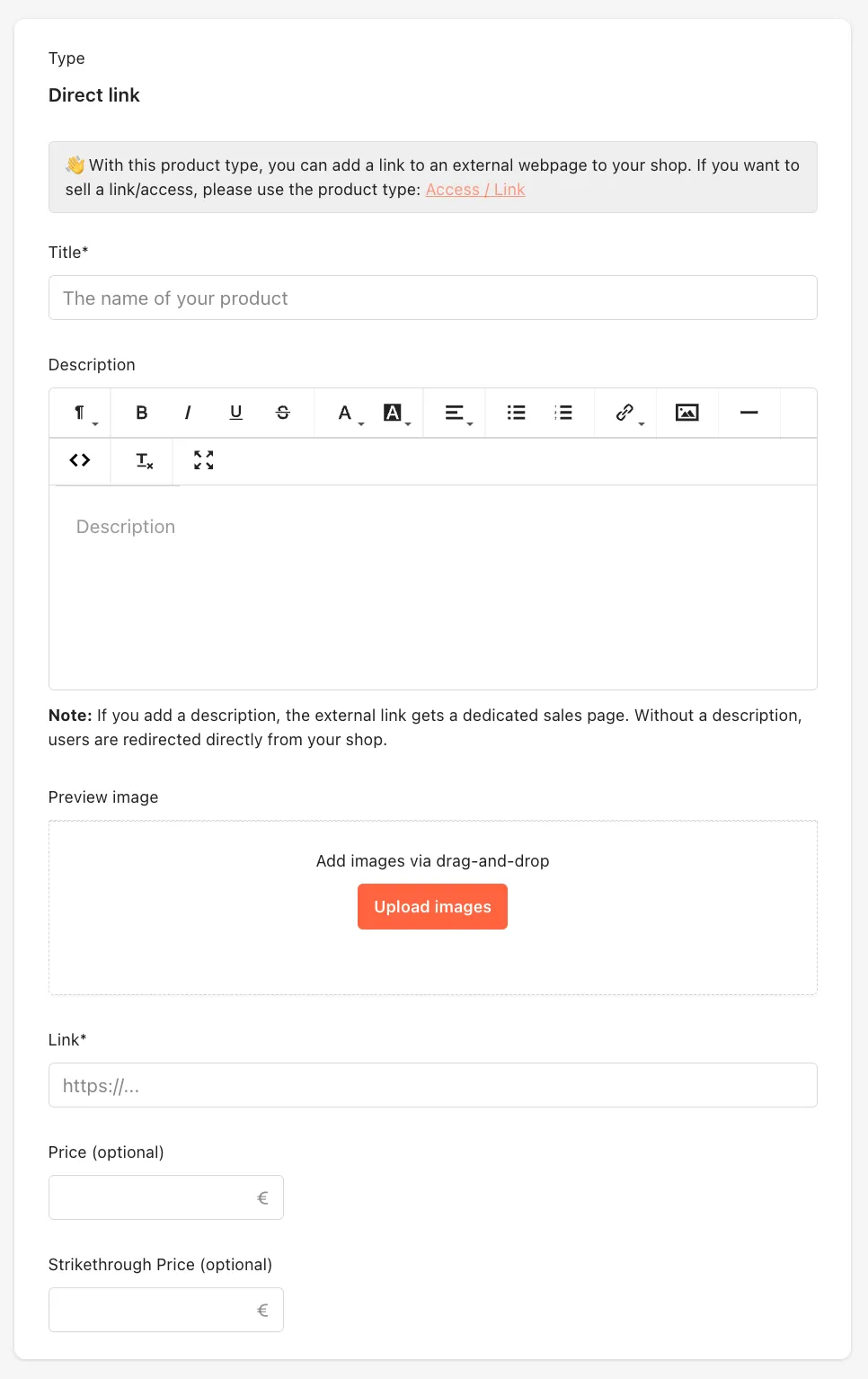
For your direct link, you can add a title, a description, a preview image, and the link itself, as well as assign a price and a discount price.
Title
Choose a suitable name for your direct link that clearly conveys to your customers where the link leads. A precise and appealing description increases the likelihood of your link being clicked.
Description
In addition to the direct link to another website, it is also possible to create a sales page on Tentary for this product type. If you want to use a sales page, you can enter its content in the description and use the buy button to redirect to the other website.
In the product description, you can format your text for a customized look. The following options are available:
- Various paragraph formats (paragraph, quote, headings 1–4)
- Text styling (bold, italic, underline, strikethrough)
- Text and background color palettes
- Alignment options (left, center, right, justified)
Additionally, the following features are available:
- Adding links to other websites
- Inserting a button with its own button text and target URL
- Embedding images\
Note: The description for uploaded images serves as the alt text. If no description is provided, the file name will be used as the alt text.
- Using a horizontal line to separate content
- Viewing and editing the HTML code
- Removing applied formatting
- Fullscreen mode/normal view
Preview Image
First impressions are often visual. Choose attractive and relevant images for your direct link.
To upload images, you can either drag and drop them into the Preview Image box or click the Upload Images button.
Note: The supported image formats are JPG, PNG, WEBP, GIF.
In the latter case, the menu of your computer or smartphone will open to select images for upload. Select one or more images and confirm the upload. You can put the uploaded images in your desired order by holding and dragging them.
Recommendation: If you’re looking for free images to use and edit for your product, we recommend Unsplash and Pixabay.
Link
Add the URL of the webpage you want to redirect your customers to.
Price
Even though this is a direct link that you’re not selling through Tentary, you can assign a price. This can be useful if you’re linking to an external online shop and want to display the price to your customers beforehand.
Discount Price
Use the discount price to indicate a reduced price.
Note: The discount price must be lower than the current price for it to be displayed.
Settings
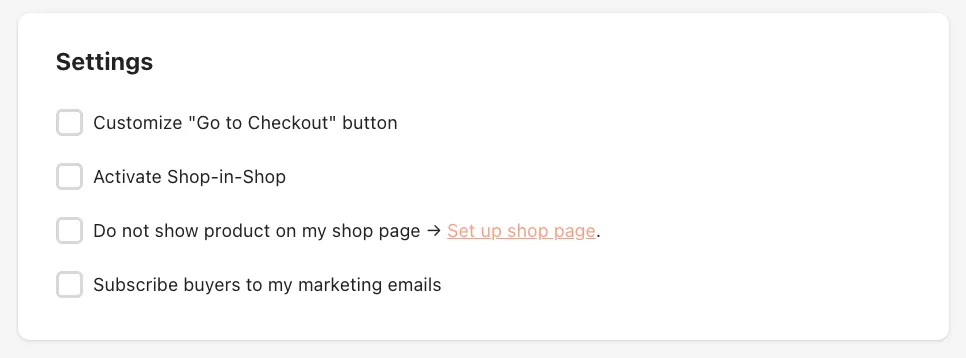
The following functions are available in this area.
Customize “Checkout” button
If you want to give the Checkout button, which links to the other page, a different name, you can enter a title for it here.
Activate shop-in-shop
If the linked product is a product from an affiliate program on our platform, you can use this option to embed the entire purchase process directly into your store - with your store design and under your (sub)domain.
The shop-in-shop integration ensures that the purchase is assigned to you as an affiliate partner, provided that no cookies are blocked by your customers.
Do not Show Products on my Shop Page
If you don’t want this product displayed in your shop (e.g., for targeted customers only), use this option.
Subscribe Buyers to my marketing emails
As soon as this setting is active, customers see a form before they are redirected to the external page. They enter their First name, Last name and Email, then click Subscribe to emails and continue to reach the external page. Further information on e-mail marketing at Tentary.
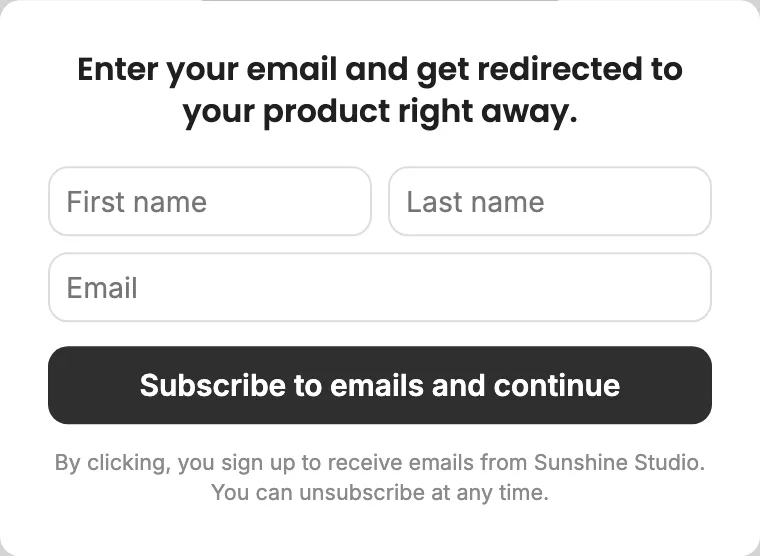
Every new sign-up receives an email to confirm the subscription (double opt-in). Only after that can you send them emails.
Also tick Customize the sign-up form if you want your own wording. For this product you then set:
- Title (max. 85 characters): the heading above the form
- Button text (max. 30 characters): the label on the button
Leave both fields empty and Tentary uses the default wording.\
Save
Click Save to save your content or changes.
Note: Your direct link will not automatically be published in your shop. To do so, you must set the product status to Live and then save it again. More information can be found in the article Creating, Saving, and Publishing a New Product.
Last updated June 6, 2025