Create, save and publish a new product
In the following article, we will show you how to create, save and publish a product.
Create a product
To create a new product, navigate to the products page. Then click on + New product. A pop-up will open where you can select the product type. The product type influences a few basic functions and options of the product and cannot be changed afterwards. As soon as you have selected the product type, you can design your product.
Step-by-step instructions
You can find out exactly how this works in the following articles:
- Link/Access
- Digital download
- Online Course
- Direct link
- Appointment Booking
- Newsletter
- Product bundle
Save, publish and test your product
Save To save your new product or changes to your product, click on the orange Save button in the top right corner or at the bottom of the product page. Changes are not be saved automatically. Publish
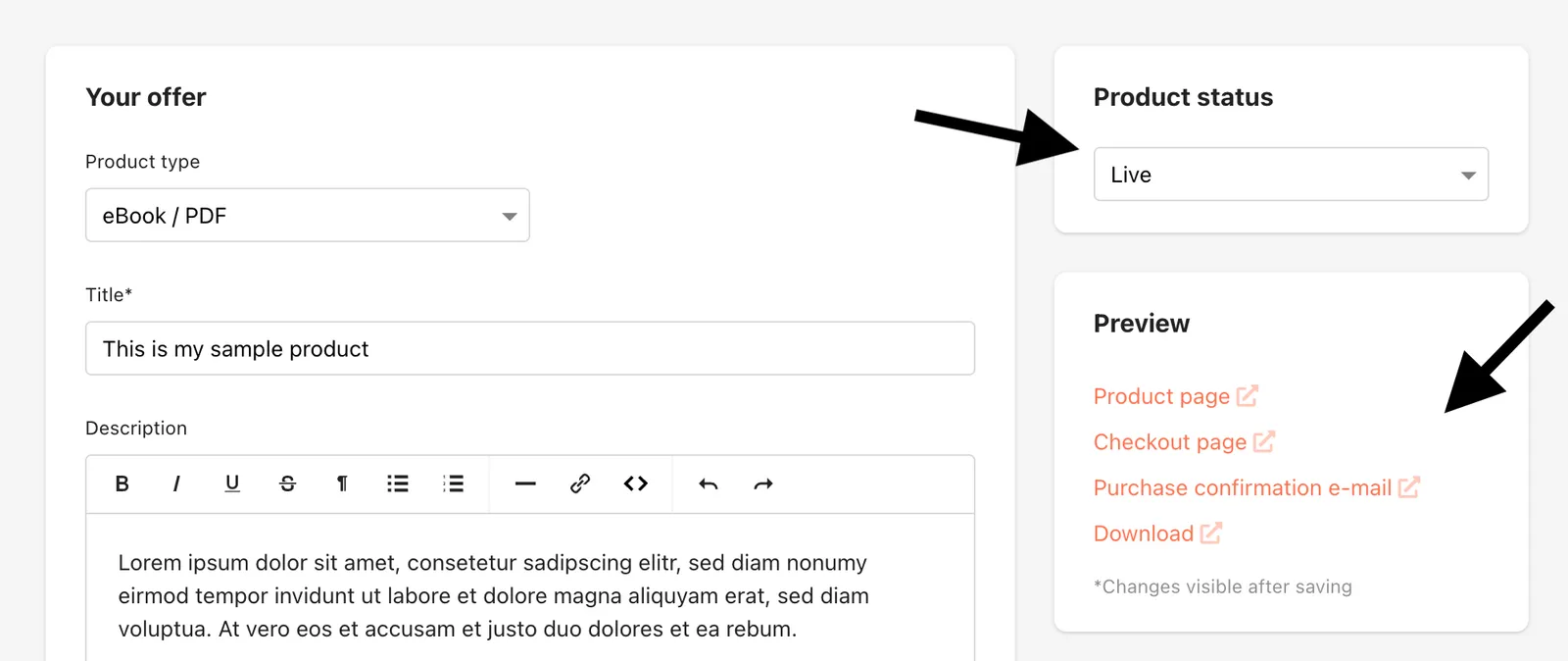
To get a shareable link to your product page and to make your product visible to buyers, you have to publish your product first. To do this, change the product status from Draft to Live and save. After saving, you will see the public link to your product. You can include the link on your website or share it on social media, for example.
Note: You must have at least one payment method successfully configured to be able to publish products. If this is not the case, you will see a hint on the product page. Testing After saving your product draft, you can preview the sales page, purchase confirmation e-mail and product page. To do so, click on the corresponding links in the preview box. This way you don’t have to do any test purchases, but you can directly preview all pages of the purchase process.
Last updated December 20, 2024