Invoicing for sales
Learn when Tentary creates invoices for your sales, how to set this up, what the invoices contain and where to find them.
On this page
When Tentary creates an invoice
You decide when your customers receive an invoice. Open your Settings and click Billing address in the Account area. Under Invoices for your sales you have three options:
- Invoice on request (default): Buyers can request an invoice during checkout. Only then do they enter their address.
- Ask for the billing address on every sale and create an invoice: Every buyer enters their address during checkout and receives an invoice with the purchase. The extra field can lower your conversion.
- Do not create invoices: For sellers who issue their invoices somewhere else, for example in their accounting software. See below.
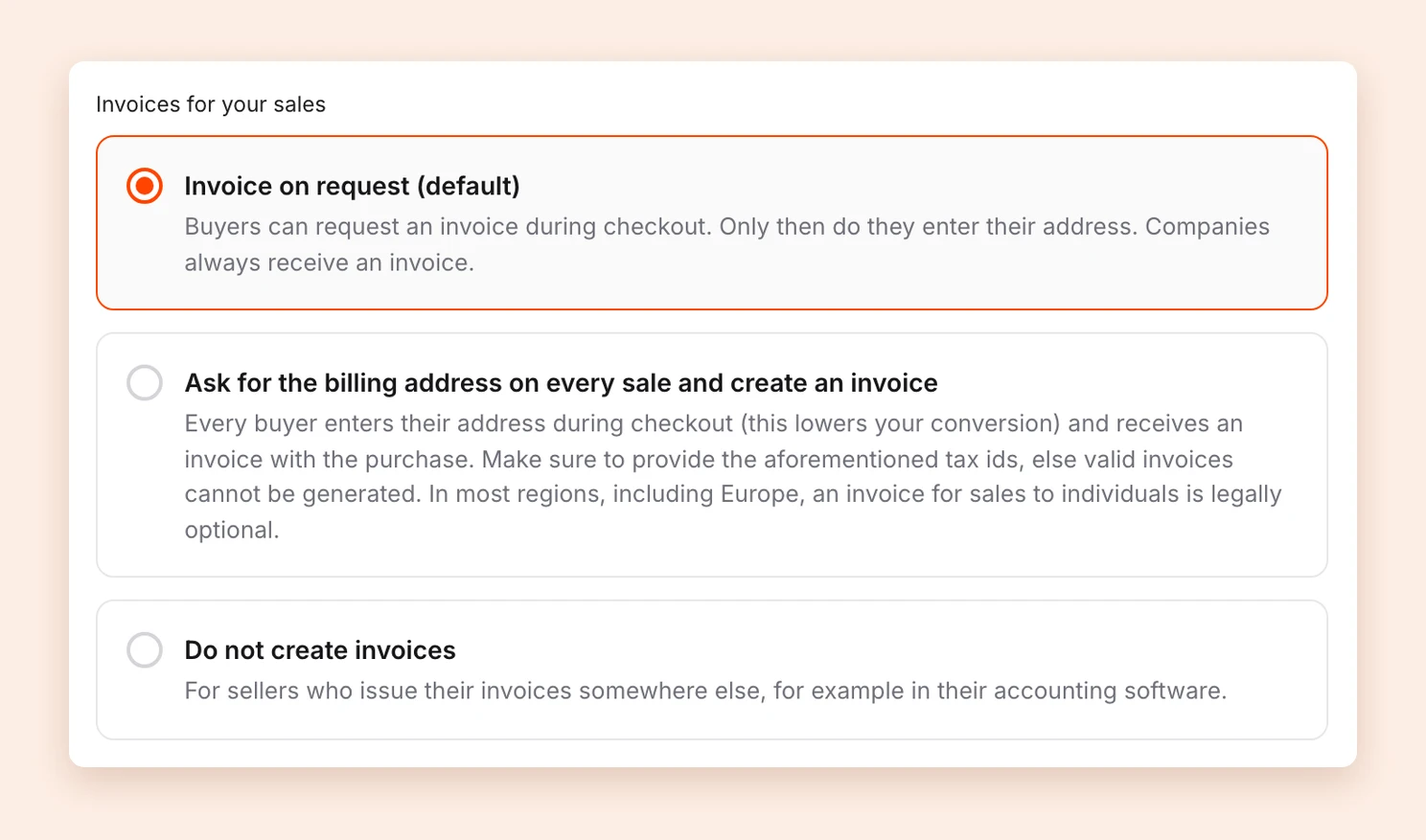
Companies that buy from you always receive an invoice, unless you chose Do not create invoices. In most countries, including Europe, an invoice for sales to individuals is legally optional.
For Tentary to issue invoices in your name at all, you need to save a tax number or VAT ID. Without one, your customers cannot request an invoice. See tax number and VAT ID.
The invoice is sent as a PDF attached to the order confirmation. If you sell to companies in Germany, Tentary also creates an E-Rechnung automatically.
Not creating invoices through Tentary
If you prefer to issue your invoices yourself, for example in your accounting software, choose Do not create invoices. Then confirm I understand this and issue the invoices myself. and save.
From then on, Tentary no longer creates invoices for your sales, including the E-Rechnung and the credit notes for refunds. This also applies to renewals of running subscriptions. Invoices that already exist stay available. Tax calculation, reverse charge and all billing data in your orders stay unchanged, and you still receive your own invoice from Tentary.
If your accounting software needs the addresses of your buyers, also switch on Still ask for the billing address during checkout. Without it, only companies enter an address.
Note: Even with this setting, you can create an invoice by hand for a single order at any time. See send an invoice later.
What an invoice looks like
You can see a sample of your invoice in your settings under Invoice design & numbering. That is also where you set the color, the logo and your own invoice numbers. See invoice design and custom invoice numbers.
Every invoice contains all required details, for example the invoice number, the names and addresses of sender and recipient, and the issuer’s tax number. It also lists the net and gross amounts with the VAT shown.
Where needed, the invoice carries a VAT note, for example:
- Note: VAT rate of the country of the service recipient for the OSS procedure
- Note: Reverse charge procedure: Tax liability of the recipient of the service for sales to companies in other EU countries
- Note: No sales tax, since service recipient outside the EU for sales outside the EU
- your own note if you use the small business regulation
Every invoice also shows its status: Paid, Not paid (for example for a SEPA direct debit that has not completed yet) or Installment payment, first installment paid.
Where to find your invoices
- In the order: Open the order under Sales. In the Invoice section you see Buyer requested an invoice, and next to it you can download the invoice as a PDF and, where applicable, as an E-Rechnung.
- In your accounting: All invoices to your customers are collected under Your invoices to customers. See where to find your invoices and sales.
If you need to change an invoice afterwards, see correct an invoice.
Last updated October 13, 2026