Landing page settings
In the Settings tab of the builder, you publish your page and set its URL, the SEO details, custom code, sharing as a template and making it available to affiliates.
On this page
The Settings tab has five areas.
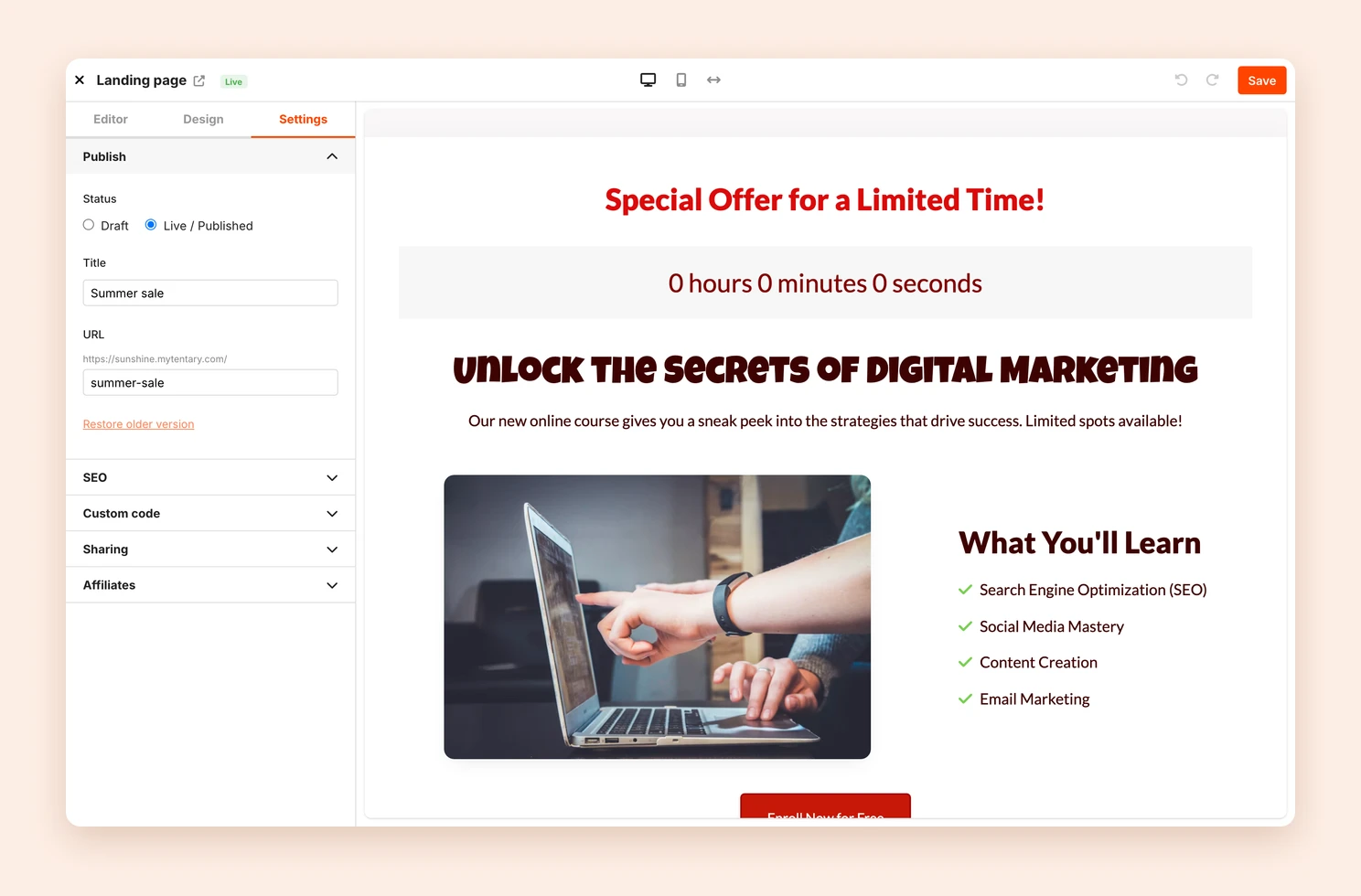
Publish
- Status: While the page is set to Draft, anyone who opens the URL lands on your shop. With Live / Published, it is publicly available.
- Title: An internal name for the overview.
- URL: The path of the page. If your shop address is myshop.mytentary.com and you choose summer-sale, the link is myshop.mytentary.com/summer-sale.
Some paths belong to your shop, for example /shop and /login. If you choose one of them, Tentary saves the page under a different path and shows you a note.
If you change the URL of a published page, there is no redirect. Anyone who opens the old address then lands on your shop.
Restore older version brings back an earlier state of your page.
SEO
Here you set the Page title and Page description for search engines. The Sharing image appears when you share the link in most apps.
Custom code
Here you add JavaScript, CSS or HTML for this page only. The Header field goes at the end of the <head>, the Footer field at the end of the <body>. Faulty code can affect your page.
To learn more, see Add custom code.
Sharing
Activate sharing allows other Tentary users to use your page as a template. After you save, the Sharing link appears, which you can pass on. Your own page stays unchanged.
Affiliates
Available for affiliates makes the page available to your affiliates. It then appears in their affiliate hub. If someone buys through the page, the purchase is attributed to that affiliate. To learn more, see Affiliate marketing for merchants.
Frequently asked questions
Can a landing page be my home page?
Yes. Under Online Store › General, select a published landing page under Home page. It then appears directly at your shop address.
Last updated November 6, 2026