Buy buttons, images and legal texts in your own HTML
An HTML page is a blank sheet for your code. Here you learn how to link products, add images and include your legal texts.
On this page
Add a buy button
A buy button is a normal link to your product:
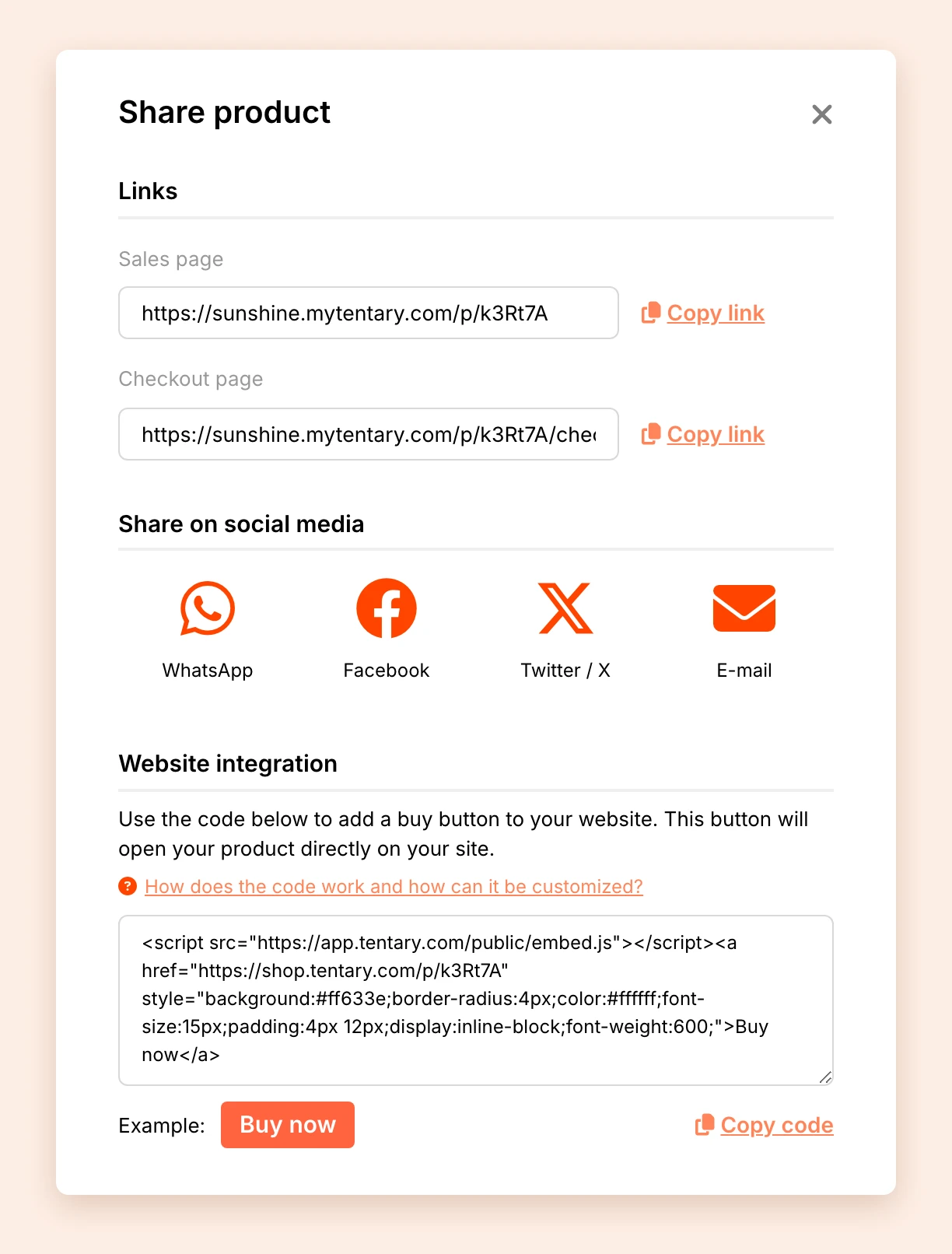
- Open Products in the menu and click Share next to the product.
- In the Links area, click Copy link at Sales page or Checkout page.
- Put the link into your code or give it to your AI tool.
<a href="https://myshop.mytentary.com/p/ABCDEF/checkout">Buy now</a>Which link you use depends on your page:
- Checkout page: Whoever clicks can pay directly. This suits a landing page that already explains the product in full.
- Sales page: Whoever clicks first sees the description of your product.
The links in the Links area start with your shop address. Use them also if you work with affiliates, because this lets Tentary attribute purchases through your page to the right affiliate.
Tip: Add
?coupon=and a code to the link, for example…/checkout?coupon=SOMMER25. The discount then applies automatically. To learn more, see Discount codes.
If you want the sales page to open as a pop-up on your page, use the code in the Website integration area. To learn more, see Share products. For a free product, there is the embed script. For a newsletter signup, use the email signup form.
Add images
An HTML page has no image upload. So you add images with their address:
<img src="https://your-website.com/images/title-image.webp" alt="Description of the image">You have three options:
- Public address: The image sits at a service of your choice, for example your web hosting, and can be opened there without a login. This is the best way for most pages.
- Connected AI app: An AI app connected to Tentary can upload images to Tentary and put them directly into your page. This works with PNG, JPG, GIF and WebP up to 10 MB.
- Directly in the code: You can also embed an image in the code as Base64 text. This counts toward the 1 MB limit, though. So only use this way for very small images such as an icon.
Link your legal texts
Your HTML page only contains your code, so it has no Tentary footer either. So add links to your legal notice and privacy policy yourself.
Use the legal texts you set up under Legal texts & withdrawal. To learn more, see Setting up Terms of Service, Return and Refund Policy, Privacy Policy and Contact. You find the addresses like this:
- Open your shop or the sales page of a product.
- At the bottom, click the link to the legal text, for example the legal notice.
- Copy the address from your browser’s address bar.
Last updated November 6, 2026