Customize the design of your emails
Decide how the emails from your shop look: with your logo or a header image, your font and one of four layouts.
Where to find the email design
Open your Settings and click Email design in the Email area. On the left you set the design, on the right the Preview shows right away how your emails look with it.
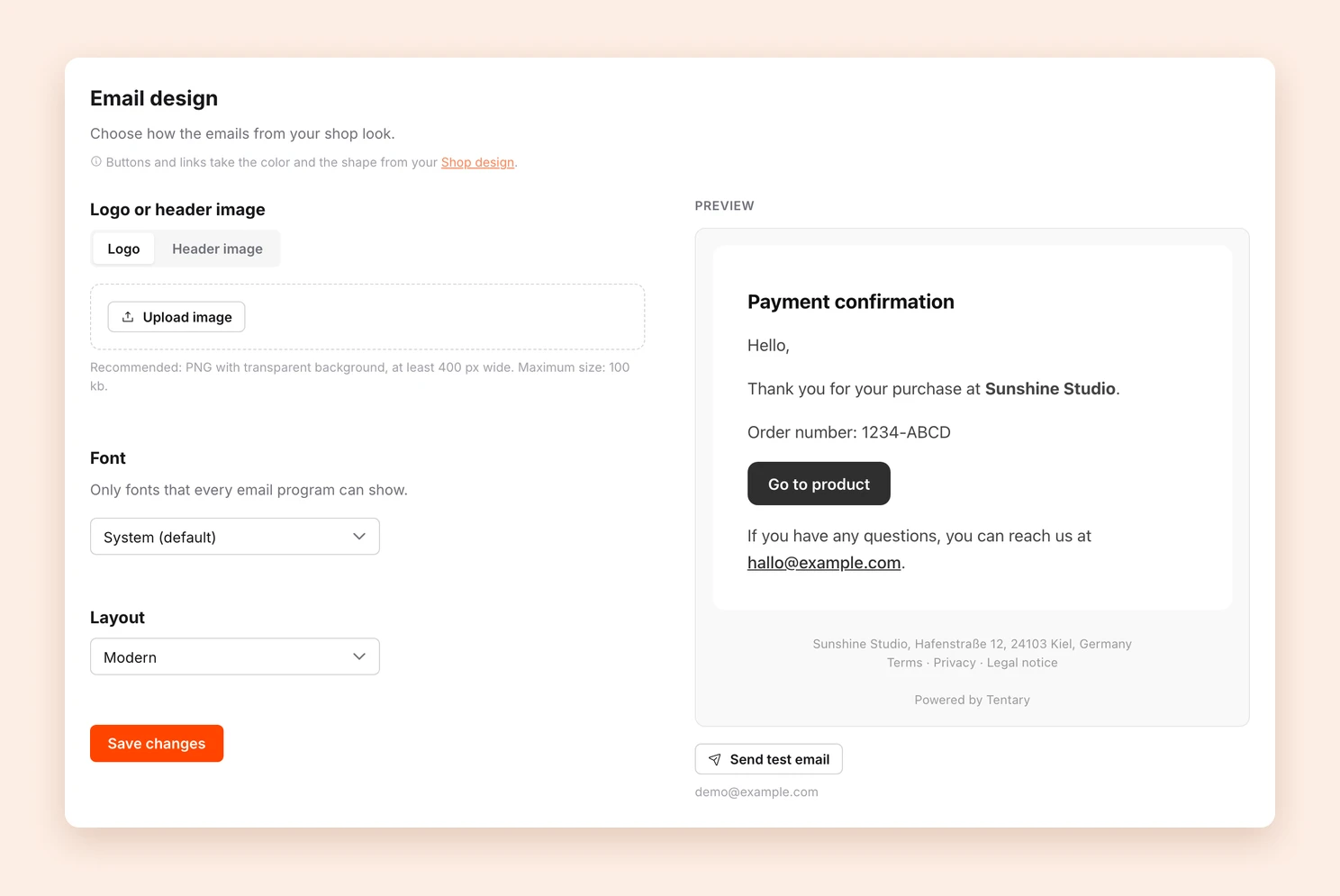
The design applies to every email your customers receive from you, for example purchase confirmations and your campaigns.
Logo or header image
Under Logo or header image, choose what appears at the top of your emails:
- Logo: a small logo. We recommend a PNG with a transparent background, at least 400 px wide and no larger than 100 kb.
- Header image: a wide image across the whole email. We recommend 1200 x 400 px at no more than 300 kb.
Click Upload image to choose an image. If you upload nothing, your emails start with the text, without an image.
Font and layout
Under Font, choose the font for your emails. Only fonts that every email program can show are available. That way your emails look the same everywhere.
Under Layout, choose one of four layouts: Modern, Classic, Minimal or Accent. Just try them out, the preview changes right away.
Buttons and links in your emails take their color and shape from your Shop design. To change them, adjust them there.
Finally, click Save changes.
Sending a test email
With Send test email below the preview, Tentary sends a sample purchase confirmation to the email address of your account. That way you see how your emails arrive in your own inbox. Save your changes first, so the test email already includes them.
Tip: You choose which address your emails come from under Sender address, and where your customers’ replies go under email address for customer inquiries.
Last updated October 13, 2026