Create order bumps
With an order bump, you offer a matching extra product on the checkout page. Your customers add it to the order with one tick and pay for everything together.
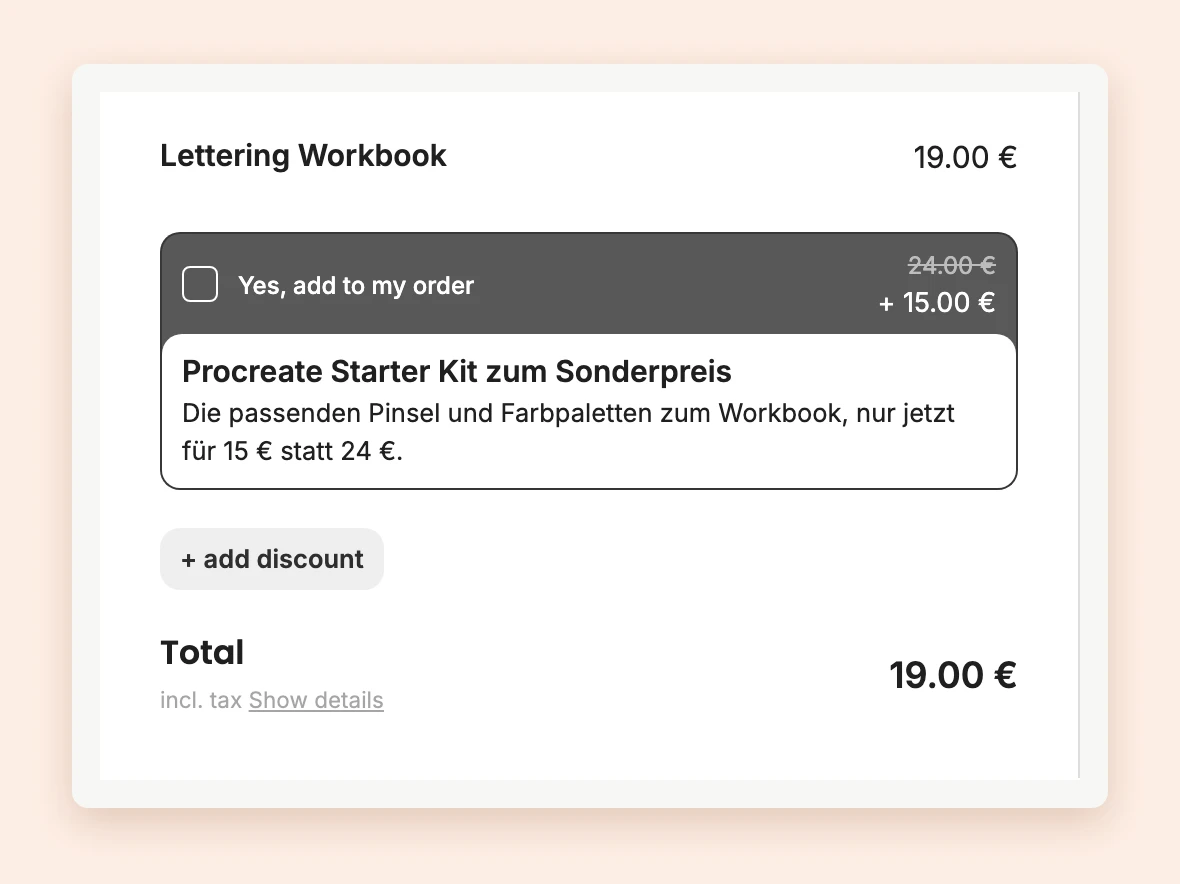
An order bump appears right on the checkout page, in the order summary below the product being bought. With one tick, your customers add the extra product to their order without leaving the page. Because they have just decided to buy, many happily take a matching offer along.
Create an order bump
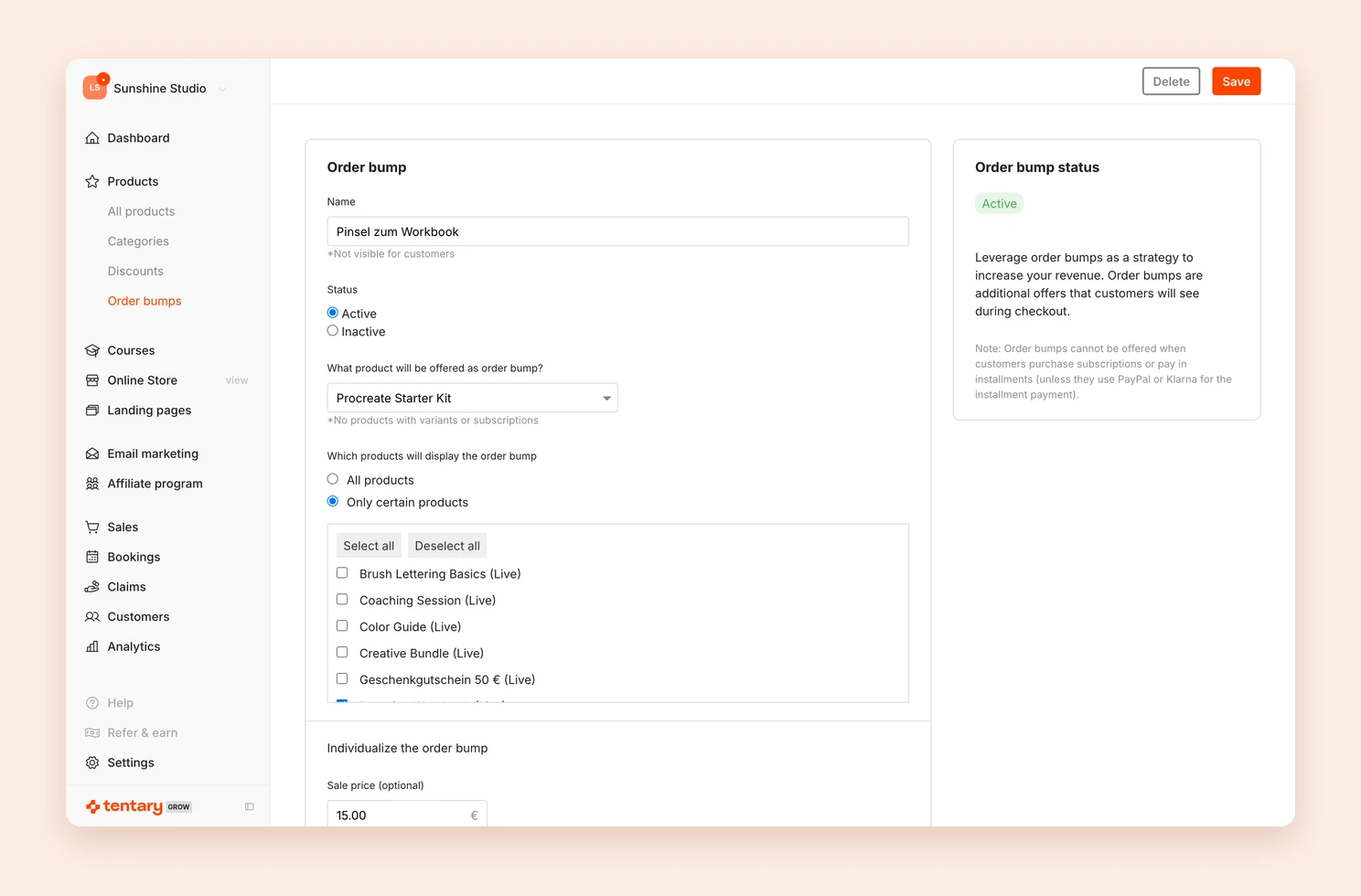
- Open Products › Order bumps in the menu and click + New Order Bump.
- Give the order bump a Name. Only you see it.
- Set the Status to Active. An inactive order bump does not appear on the checkout page.
- Under What product will be offered as order bump?, choose the extra product.
- Under Which products will display the order bump, choose All products or Only certain products.
- Adjust the offer under Individualize the order bump, see below.
- Click Save.
Design the offer
- Sale price (optional): a special price just for the order bump. Without it, the product’s normal price applies.
- Sale title (optional): a title of your own. Without it, the product’s title is shown.
- Description: a short text that explains the offer.
- Order bump checkbox text: the text next to the tick box. The default is Yes, add to my order.
- Hide product image: shows the order bump without an image.
The Order bumps overview shows the Revenue and Sales each order bump has brought in.
What to keep in mind
- Only products without variants and without a subscription can be order bumps.
- If someone buys a subscription or pays by installments through Tentary, no order bumps appear. Installments through PayPal or Klarna are not affected.
- A paid order bump also appears on free products. If someone selects it, the payment methods appear automatically.
What happens after the purchase
Your customers pay for everything in one step. Afterwards, they receive a separate purchase confirmation with an access link for each product, and a separate invoice if they asked for one.
In your sales, each product appears as its own row with the type Order bump. All products of one purchase share the same order number. You can refund everything or single products, see Refunds and chargebacks.
Tip: To show further offers after the purchase, use upsells and downsells.
Last updated October 15, 2026