Locking content until a lesson is completed
With Lock you release a lesson or a whole module only once a particular lesson has been completed, so everyone moves through the course in the order you intend.
First switch on progress
Locking works off learner progress, so the course needs progress tracking turned on before it does anything.
Open your course, go to the Settings tab and switch on Show learners a progress bar and mark lessons complete as they finish them in the Progress section.
Without it you can still create a lock, but it will not be enforced. The dialog says so when this is the case.
Setting a lock
-
Open your course and click the status of the lesson or module in the course outline, for example Published.
-
Choose Lock from the menu.
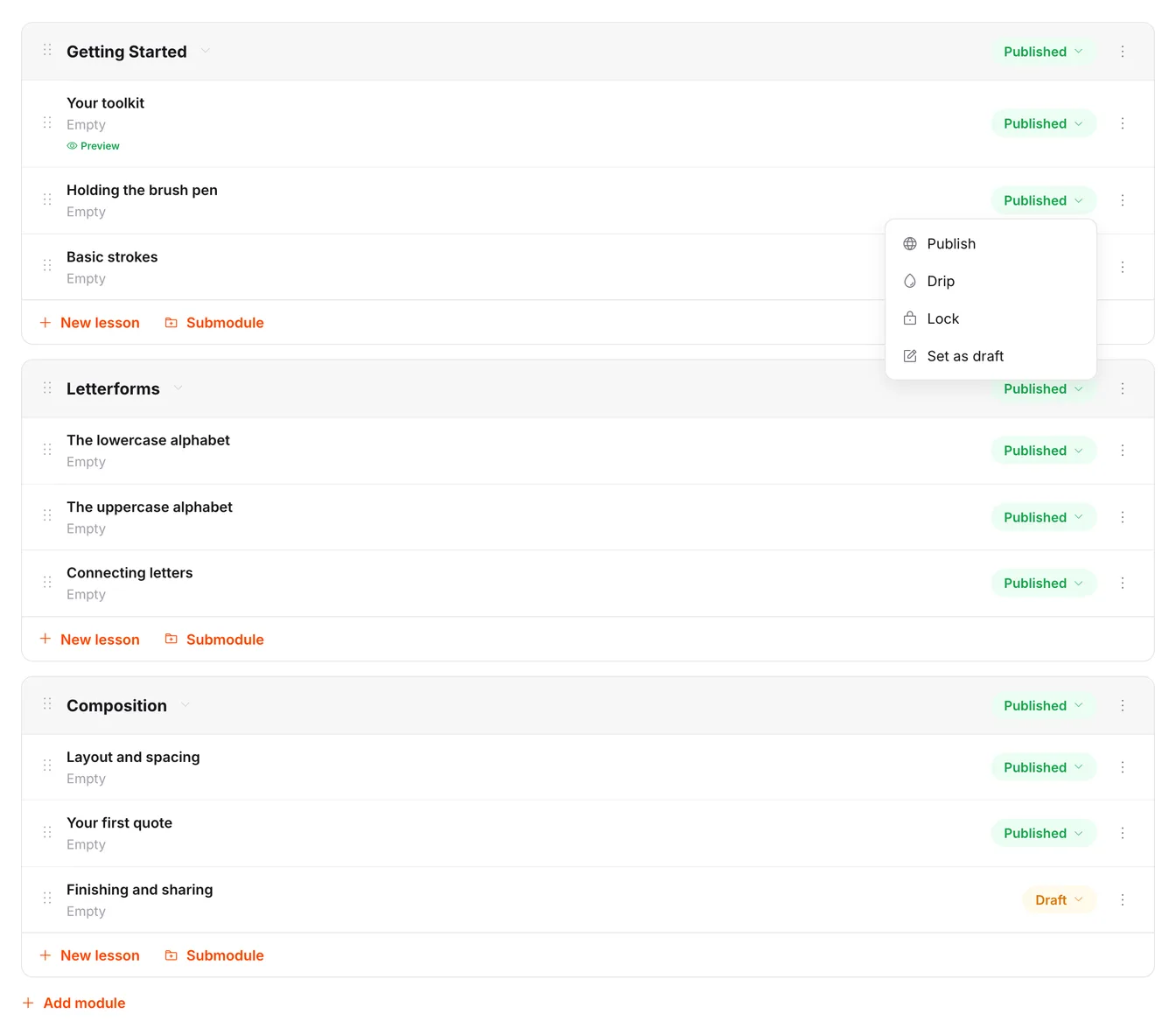
-
Under Prerequisite lesson, pick the lesson that has to be completed first.
-
Click Lock.
The outline then shows what that item is waiting for.
Whole modules or single lessons
As with drip, you can lock either:
- A module: everything inside stays locked until the prerequisite is completed. This releases whole chapters in order.
- A single lesson: only that lesson waits.
Lock or drip?
Both sit in the same menu but answer different needs:
- Lock depends on what someone has already finished. Faster learners get ahead sooner.
- Drip depends on time. Everyone waits the same length, whatever their progress.
You can combine the two. A module that starts 7 days after purchase and also requires the introduction opens only once both are satisfied.
Tip: Use locks sparingly. A single lock at the start of each module keeps the course in order without leaving participants in front of closed doors all the time.
Last updated September 4, 2026