Connect Claude Code to Tentary
Connect Claude Code to your Tentary account. You need an API key and one command in the terminal.
To learn what a connected AI app can do, see Connect AI apps to Tentary.
Before you start
- You are the owner of the Tentary account. Only you can create API keys.
- Claude Code is installed on your computer.
Create an API key
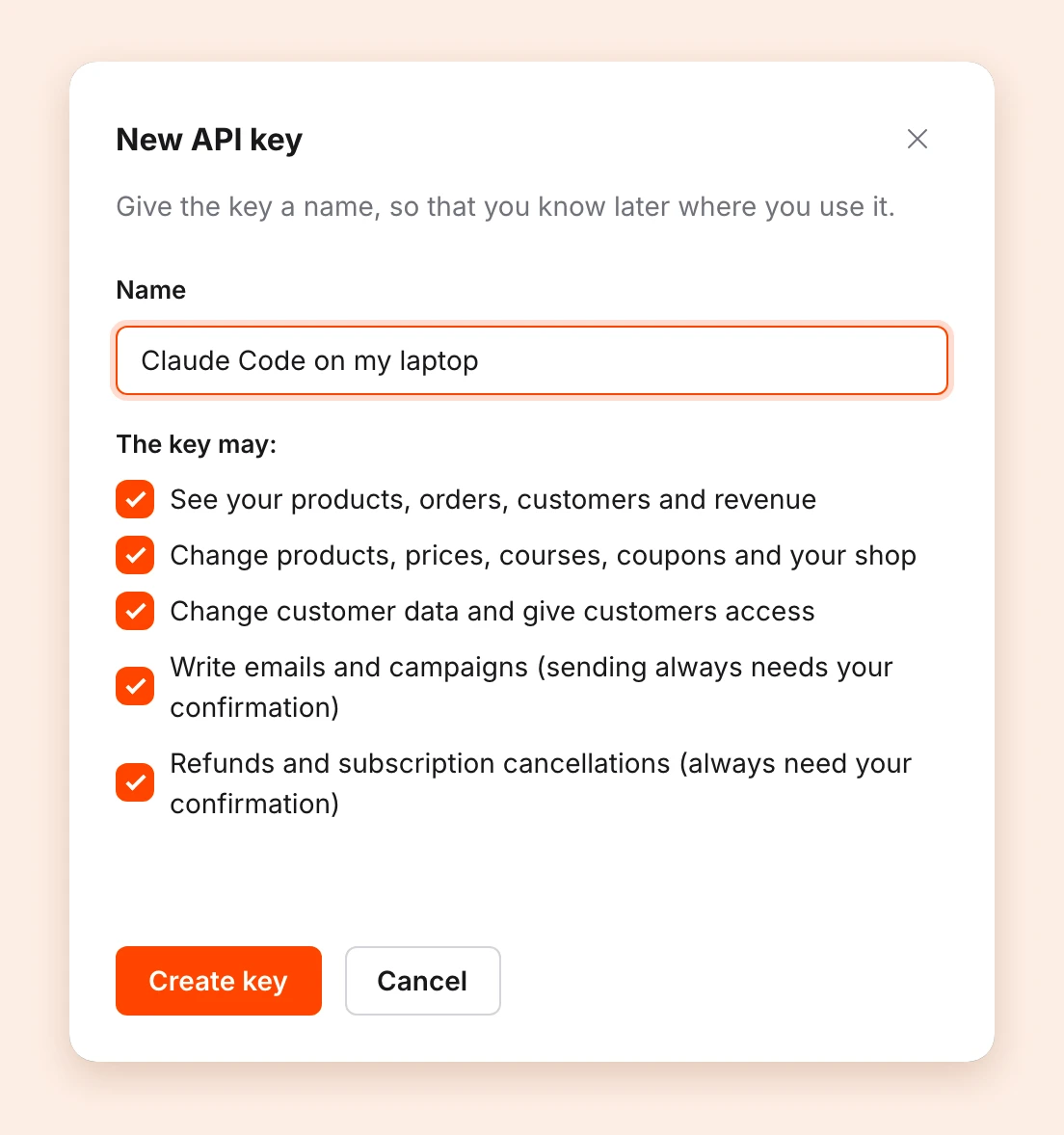
- In Tentary, open the page AI & API and click New API key.
- Give the key a name, for example “Claude Code on my laptop”.
- Under The key may:, choose the permissions. All are selected by default.
- Click Create key.
The window Your new API key shows the key. Copy it now, you will not see it again. For each new key you get the email New API key for your Tentary account.
| Permission | What it allows |
|---|---|
| See your products, orders, customers and revenue | Look up everything and send feedback to Tentary |
| Change products, prices, courses, coupons and your shop | Change products, courses, coupons, HTML landing pages and legal texts |
| Change customer data and give customers access | Give and remove access to products |
| Write emails and campaigns (sending always needs your confirmation) | Write campaigns and automations |
| Refunds and subscription cancellations (always need your confirmation) | Refund orders, stop subscriptions |
There is more about permissions in the overview.
Connect Claude Code
Run this command in your terminal and replace YOUR_API_KEY with your key:
claude mcp add --transport http tentary https://mcp.tentary.com/mcp --header "Authorization: Bearer YOUR_API_KEY"It is easier directly in the window Your new API key: under Use it in your app you find the same command, with your key already in it.
Then start Claude Code and ask your first question.
Important: Claude Code sends data from your account, including names and email addresses of your customers, to Anthropic. Check that this is allowed under your privacy policy. Keep your API key secret: it can read and change your data.
What to ask first
- “How much revenue did I make last month, by product?”
- “Which customers bought my course this week?”
- “Upload the workbook from this folder and add it to my course as a new lesson.”
Sending campaigns, switching automations on or off, archiving, deleting, refunds, cancellations and deactivating customers always need your confirmation in Tentary. See The confirmation in Tentary.
Disconnect
In Tentary, open the page AI & API and under API keys click Revoke next to the key of Claude Code. Claude Code loses access at once.
An API key does not expire by itself. It works until you revoke it or change your password or login email address. After that, create a new key. Claude Code still has the entry tentary, so remove it first and then add it again. Replace YOUR_API_KEY with the new key:
claude mcp remove tentary
claude mcp add --transport http tentary https://mcp.tentary.com/mcp --header "Authorization: Bearer YOUR_API_KEY"
Something does not work? See Solve problems with AI apps.
Note: The commands of Claude Code can change. We last checked this guide on 26 October 2026.
Last updated October 28, 2026