Create and redeem discount codes
Discount codes give your customers a reduction on your products. You decide how big it is, which products it applies to and for how long.
On this page
A discount code takes off either a percentage, for example 10%, or a fixed amount in your shop currency. It can apply to all products or only to some.
Tentary calculates VAT on the reduced price automatically, and the discount appears on the invoice. The order and your sale notification show which code was used.
Create a discount code
- Open Products › Discounts in the menu and click + New Code.
- Enter the Code your customers type in, for example
SUMMER25. The icon with the two arrows next to it generates a code for you. - Enter the amount under Discount and choose a fixed amount or a percentage under Type.
- Under Discount code applicable to, choose All products or Only certain products and tick the products you want.
- Click Save.
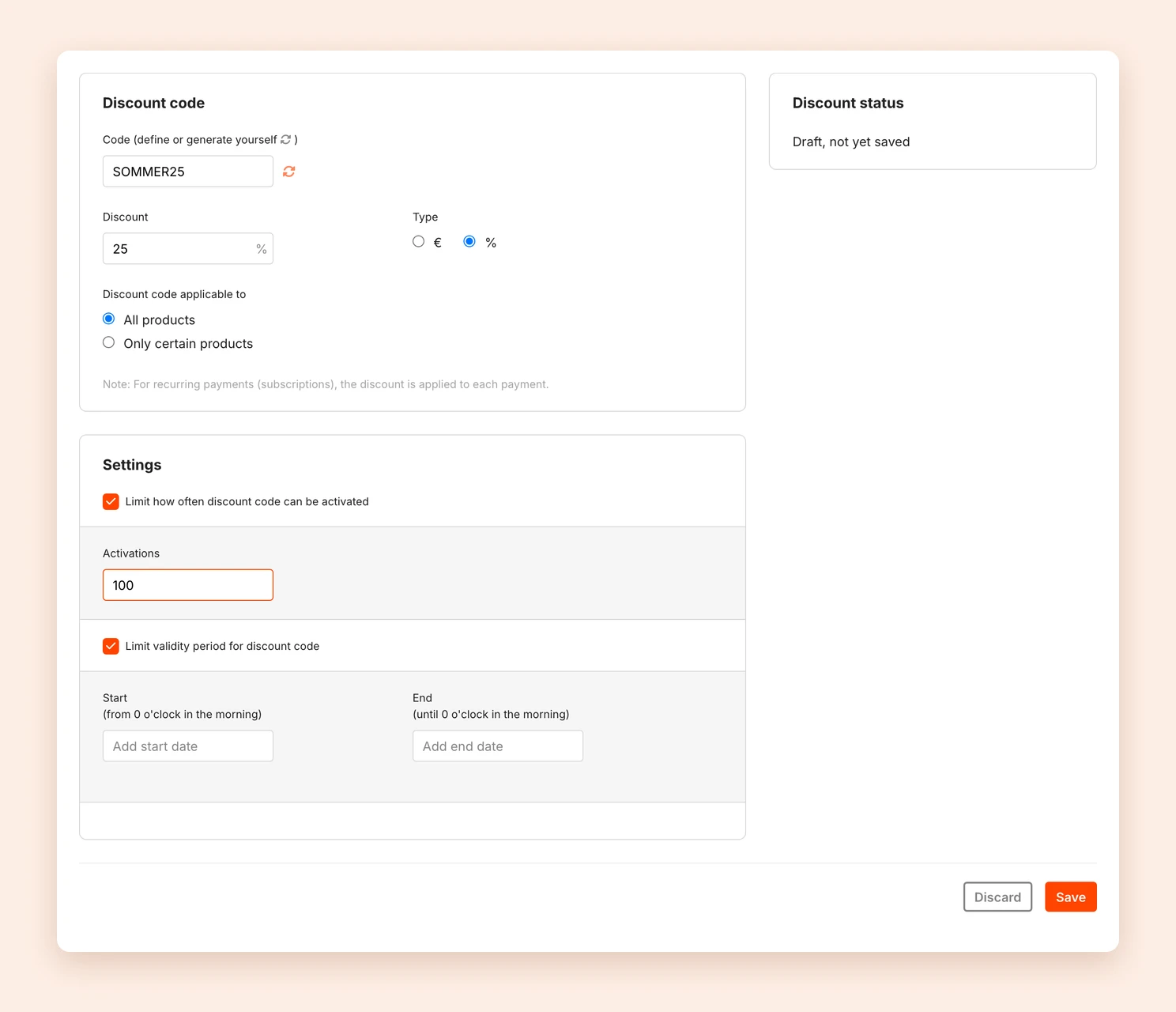
Note: For subscriptions, the discount applies to every payment, not just the first one.
Limit redemptions and the period
Under Settings you can restrict the code further:
- Limit how often discount code can be activated: Enter under Activations how often the code can be redeemed in total. You cannot limit how often a single person uses it.
- Limit validity period for discount code: Set a Start and an End. The code is valid from 0:00 on the start day until 0:00 on the end day. So if it should be valid all of 31 October, choose 1 November as the end.
When someone starts the checkout with a code, the code is reserved for 60 minutes. That way a limited code cannot be given out several times at once.
Manage discount codes
Under Discounts you see all codes with their Discount and how often they were Redeemed. To take a code out of use, click Archive. Archived codes are listed under Archived, and Restore brings them back.
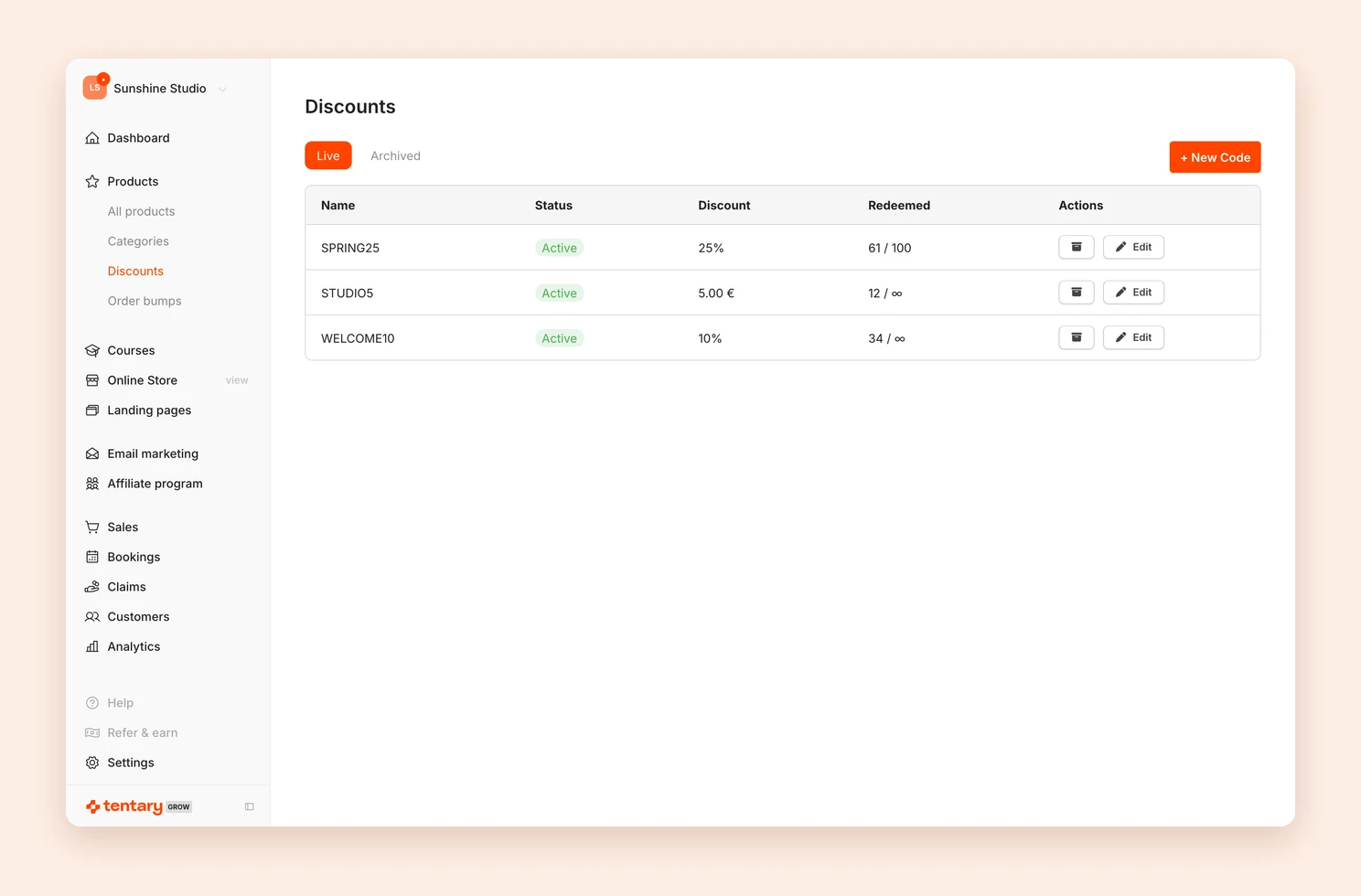
How customers redeem a code
On the checkout page, your customers click + add discount, enter the code and click Apply. The discount appears in the order summary right away, and the total is updated.
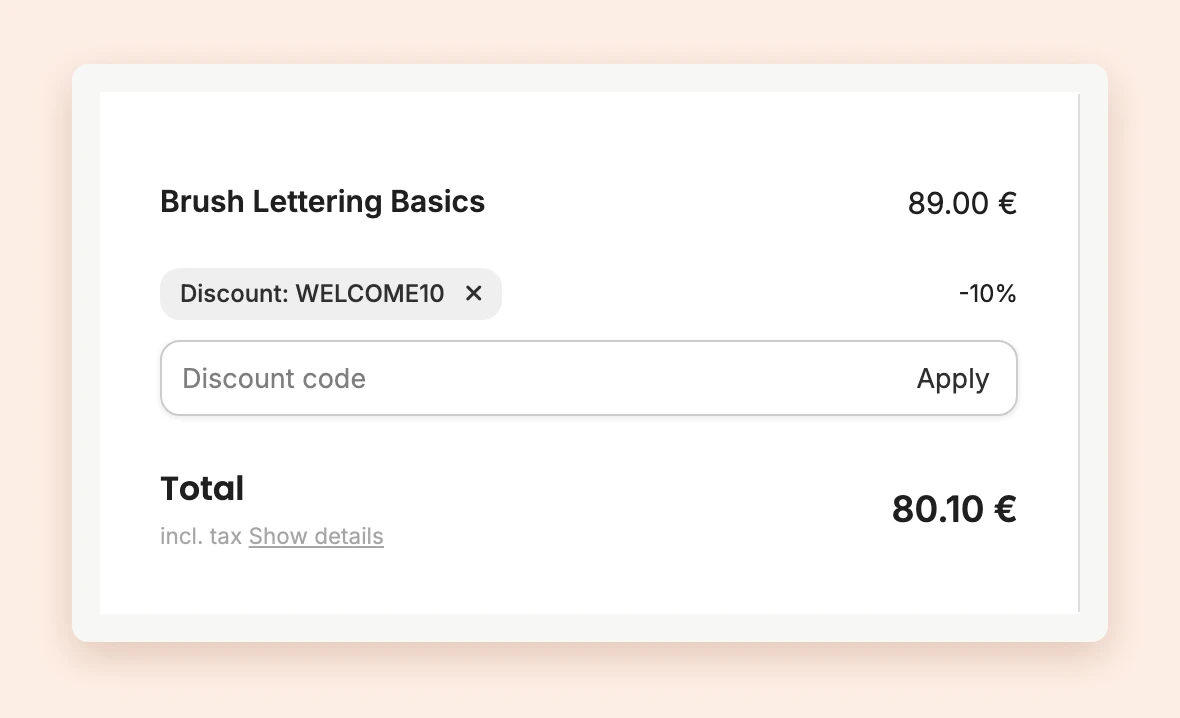
If the code brings the amount down to €0, the payment methods disappear and the order goes through without payment. If the amount is between €0.01 and €0.99, it is rounded up to €1, because that is the minimum amount for payments.
Share a discount code as a link
Add ?coupon= and your code to the link of your sales or checkout page. Anyone who opens the link gets the discount automatically, without typing anything.
Example: https://yourshop.tentary.com/p/ABCDEF?coupon=SUMMER25
This makes it easy to share your promotion on social media, in your newsletter or on your website.
Hide the discount code field
If you do not want customers to go looking for codes on the checkout page, hide the field. In the product settings, turn on Hide discount code field on the checkout page. Links with ?coupon= keep working.
Tip: For a discount that applies to everyone without a code, use a limited-time offer with a countdown.
Last updated October 15, 2026