Set up a custom domain for your shop
With Tentary, you can create a shop page where all your products and additional information about you and your business are displayed. You can decide whether to make your shop available via a Tentary subdomain or a custom (sub-)domain. In this article, we’ll show you how to set up a custom domain for your shop.
On this page
Prerequisites
The following two prerequisites must be met to use a custom domain for your Tentary shop:
- You own a (sub-)domain.
- You have access to the domain management settings.
Note: The setup takes about 5 minutes and requires technical knowledge. Incorrect DNS settings may result in your domain being inaccessible.
It’s important to follow the setup steps in order. First, configure your DNS records with your domain provider, and only then make changes to your Tentary account to ensure continuous access to your shop.
Domain Type
The steps for setting up your domain depend on the type of domain you’re using. First, determine the domain type you’ll be using:
Tip: We’ve compiled articles from the most popular domain providers to help you connect your custom domain with your Tentary shop: IONOS, STRATO, ALL-INKL.COM, GoDaddy and Namecheap.
Top-Level Domain (e.g., shop.com)
Log in to your account with your domain provider and open the DNS settings for the domain you want to use.
Add the following two DNS records and save them:
| Name | Type | Value |
|---|---|---|
| www | CNAME | sites.tentary.com |
| @ | A | 34.179.222.196 |
The CNAME record connects www.shop.com to your shop. The A record makes sure that visitors who type your domain without www also land in your shop automatically, over a secure connection. Most providers call these records A record and CNAME. For @, depending on your provider, you enter @ or leave the field empty.
Important: Before you add the A record, delete all other A and AAAA records for @, for example the ones for a parking page from your provider. Otherwise your domain without www does not lead to your shop. A leftover AAAA record is the most common reason when it does not work.
The A record is new and replaces the previous URL redirect. A URL redirect from @ to https://www.shop.com still works, though, if your provider offers one or you have already set it up.
After successfully setting up these records, go to the domain settings in your Tentary account. Select the Custom domain option and enter your full domain, including www at the beginning, in the URL field. Save the settings.
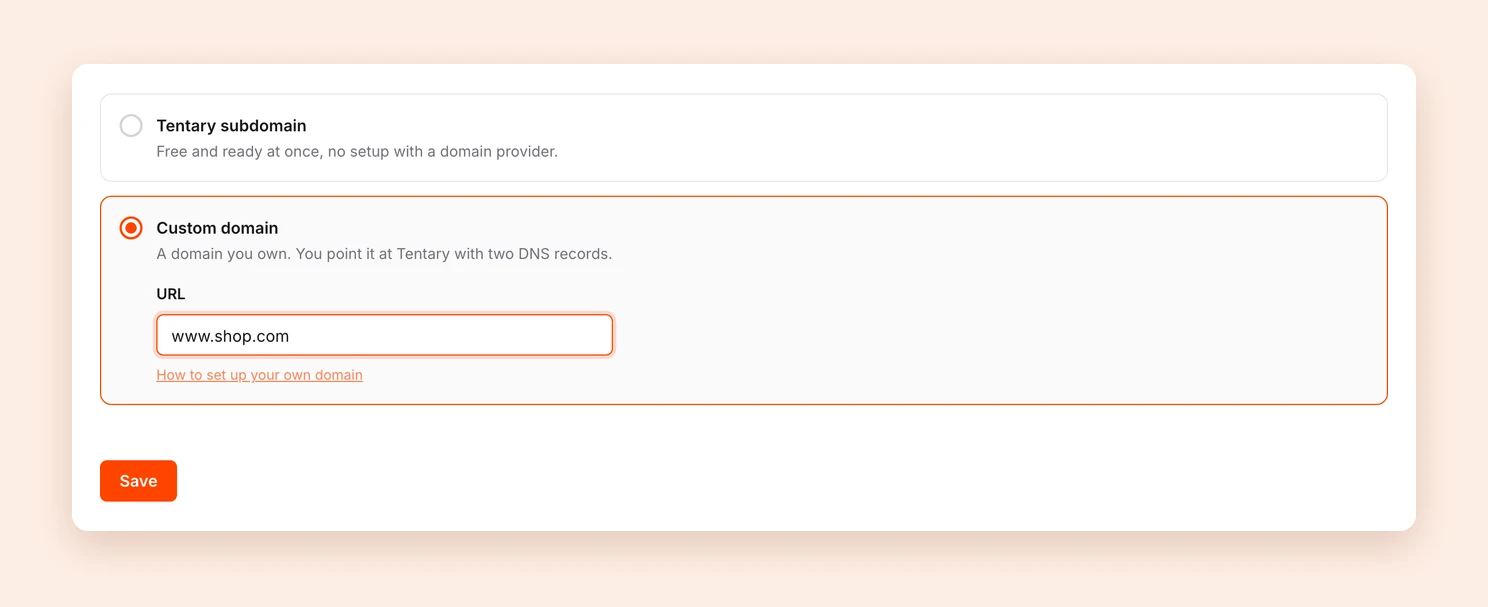
Your domain is usually reachable within a few minutes, but DNS changes can also take a few hours. Once everything is set up correctly, the Status at the top of the page shows Live. To check the status again manually, click Check status.
Finally, open your domain without www, for example shop.com. You should land on https://www.shop.com automatically, with the lock icon in the address bar. The very first visit can take a few seconds once.
Your custom domain setup is now complete.
Subdomain (e.g., shop.website.com)
Log in to your account with your domain provider and open the DNS settings for the subdomain you want to use.
For a subdomain you only need a CNAME record, no A record. Add the following DNS record and save it:
| Name | Type | Value |
|---|---|---|
| beispiel | CNAME | sites.tentary.com |
After successfully setting up this record, go to the domain settings in your Tentary account. Select the Custom domain option and enter your subdomain, without www, in the URL field. Save the settings.
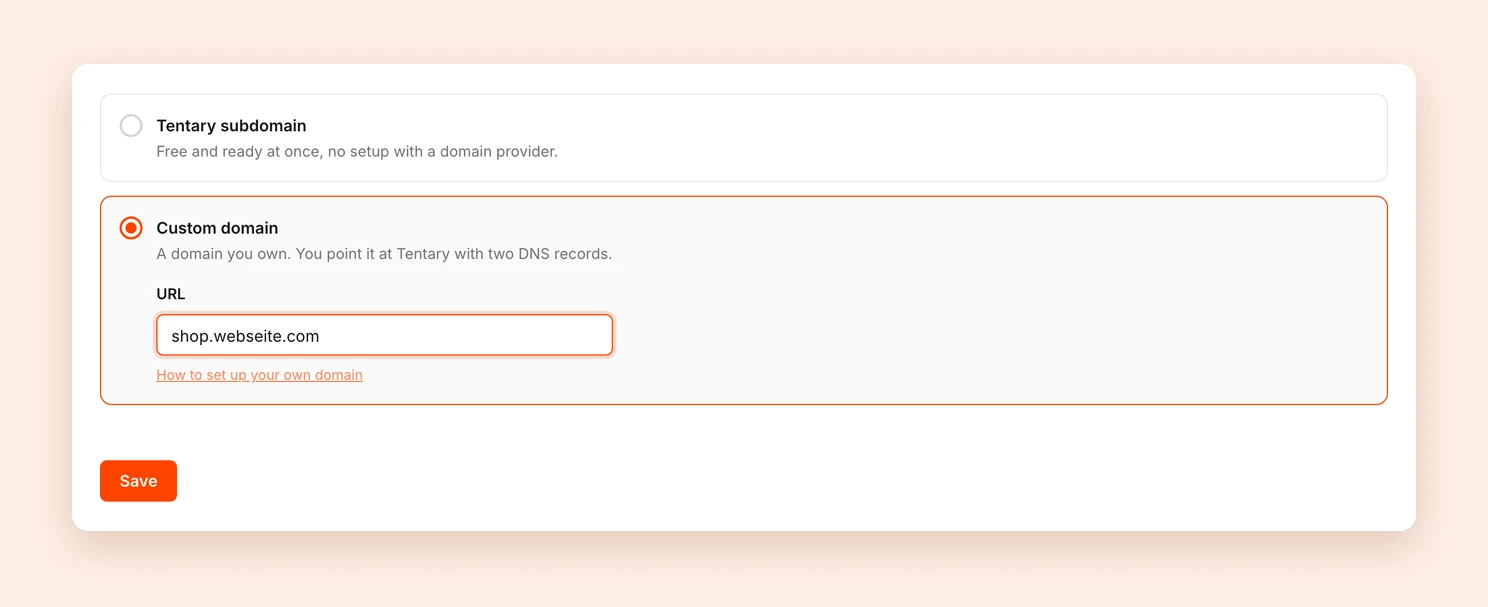
Your subdomain is usually reachable within a few minutes, but DNS changes can also take a few hours. Once everything is set up correctly, the Status at the top of the page shows Live. To check the status again manually, click Check status.
Your custom subdomain setup is now complete.
Frequently Asked Questions
I don’t have a domain. What can I do?
You can purchase a domain from various providers online. We’ve had good experiences with Namecheap.
What about SSL encryption? Is my site secure?
We automatically create and configure an SSL certificate for every domain. This ensures your pages are protected, and customers can shop securely with you.
Issues with Cloudflare Proxies
If you’re using Cloudflare for your domain, you must disable the Cloudflare proxy for the records you add for Tentary. For a top-level domain, that means both records, www and @. In the list of your DNS records, a disabled proxy shows as a grey cloud. Unfortunately, this is technically unavoidable.
Last updated October 2, 2026