Affiliate marketing for partners
As an affiliate, you promote other shops' products with your personal link and earn a commission for every sale. Here you learn how to join programs, promote products and receive your commissions.
On this page
As an affiliate you use Tentary for free. All you need is a Tentary account.
Create an account and complete your profile
If you do not have an account yet, you create one for free when you open an invitation link. After confirming your email address, you land in the Affiliate Hub. It shows your commissions, sales and clicks at a glance.
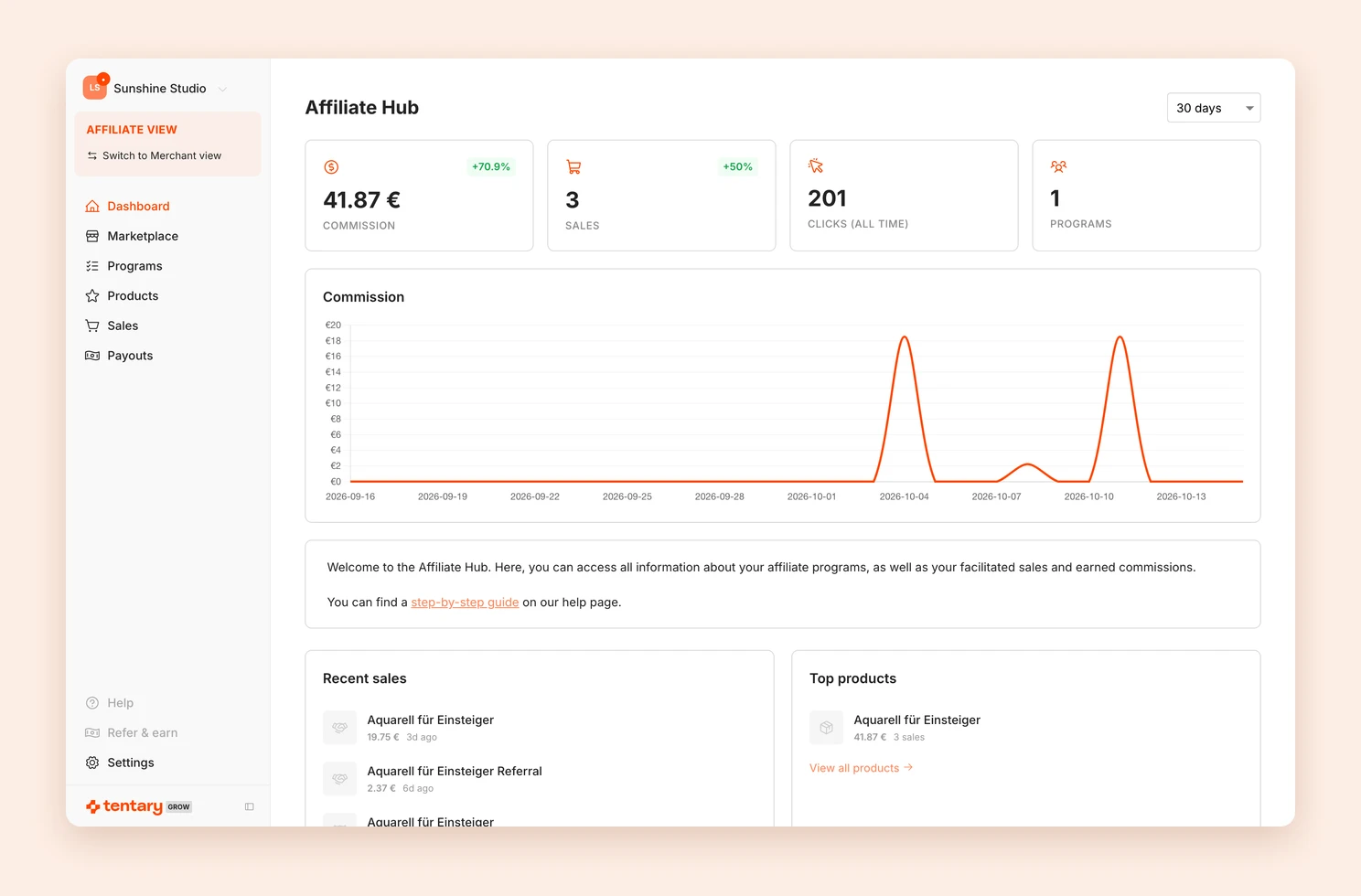
Before you can join a program, you add two things once:
- Invoice details: your address and tax details. The seller uses them to create your credit notes.
- Payout details: your bank details, your PayPal address or both, depending on how the program pays out.
The Complete your affiliate profile notice on your Dashboard takes you there with Add details. Later you find both under Settings in the sidebar, at Edit billing address.
Join a program
There are two ways to find an affiliate program:
- Invitation link: The seller sends you a link.
- Marketplace: Under Marketplace you find all public programs with their commission. You can search by name and shop URL.
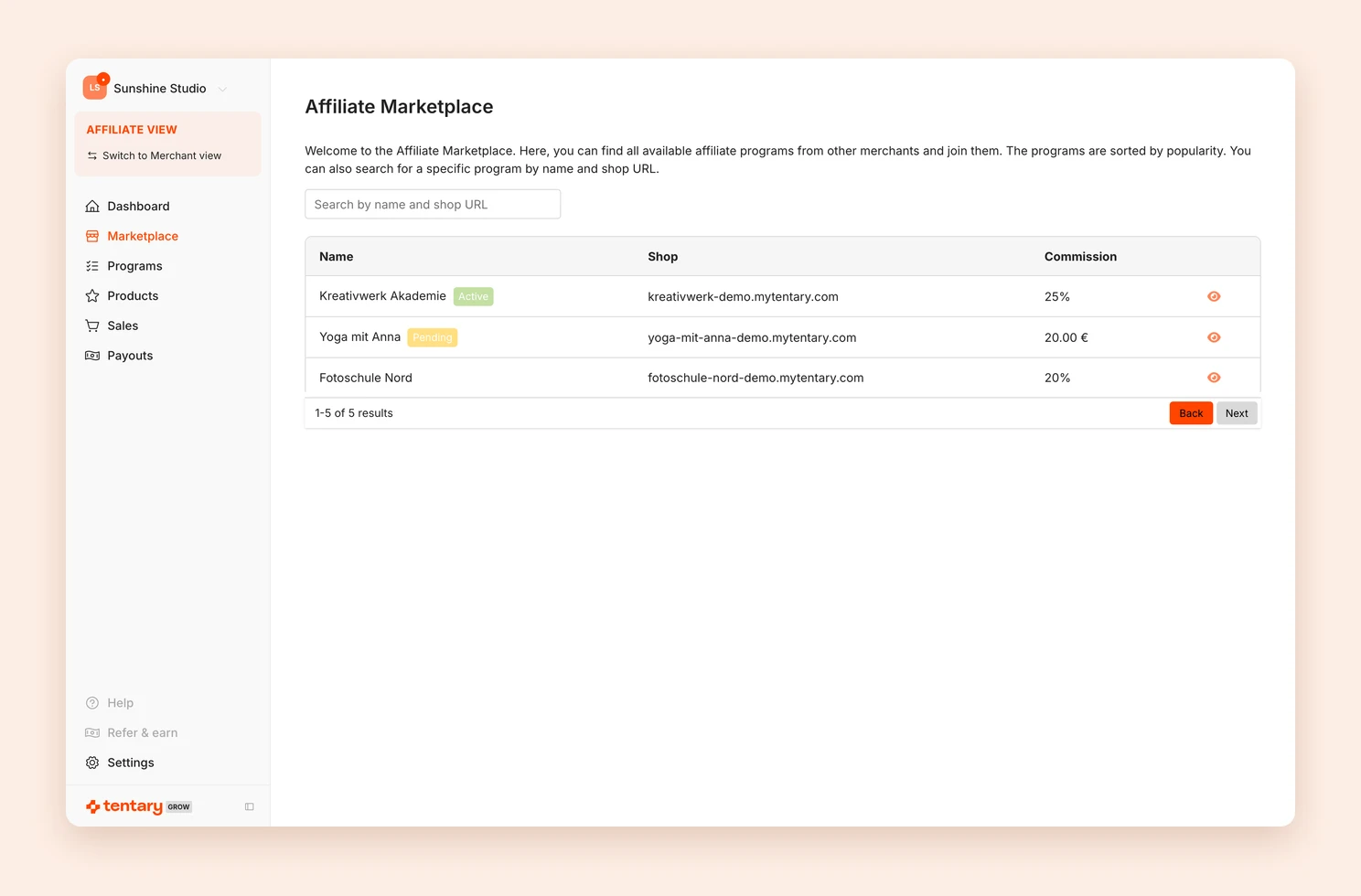
The join page shows the program’s Conditions and the Payout method. Click Yes, join.
If you just registered, open the invitation link again afterwards to get to the join page.
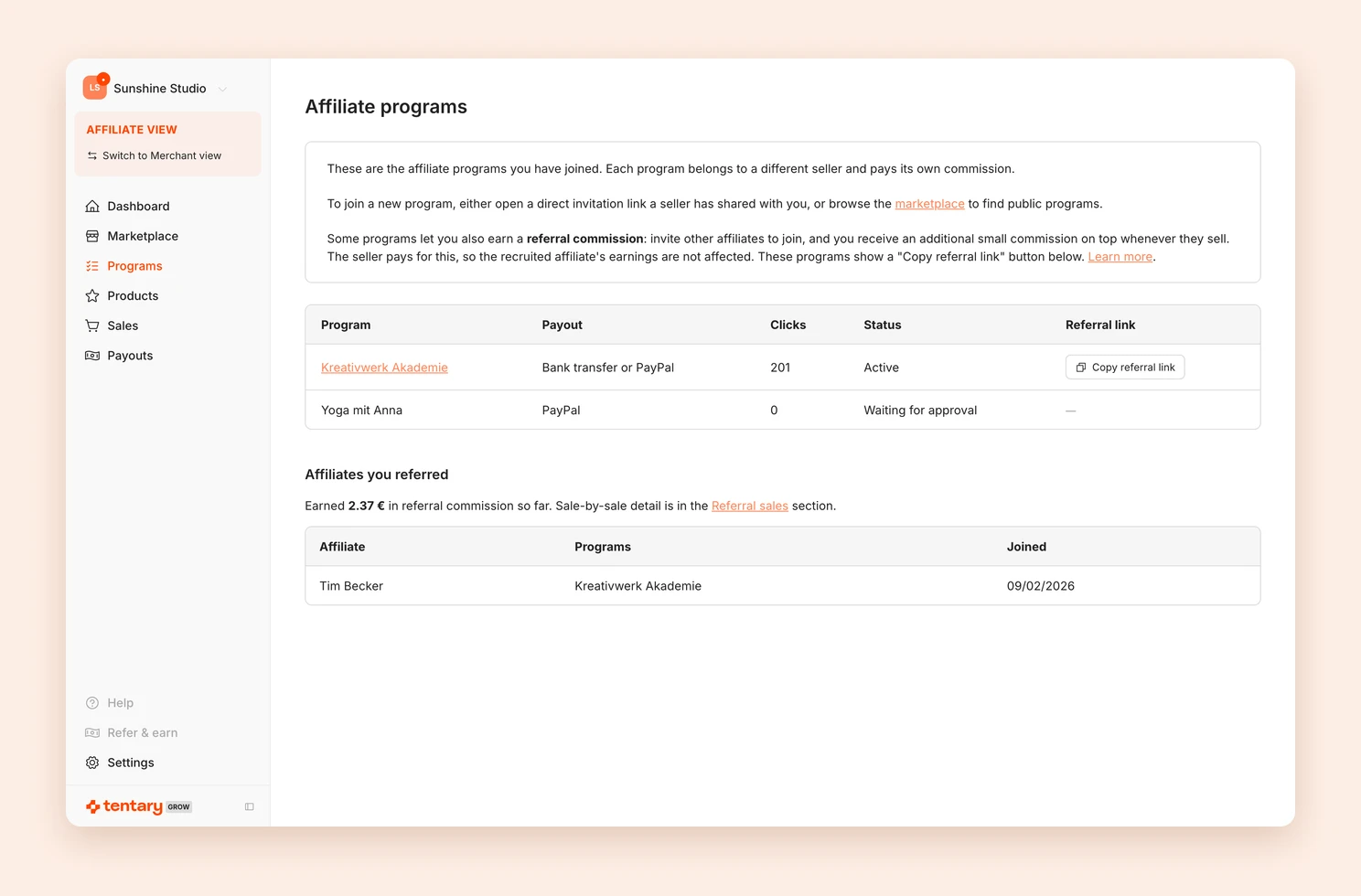
Depending on the program, you are approved right away, or the seller approves you first. Under Programs you see the status of each program, Active, Waiting for approval or Declined, together with the payout method and your clicks.
Promote products
Under Products you find every product you can promote, with price and your commission. Filter by affiliate program shows the products of one program only.
Each product has three links:
- Product link: leads to the product’s sales page.
- Checkout link: leads straight to the checkout page.
- Shop: leads to the shop’s home page.
If the seller made landing pages available to you, you find them below in the Landing pages section. All links already contain your affiliate ID. To learn how the links work, see Affiliate links.
Sales and commissions
You receive an email for every sale through your link. Under Sales you see all sales with product, price, commission, date, program and status:
- Accepted: The commission is valid and will be paid out.
- Under review: The seller is checking the commission. It is not paid out for now.
- Declined: The commission is not paid out.
- Paid: The commission has been paid out.
- Void: The order was refunded.
The seller sets the commission. It is calculated in the currency of the sale. For subscriptions, you earn a commission on every recurring payment.
Tip: Some programs pay you an extra commission when you recruit other affiliates. See Recruit other affiliates.
Payouts
Payouts are not made by Tentary but by the seller. When they pay out your commissions, you receive a credit note by email. Under Payouts you find all past payouts with the credit note to download. You can also change your bank and PayPal details there.
A commission is usually paid out 30 days after the sale. Each program can have its own conditions, though. If you have questions about a payout, contact the seller directly.
FAQ
How do I switch between the affiliate and merchant view?
In the Affiliate Hub, click Switch to Merchant view at the top of the sidebar. There you can also sell your own products. To come back, go to Affiliate program › Dashboard and click Switch to the Affiliate Hub.
How long does my affiliate link last?
After the click, the browser remembers your affiliate ID for 30 days. If the person buys within that time, you earn the commission. If they click another affiliate’s link afterwards, the last click counts.
Last updated October 15, 2026