Landing pages: builder or your own HTML?
Tentary gives you two ways to make your own pages: the landing page builder without code, or an HTML page with your own code, for example from an AI tool. Here you learn which one suits you.
On this page
What is a landing page?
A landing page is a single web page with exactly one goal, for example a purchase, a newsletter signup or downloading a freebie. Visitors get there through an ad, a link or a button in an email. Because nothing distracts them, the page leads them straight to that one action.
With a landing page you can, for example:
- present a new product and offer it for sale
- promote a limited-time offer or a sale
- create a prelaunch page for an upcoming project
- promote a freebie
- introduce yourself and your offer on a profile page
The two ways compared
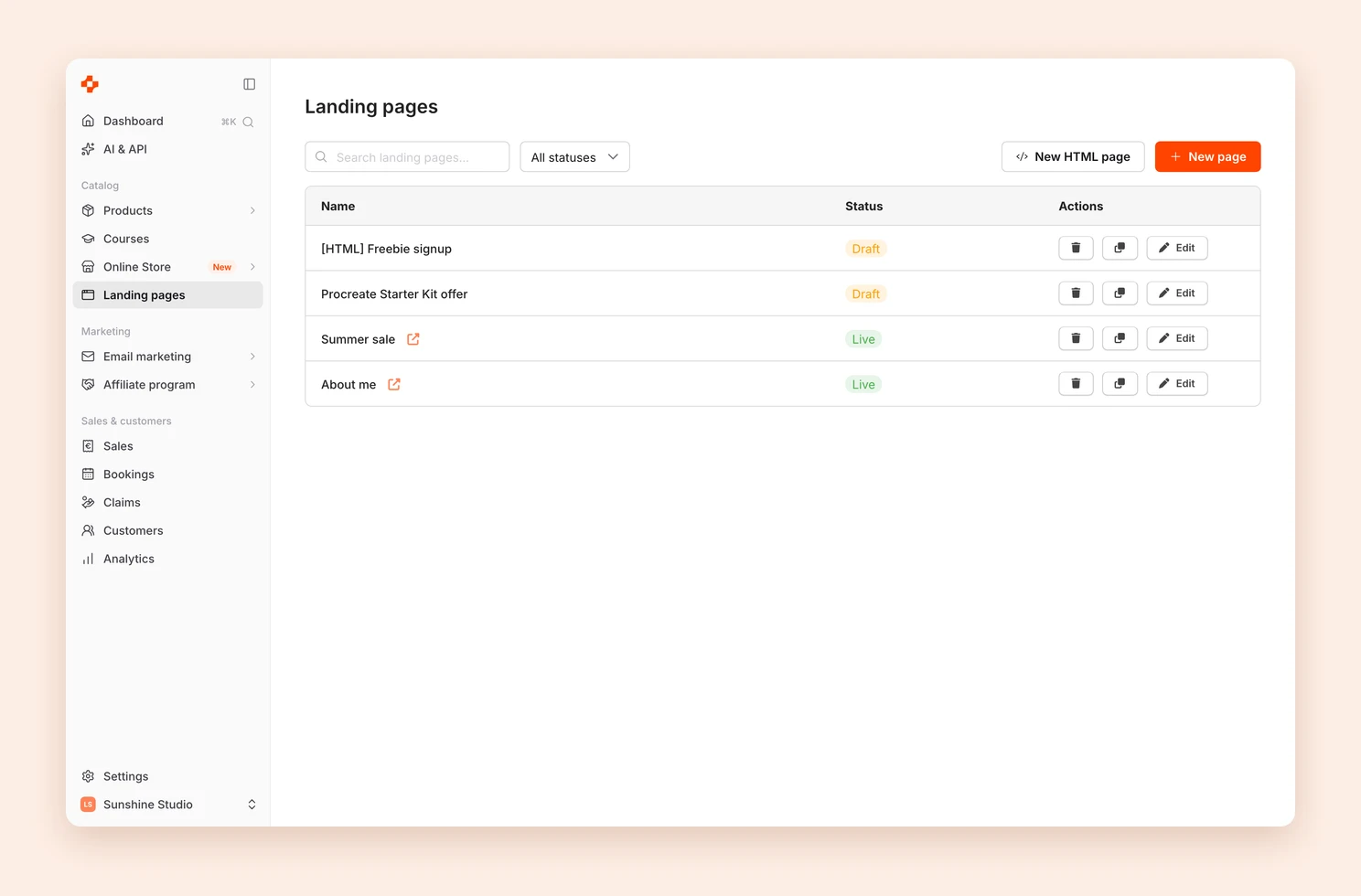
You start both from Landing pages in the menu, with + New page for the builder and New HTML page for your own code.
| Landing page builder | HTML page | |
|---|---|---|
| How you work | With clicks and drag and drop | You paste finished HTML code |
| Starting point | Blank page or template | Your code, often from an AI tool |
| Design | With the builder’s elements and design settings | Completely free |
| Preview | Live in the editor | Only on the published page |
| Older versions | You can restore them | Are not saved |
| Changes by a connected AI app | Not possible | Possible |
Which one suits you?
Use the builder if you want to work on your page yourself with clicks and see changes right away. It is also the easier way if you have never worked with HTML.
Continue here:
Use an HTML page if you let an AI tool write the page, already have a finished file or want full freedom over the design. You do not need to know how to code if the AI tool writes the code.
Continue here:
- Create an HTML page
- Create a landing page with AI
- Buy buttons, images and legal texts in your own HTML
- Add an email signup form
What applies to both
- Address: Every page sits under your shop address, for example myshop.mytentary.com/summer-sale.
- Status: A page is either Draft or Live / Published. Anyone who opens the URL of a draft lands on your shop.
- Home page: Under Online Store › General, you can select a published page as your Home page. It then appears directly at your shop address.
- Affiliates: Available for affiliates makes a page available to your affiliates.
- Tracking and cookie banner: Your shop’s settings also apply to your landing pages.
Frequently asked questions
How many landing pages can I create?
As many as you like.
What do landing pages cost?
Nothing. Both ways are included in all plans.
Can I switch to the other way later?
A page cannot be converted. Create a new page and copy the content over by hand. You can use both ways side by side in your shop, though.
A feature is missing. What can I do?
Write to our support. We are happy to hear your idea.
Last updated November 6, 2026