All about Zapier and the integration with Tentary
With Zapier, you can create automations for your Tentary account. In this article, we provide an overview of what Zapier is about, what you can use it for, and how it works.
On this page
What is Zapier all about?
Zapier is a software tool that helps you automate workflows by connecting different apps to create the workflow you need.
To understand how Zapier works, the following three terms are important:
- Zap: A Zap represents an automated workflow that connects at least two apps.
- Trigger: The Zap is triggered by an event in one app.
- Action: The action is the event that occurs as a result of the trigger and completes the Zap.
In summary, this means: A Zap (workflow) is initiated by a Trigger (event) in one app, which then performs one or more Actions in another app.
What can I use Zapier for?
You find all apps you can connect to Tentary directly on Tentary’s page at Zapier.
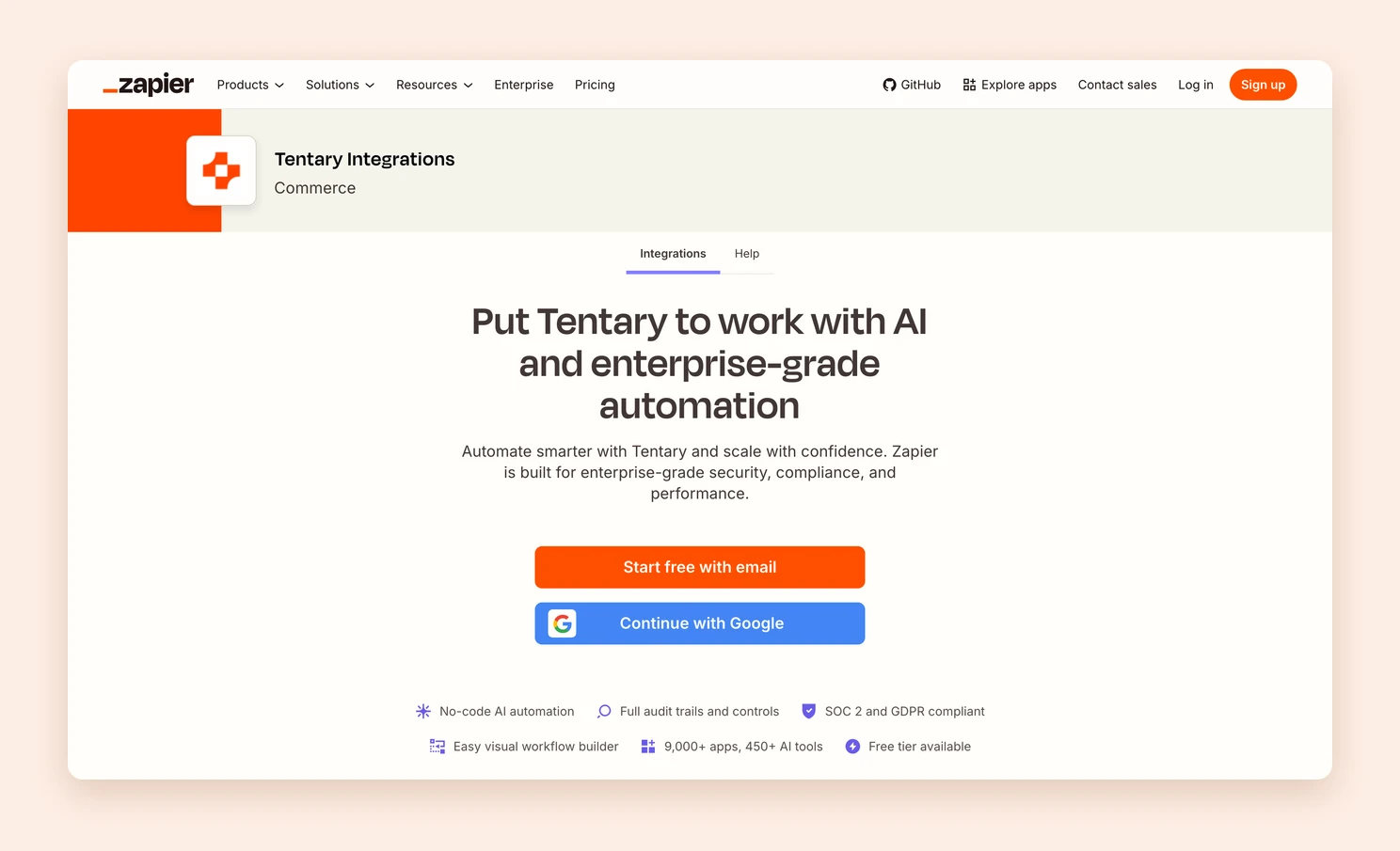
Zapier is highly versatile, as it can work with more than 9,000 different apps. To use it effectively, it is helpful to first determine which processes you want to automate and with which apps (see our triggers below).
Depending on how extensive your automations should be, you can either create a free account on Zapier or opt for a monthly plan. Once your account is set up and your apps are connected, you can create your first Zap.
Setting up the connection
Open the settings of your Tentary account and click Integrations in the Shop area. Click Generate API Key at Zapier and copy the key to your clipboard with Copy.
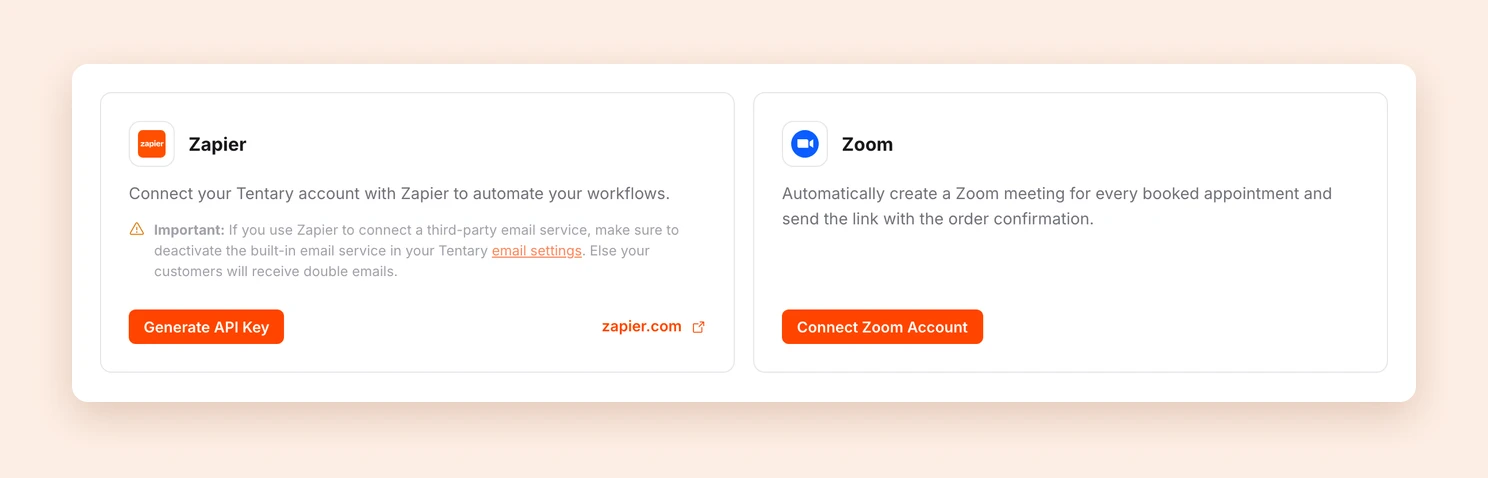
You can create a new key at any time with Regenerate API Key. The old key stops working after that, so you then need to update your connection in Zapier with the new key.
Now log into your Zapier account and add a new app under Apps by clicking Add connection. Search for Tentary and follow the instructions to install our app. During the installation, Zapier will ask for the API key. Enter the previously generated API key in this field and save it.
The connection between your Tentary account and your Zapier account is now established, and you can access various triggers in your Zaps.
Note: Add Zapier to your privacy policy if you process personal data with it.
Tentary Trigger
Currently, the following triggers are available for your Tentary shop:
- New Email Subscriber: Triggers when a customer subscribes to emails during the purchase or through the newsletter sign-up.
- New Order: Triggers when a new order is created.
- New Paid Order: Triggers when an order is paid. Unlike “New Order,” “New Order Paid” is only triggered when the payment has been successfully received. For example, in the case of SEPA direct debit payments, the time of the order and the time of receipt of funds can be separate.
- New Refund: Triggers when an order is refunded.
- Subscription Started: Triggers when a new subscription is started (and paid).
- Subscription Cancelled: Triggers when a subscription is cancelled.
- Subscription Paused: Triggers when a subscription is paused (due to pending payment).
- Subscription Payment: Triggers when a subscription is successfully renewed or resumed.
The triggers are currently set up so that Zapier fetches new data from your Tentary account every x minutes (depending on the plan, between 1 and 15 minutes). During the initial setup, Zapier will load all data from the past 24 hours once. After that, only new data, such as email subscribers or orders, will be retrieved.
Tentary Actions
Besides the triggers there are two actions. With them a Zap can make something happen in your Tentary account, for example after a sale on another platform.
- Grant Product Access: Gives a person access to a product without creating an order on Tentary. If the email address is new, the person is created as a customer. The access email is sent automatically.
- Revoke Product Access: Ends an access that was granted through Zapier, the customer import, or manually on the customer page.
What to know about Grant Product Access
The action works exactly like the customer import and the manual grant on the customer page, so the same rules apply:
- There is no order, no invoice and no revenue. No fees apply either.
- New people count as external customers against your plan limit (Start 50, Grow 2,500, Scale 10,000). Once the limit is reached, the action fails with a clear message. Existing customers do not use up a seat.
- Anyone who already bought the product through Tentary does not get a second access. The action reports this back and changes nothing.
- The newsletter subscription is never changed. An access is not an opt-in.
- The access email goes out within a few minutes. Calling the action again for the same person and product does not send a second email. You can also switch the email off in the action and send the access link from the response with another tool.
- Not available for bookings, newsletters and external products.
As with the import, you need an active monthly plan for this.
Tip: If you sell through another marketplace, connect its “new sale” trigger to this action. Your customers then get their access right away, without you creating anything by hand.
What to know about Revoke Product Access
The action only ends accesses that were granted as such. Purchases through Tentary are never touched. That is what refunds are for.
Product filter
1. With a free Zapier plan
If you are using a free Zapier plan and want to tailor your Zaps to specific products, you can use Tentary’s integrated product filter for the New Order and New Paid Order triggers.
When creating a Zap in the trigger, search for Tentary, confirm your selection with a click, and select either New Order, New Paid Order, or both in the trigger events. Then click Continue and select the product(s) you want to use with this Zap in the Product field in the Configure tab.
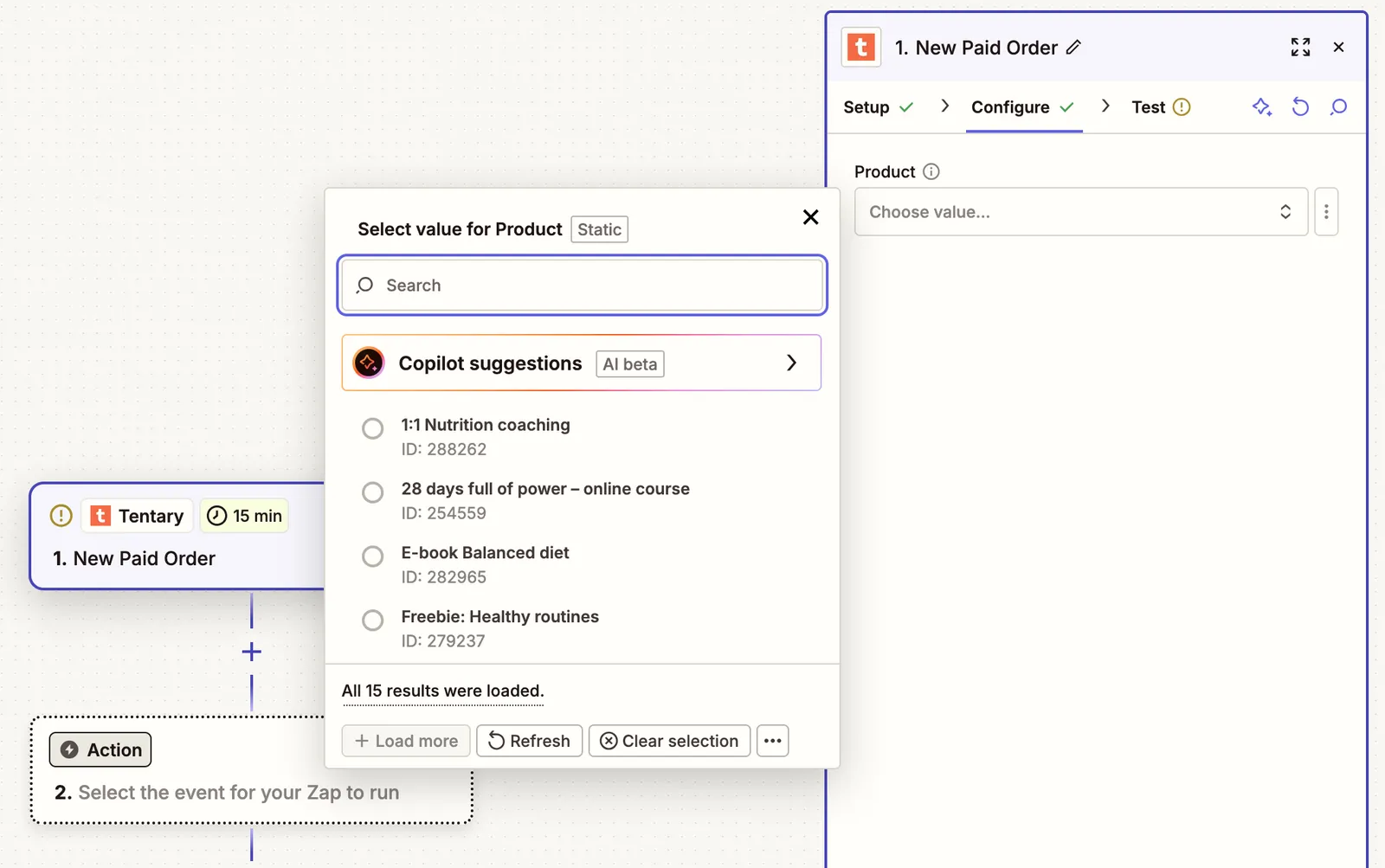
You can then add an action. This will only be applied to the product or products you previously selected using the filter.
2. With a paid Zapier plan
If you want to adapt your Zaps more precisely to your products or product types, you can use the product filter in Zapier. With this filter, you can limit the values that are transmitted by the trigger and determine to which the subsequent action relates.
To do this, you need the Tentary product ID. You can find this by clicking on Edit for the relevant product in the overview of your products and then taking a look at the address bar of your browser. The sequence of digits you see at the end of the URL is your product ID.

When you create a new Zap in Zapier, first select the trigger you want by searching for Tentary and specifying the trigger event. Using the plus button, you can add the product filter before the action by selecting Filter in the Popular built-in tools area, as shown in the screenshot below.
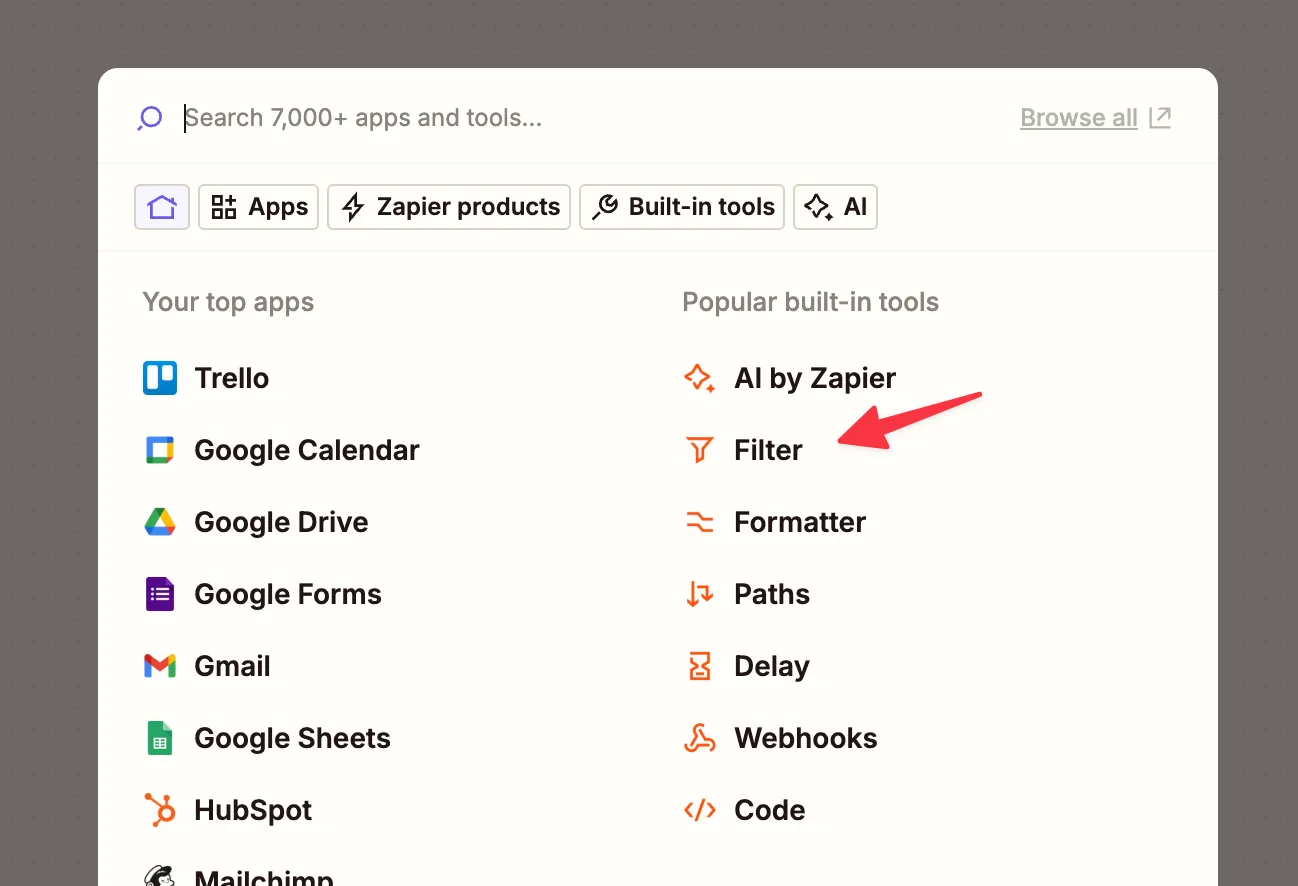
In the window Filter conditions, select the Product Id in Choose field, under Choose condition select (Text) Exactly matches and under Enter text or insert data enter the previously determined product ID.
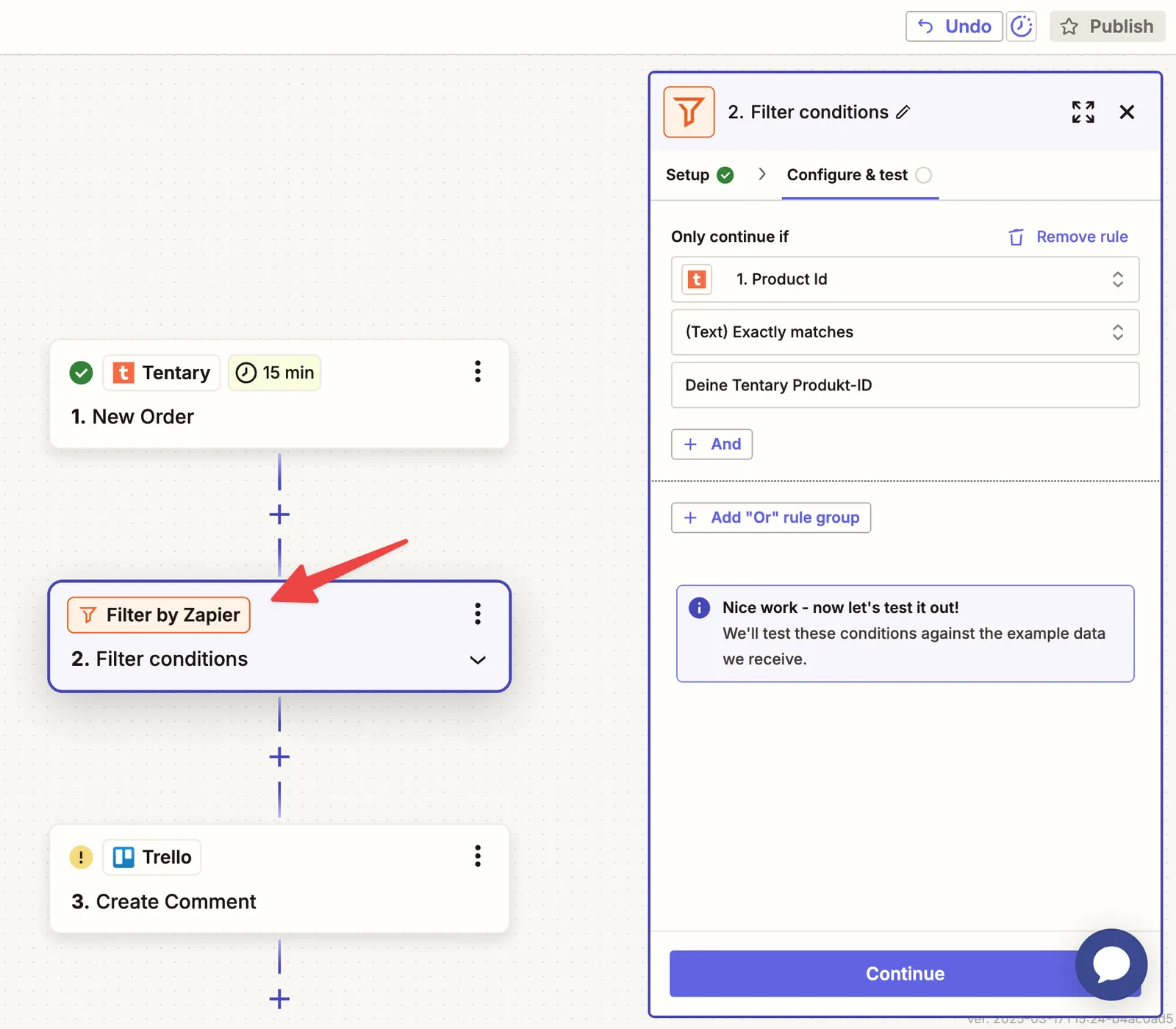
If you want to select multiple products for this zap, click on the + And button and add more product IDs.
You can then create an action as normal and this will only be applied to the product or products that you have selected with the filter.
Last updated October 13, 2026