Connect a domain at ALL-INKL.COM
You have your own domain at ALL-INKL.COM and want to connect it to your shop? In this article, we have put together a step-by-step guide for you.
On this page
- Top-Level Domain (e.g., shop.de)
- Step 1: Open the DNS Settings
- Step 2: Create a CNAME Record for www
- Step 3: Change the Domain’s A Record
- Step 4: Check for AAAA Records
- Step 5: Connect Your Shop
- Subdomain (e.g., shop.website.de)
- Step 1: Open the DNS Settings
- Step 2: Create a CNAME Record
- Step 3: Connect Your Shop
- Sources
The setup steps vary depending on your domain type. First, select the domain type you are using. For an overview of all records, see Set up a custom domain for your shop.
Top-Level Domain (e.g., shop.de)
If you want to connect your own top-level domain, follow these steps.
Step 1: Open the DNS Settings
Log in to the KAS (Technical Administration) panel and click Tools > DNS Settings. Then click the edit icon next to the domain you want to connect to your shop.
Step 2: Create a CNAME Record for www
At ALL-INKL.COM, a CNAME record can only be set for a subdomain, not for the domain itself. For your shop, you therefore create it for www.
- Click Add a new DNS record.
- Enter www in the Name field and select CNAME as the Type. The Priority remains 0.
- Enter sites.tentary.com. in the Data field, with a dot at the end.
- Click Save.
This connects www.shop.de to your shop.
Step 3: Change the Domain’s A Record
So that your domain without www also leads to your shop, you change the A record of the domain.
- In the DNS settings of your domain, click the edit icon next to the default A record in line 1.
- Replace the current IP address with 34.179.222.196.
- Untick the option The wildcard A record should also point to this IP address. This keeps your other subdomains, for example for email, unchanged.
- Click Save.
Step 4: Check for AAAA Records
Finally, look at the list of your DNS records. If there is a record of type AAAA for your domain without www, delete it. Otherwise your domain without www does not lead to your shop.
Step 5: Connect Your Shop
After completing the previous steps at ALL-INKL.COM, connect your Tentary shop to your domain. Open your shop’s domain settings, select Custom domain, and enter your full domain, including www, in the URL field.
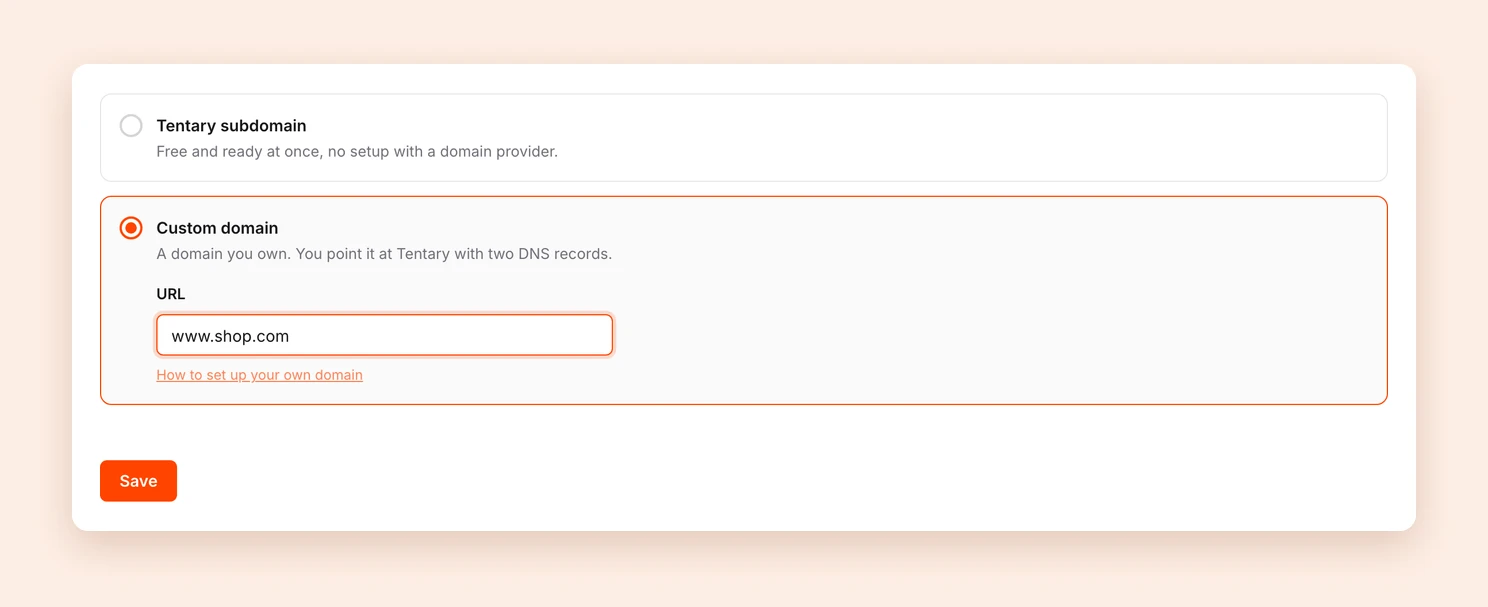
After clicking Save, the status of your domain is shown at the top of the page. According to ALL-INKL.COM, it can take up to 3 or 4 hours after a change until the new records are active.
Finally, open your domain without www, for example shop.de. You should land on https://www.shop.de automatically, with the lock icon in the address bar.
Subdomain (e.g., shop.website.de)
If you want to connect your own subdomain, follow these steps. For a subdomain you only need a CNAME record, no A record.
Step 1: Open the DNS Settings
Log in to the KAS (Technical Administration) panel and click Tools > DNS Settings. Then click the edit icon next to the domain your subdomain belongs to.
Step 2: Create a CNAME Record
- Click Add a new DNS record.
- Enter your subdomain in the Name field. For the example
shop.website.de, that would be shop. Select CNAME as the Type, the Priority remains 0. - Enter sites.tentary.com. in the Data field, with a dot at the end.
- Click Save.
Step 3: Connect Your Shop
After completing the previous steps at ALL-INKL.COM, connect your Tentary shop to your subdomain. Open your shop’s domain settings, select Custom domain, and enter your subdomain, without www, in the URL field.
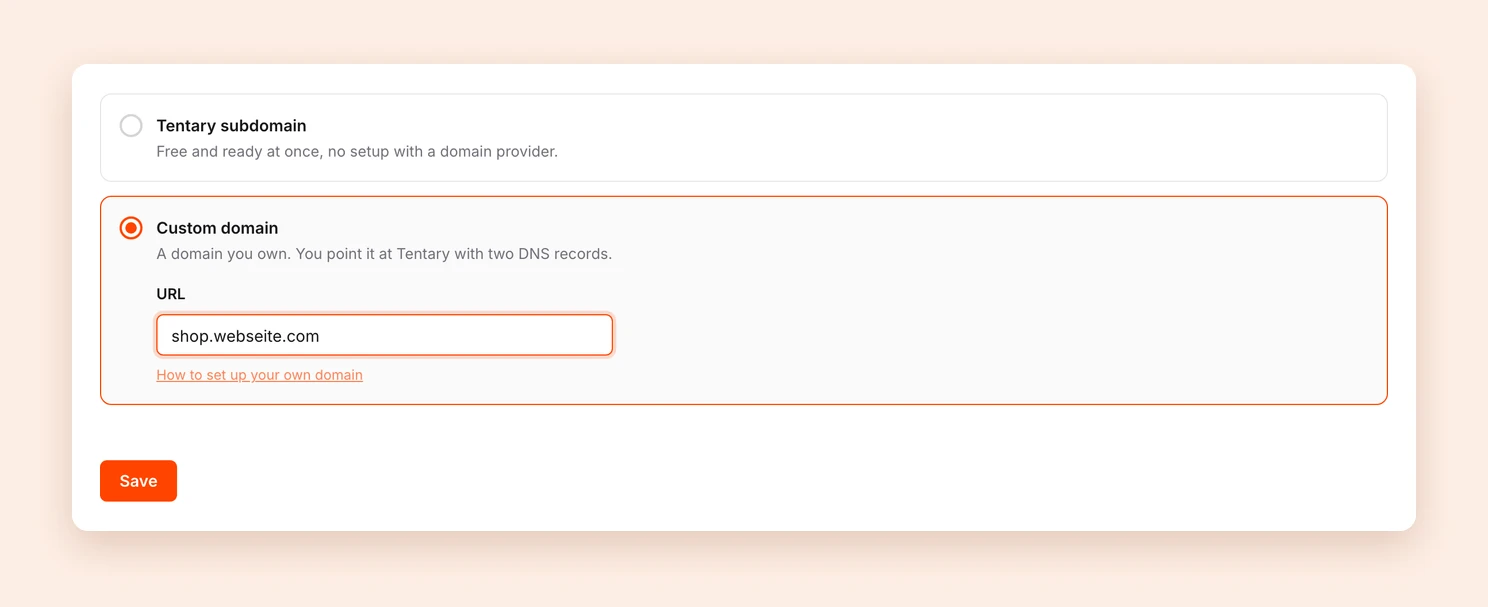
After clicking Save, the status of your subdomain is shown at the top of the page. According to ALL-INKL.COM, it can take up to 3 or 4 hours after a change until the new records are active.
Sources
This guide is based on ALL-INKL.COM’s official guides: How to add a CNAME-record and How to change the A-record of a domain. If the interface looks different for you, you will find the current state there.
Last updated October 2, 2026