Change email address
Want to change the email address you use to sign in to Tentary? Here is how, and how to confirm the new address.
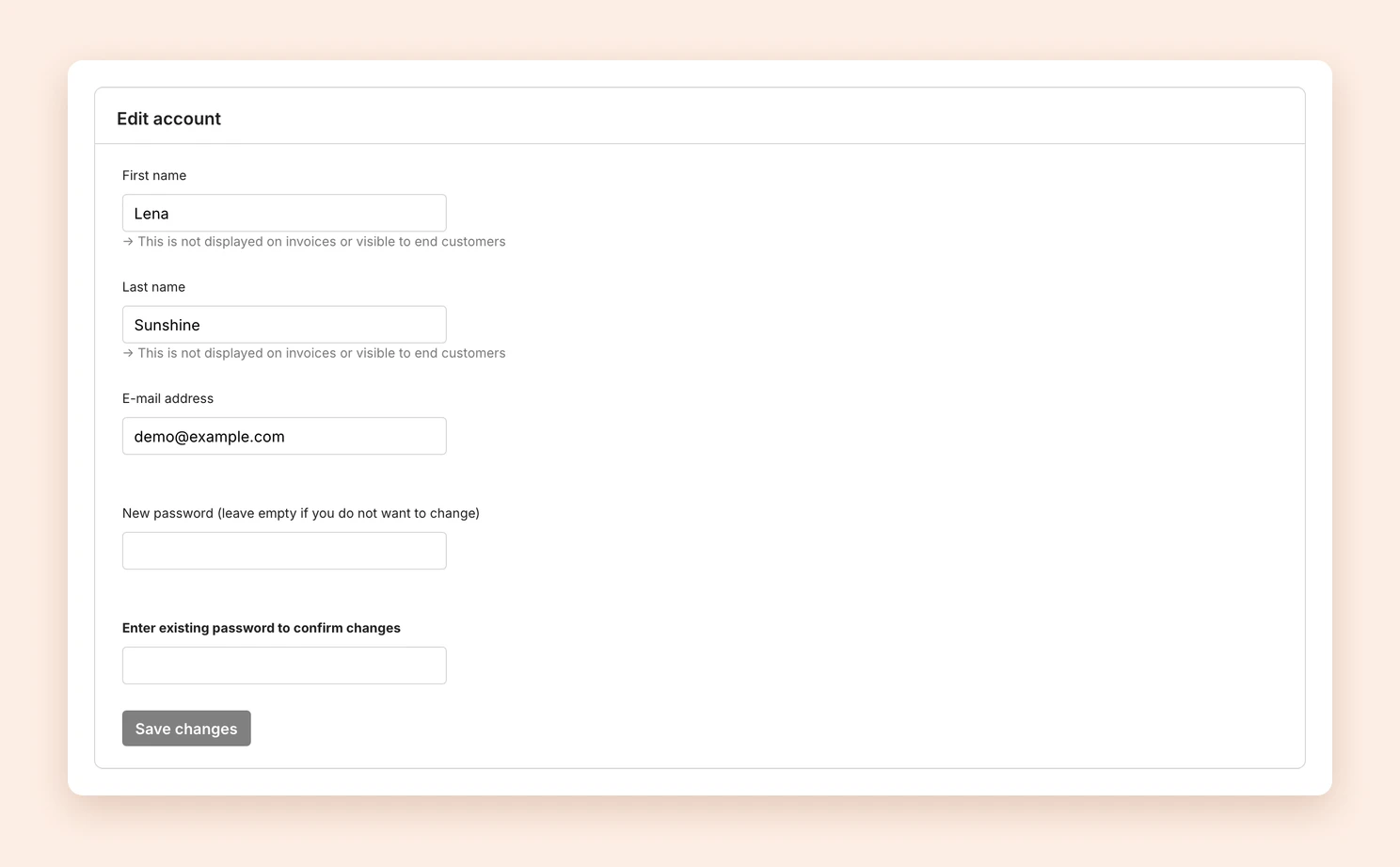
- Click your profile picture and then Account in the menu. You can also find the page in your Settings in the Account area.
- Enter your new address in the E-mail address field.
- If you also want to change your password, fill in the New password field. Otherwise, just leave it empty.
- Enter your current password in the field Enter existing password to confirm changes.
- Click Save changes.
As a security check, we send a confirmation email to the new address. The change is only complete once you click the link in it. Until then you keep signing in with your previous address, and the Edit account page shows a notice that the change has not been confirmed yet. You can also take the change back there with revoke change.
Note: If the new address already belongs to another Tentary account, it cannot be used. In that case you see the notice An account already exists for that e-mail address.
Other email addresses
The address of your account is the one you sign in with and the one we send notifications to.
- For replies from your customers and for your legal pages, you can set a separate address. See Set Up an Email Address for Customer Inquiries.
- If you want to change a customer’s email address in an order, see Correct e-mail addresses of buyers.
Last updated October 13, 2026