Sell vouchers and tickets
With Tentary you sell digital vouchers and tickets and record for every purchase whether it has been redeemed.
You sell vouchers and tickets like any other product. With one setting, you can later record for every purchase whether the voucher or ticket has been redeemed. Everything here applies to vouchers and tickets alike.
Create a voucher
- Under Products, create a product with New product, for example a digital download.
- Upload a PDF with your voucher design as the product file.
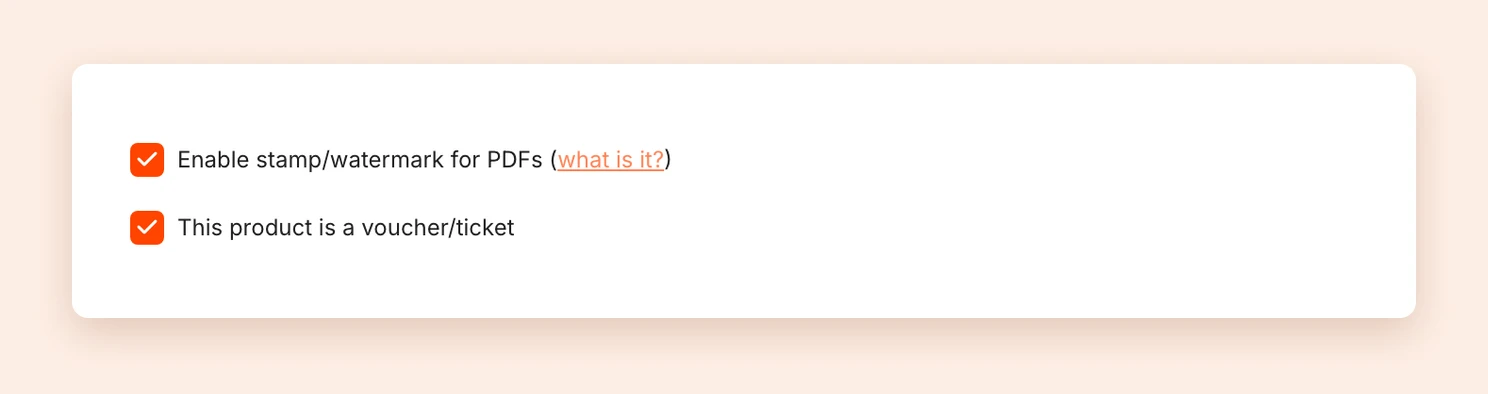
- In the product settings, turn on This product is a voucher/ticket.
- Save the product.
The order number as voucher code
Every purchase gets its own order number. Your customers find it in the purchase confirmation and on the download page. This number serves as the voucher code, because it exists only once.
There are two ways to put it on the voucher:
- Automatically: Also turn on Enable stamp/watermark for PDFs. For vouchers, Tentary then stamps the order number on the PDF instead of the usual name and email address. See PDF stamp.
- By hand: Leave a blank field on the PDF where your customers write their order number themselves.
Redeem a voucher
When someone redeems a voucher with you, search for the order number under Sales and open the order. Under Actions, click Redeem / void.
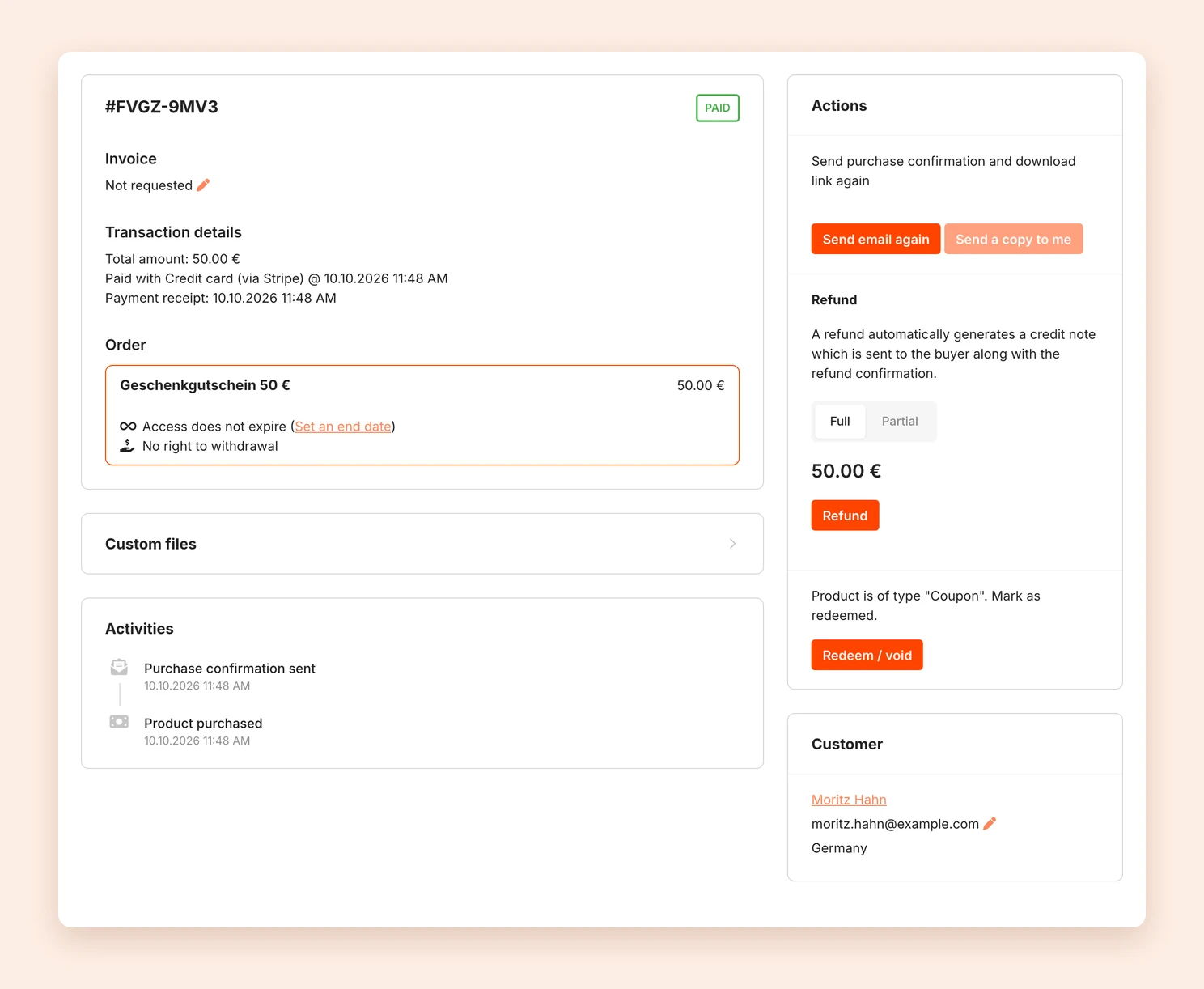
The Activities of the order then show Coupon redeemed with the date. This way you always know whether a voucher has already been used. If you redeemed one by mistake, Undo makes it valid again.
Tip: Discount vouchers that customers enter at checkout are set up as discount codes instead.
Last updated October 15, 2026