Set up your own sender address for your emails
With your own sender address, the emails to your customers go out from your own domain, for example from [email protected]. Tentary takes care of the warm-up every new domain needs, automatically.
On this page
- Tentary address or your own address
- Which emails go out from your address
- Requirements
- Setting up your sender address
- Tentary takes care of the warm-up for you
- Removing your sender address
- FAQ
- Why do I need a subdomain?
- Why do some emails still come from the Tentary address?
- What happens if I change my plan?
Tentary address or your own address
As long as you set nothing up, Tentary sends your emails from the Tentary address. Your customers see your name as the sender, and their replies come straight to you. We look after the delivery.
With your own sender address, your domain also appears after the @. That feels even more familiar in your customers’ inboxes, and with every email your domain builds a reputation of its own that belongs entirely to you.
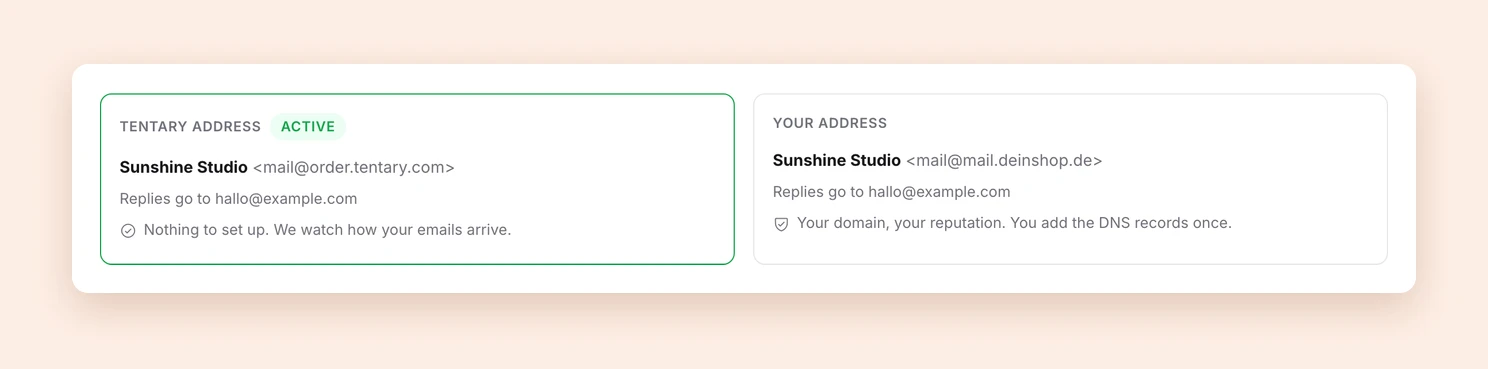
In both cases, Tentary takes the sender name and the reply address from your billing address. To change them, see company name and display name and email address for customer inquiries.
Which emails go out from your address
Your sender address applies to every email your customers receive from you:
- order confirmations with access to your products
- the confirmation email for signing up to your newsletter
- your campaigns and automations
- access emails, for example when you import customers
Emails that Tentary sends to you, such as notifications about new sales, keep coming from Tentary.
Requirements
Your own sender address is currently part of Early Access and therefore only available on the Grow and Scale plans. On all other plans, the page shows a notice to that effect with a View plans link.
You also need:
- a domain of your own with access to its DNS settings
- a subdomain that you do not receive email on, for example
mail.yourdomain.com
Setting up your sender address
- In your settings, open the Sender address page in the Email area.
- Under Set up your address, enter the address you want to send from, for example
[email protected], and click Continue. - Under DNS records, Tentary now shows every record your domain needs. Add them wherever you manage your domain, for example at IONOS, Strato or GoDaddy. The copy icon next to each value lets you take it over without typos.
- Click Check records. Once all records have been found, your sender address is active.
DNS changes are usually visible within an hour, sometimes it takes a few hours. If only a single record is missing at the end, Tentary names exactly that one.
Note: The TXT record beginning with
tentary-verificationconnects the domain to your account. Add it together with the others. Gmail and Outlook expect the DMARC record from anyone who sends a lot of email. If you already have one on your main domain, it counts.
Tentary takes care of the warm-up for you
A new domain has no reputation yet with Gmail, Outlook and other email providers. If it sends hundreds or thousands of emails on its very first day, that looks suspicious, and many of them land in spam. That is why every new sending domain has to be warmed up slowly first.
With many other providers, all you get at this point are the DNS records, and the warm-up is left to you. At Tentary, we handle this warm-up automatically for you. We move your emails over to your own address step by step and keep sending the rest from the Tentary address in the meantime. So no email has to wait and none gets lost, not even on the first day.
For you, this means the switch does not happen all at once. At first, only a limited number of emails per day go out from your own address, and all others come from the Tentary address as usual. That number grows over time until everything goes out from your address. You do not have to do anything for it.
In the Warm-up area on the Sender address page, you can see at any time how many emails can go out from your address today and how many of them have already been sent.
Tip: The more regularly you send, the faster your limit grows.
Removing your sender address
If you want to send from the Tentary address only again, click Remove address below the DNS records on the Sender address page and confirm. Your emails then go out from the Tentary address again right away. If you want to use your domain again later, you set it up from scratch.
FAQ
Why do I need a subdomain?
Your main domain usually runs your own mailbox, and that should stay untouched by the setup. A separate subdomain for sending keeps your business email cleanly apart from the emails to your customers. If you enter a domain that already receives email, Tentary points this out and asks you for a subdomain such as mail.yourdomain.com.
Why do some emails still come from the Tentary address?
That is the warm-up. Until your domain is fully warmed up, Tentary keeps sending part of your emails from the Tentary address. See Tentary takes care of the warm-up for you.
What happens if I change my plan?
If you move to a plan without your own sender address, your emails automatically go out from the Tentary address again. Your domain stays set up, and you can delete it on the Sender address page with Remove address.
Last updated September 28, 2026