Invoice design and custom invoice numbers
Your invoices carry your logo and your colour, and you can match the numbering to your own bookkeeping.
You will find both under Settings > Invoice design & numbering. On the right of the page a Preview shows your changes straight away.
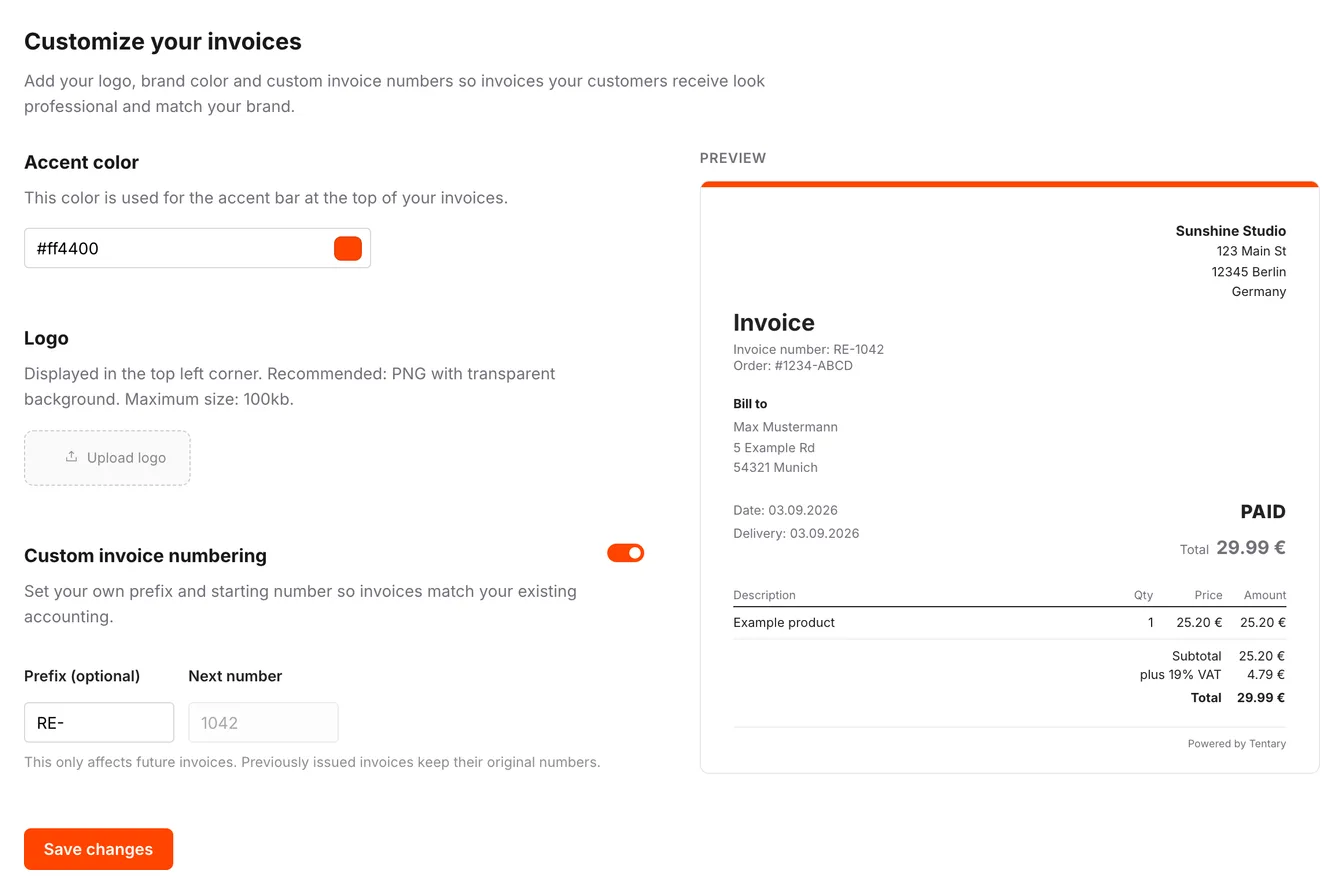
Customize your invoices
Color
The Color sets the accent bar at the top of your invoices. Pick the color your shop already uses.
Logo
Click Upload logo and choose an image file. The logo appears at the top of every invoice. Use Remove to take it out again. We recommend a PNG with a transparent background and no larger than 100 kb.
Tip: Without a logo the invoice shows your company name as text. That is perfectly fine. A logo simply looks more professional if you have one.
When you are done, click Save changes.
Custom invoice numbering
By default Tentary assigns invoice numbers automatically. If your bookkeeping needs a particular scheme, switch on Custom invoice numbering. You then decide how your invoices are numbered:
- Prefix (optional): a short string in front of the number, for example
RE-. Letters, digits, hyphen and underscore are allowed. - Starting number: the number your next invoice starts from. It has to be at least 1.
Custom invoice numbers only apply to future invoices. Invoices you already issued keep their number.
Once you save, Tentary counts on from that number. In place of the starting number you then see Next number. That field cannot be edited any more, because a number that has already been used must never repeat. You can still change the Prefix.
Important: If you switch Custom invoice numbering off again, your counter is deleted. Turn the option back on later and you have to set a new starting number. Choose one above your most recently used number.
For how Tentary creates and sends invoices, read the article Invoicing for sales.
Last updated October 13, 2026