Zoom Integration
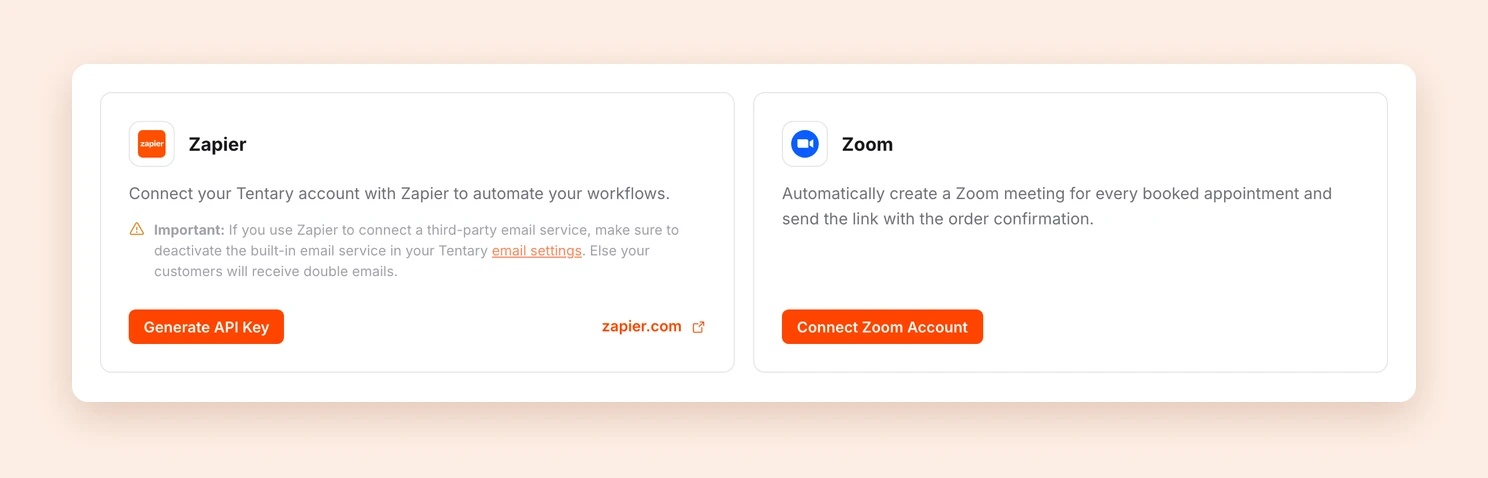
Connect your Zoom account to Tentary. Tentary then automatically creates a Zoom meeting for every booked appointment and sends the link with the purchase confirmation.
On this page
Connecting your Zoom account
- Open your Settings and click Integrations in the Shop area.
- Click Connect Zoom Account at Zoom.
- Sign in to Zoom in the new window and confirm that Tentary may create meetings on your behalf.
Zoom then shows Connected.
Turning on Zoom meetings for appointment bookings
Open a product of the type appointment booking or create a new one. In the appointment settings under Location, tick Zoom: Automatically create and send a Zoom invite for the meeting and save the product.
From now on, Tentary automatically creates a Zoom meeting for every booked appointment and sends the link to your customers with the purchase confirmation.
Tip: You don’t see the option although you just connected Zoom? Reload the product page.
If you want to use the link in your own emails too, insert the placeholders Booking: Zoom link and Booking: Zoom password into your product’s email texts.
Disconnecting your Zoom account
Open the Integrations page, click Disconnect at Zoom and confirm. New appointments then no longer get a Zoom meeting, and Tentary no longer has access to your Zoom account.
You can also remove the connection directly in Zoom:
- Sign in to Zoom in your browser and open the Zoom App Marketplace.
- Click Manage and then Added Apps, or search for the Tentary app.
- Select Tentary and click Remove.
Last updated October 13, 2026