Create upsells and downsells
With upsells and downsells, you show your customers further offers right after their purchase. Here you learn how to create them and how they appear for your customers.
On this page
What are upsells and downsells?
An upsell is an extra offer your customers see right after their purchase. A downsell is a cheaper alternative that appears when someone declines the upsell.
This way you make use of the moment when someone has just decided to buy from you, and the average value of an order goes up. Unlike an order bump, an upsell only appears after the payment.
Create an upsell
- Open the product under Products. The offers appear after this product.
- In the Post-purchase area, choose Upsell under Thank you page.
- Click + Upsell. A window opens with these fields:
- Offer title: the heading above the offer, for example Limited offer!
- Product: the product you offer.
- Overwrite product title (optional): a different title than the product’s.
- Description: what the offer brings.
- Bild/Video: an image or video for the offer. The button currently shows this German label in the English app as well.
- Discount: No discount, Discount percentage or Discount amount off the normal price.
- Decline button: the text for declining. The default is No, thanks.
- Click Save in the window.
- Then save the product.
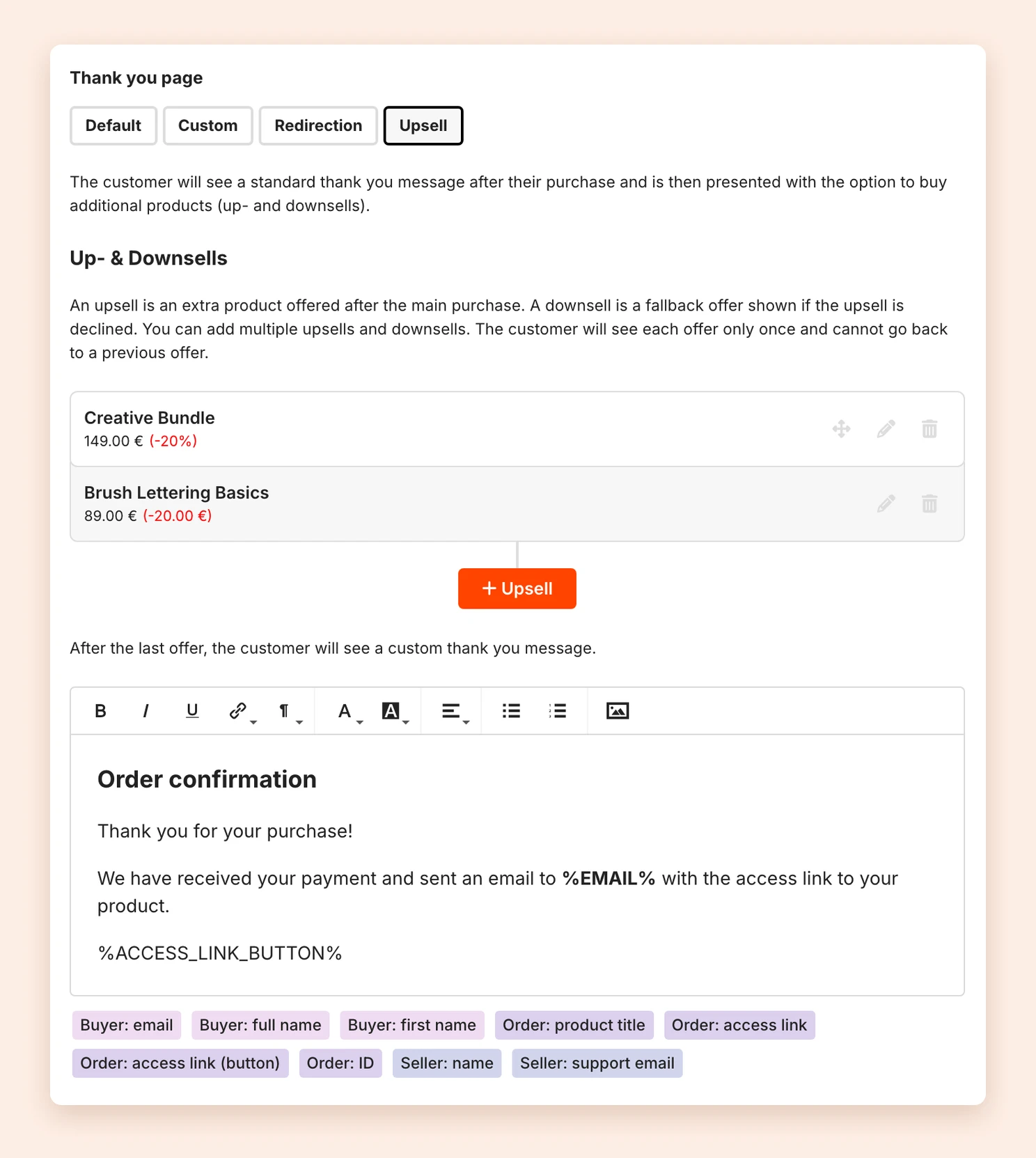
Create a downsell
Below each saved upsell you find Add downsell. The downsell has the same fields as the upsell. It only appears if someone declines the upsell.
You can create several upsells, each with one downsell. Your customers see the offers one after the other, each exactly once. They cannot go back to an earlier offer.
Thank-you message after the last offer
After the last offer, your customers see a thank-you message. You find it below the upsells and can design it freely. Placeholders let you address your customers personally, for example by their first name.
How your customers see the offers
After paying, your customers first see the confirmation of their purchase with the first offer below it. They order the offer right on the thank you page with Buy Now, using the payment method from their first purchase. So they do not have to enter their details again. If they click the decline button, the downsell or the next offer appears.
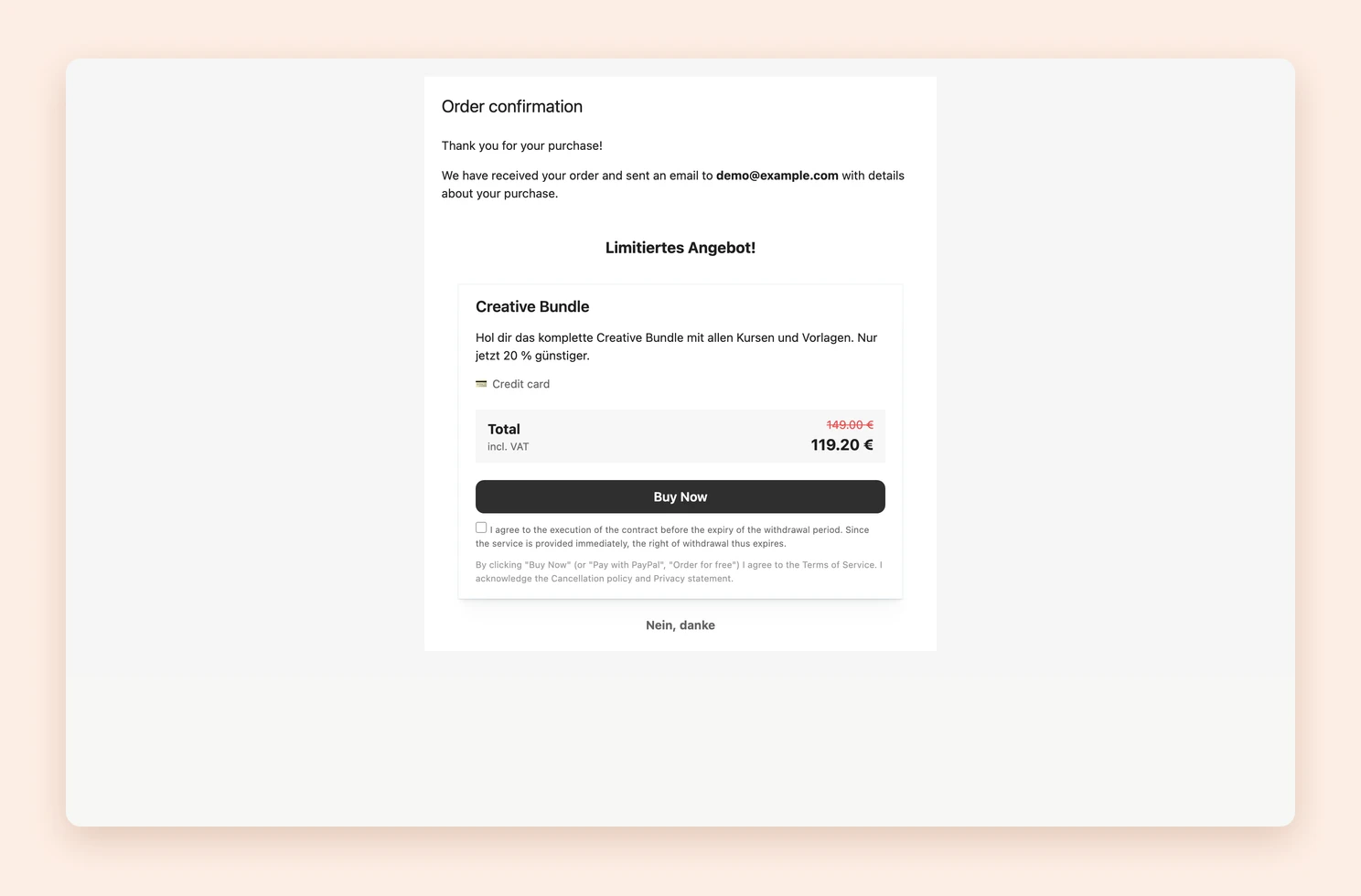 | 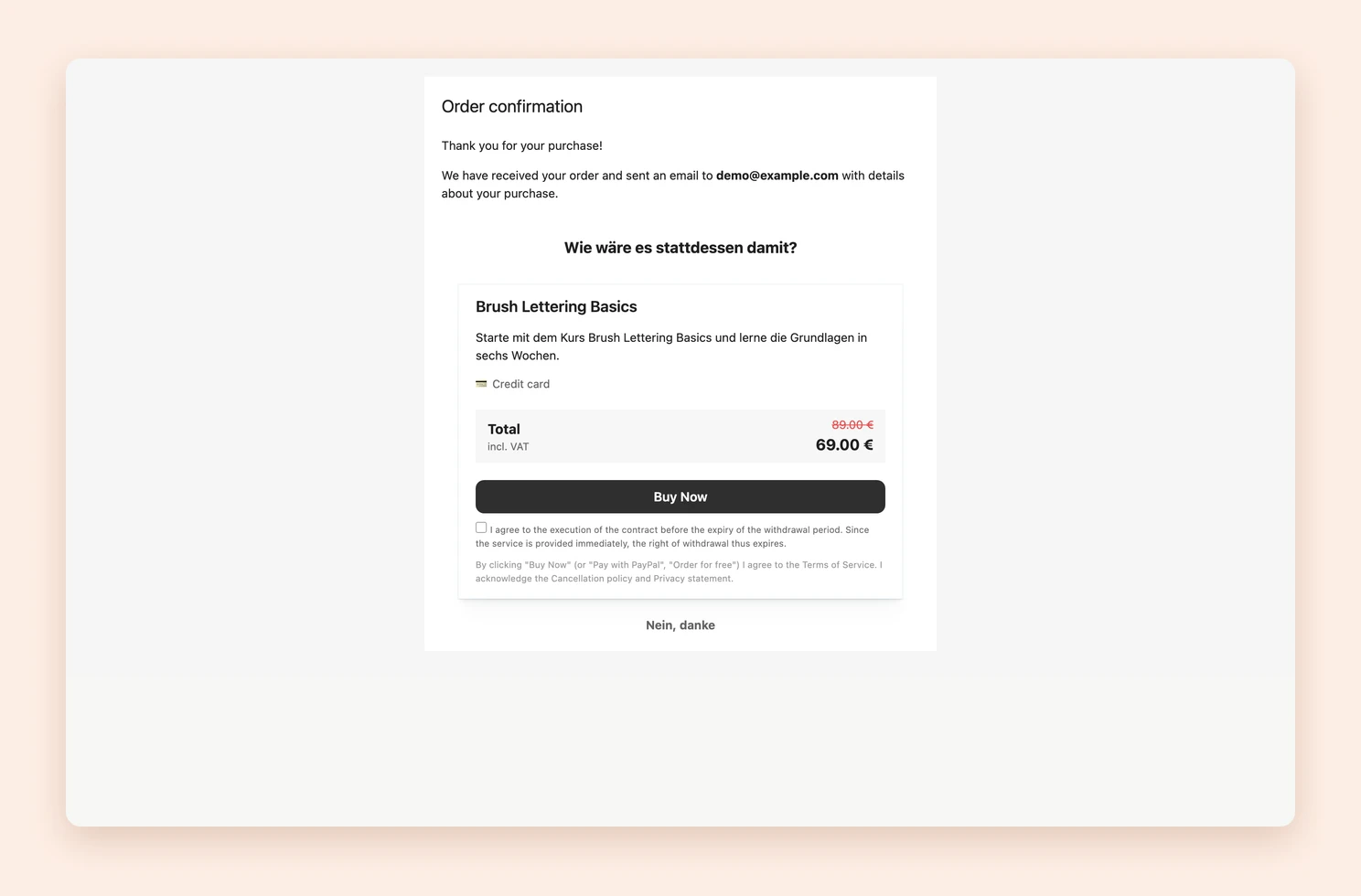 |
|---|
You can check what the offers look like at any time in the product preview under Thank you page.
Note: Your customers always get access to the product they originally bought, even if they decline all offers.
Last updated October 15, 2026