Invite and manage team members
Want to give other people access to your Tentary account, such as employees, assistants, or accountants? With team members, you can invite people and assign them a role with specific permissions. This article explains how to invite team members, what roles are available, and how to manage permissions.
On this page
- Inviting a team member
- Roles and permissions
- Managing team members
- Changing a role
- Resending an invitation
- Removing a team member
- Reactivating a team member
- FAQ
- Do deactivated members count towards the limit?
- What happens if I switch to a smaller plan?
- Can I create my own roles?
- Can team members invite other members?
- A team member forgot their password. What now?
- Can I see what my team members changed?
Inviting a team member
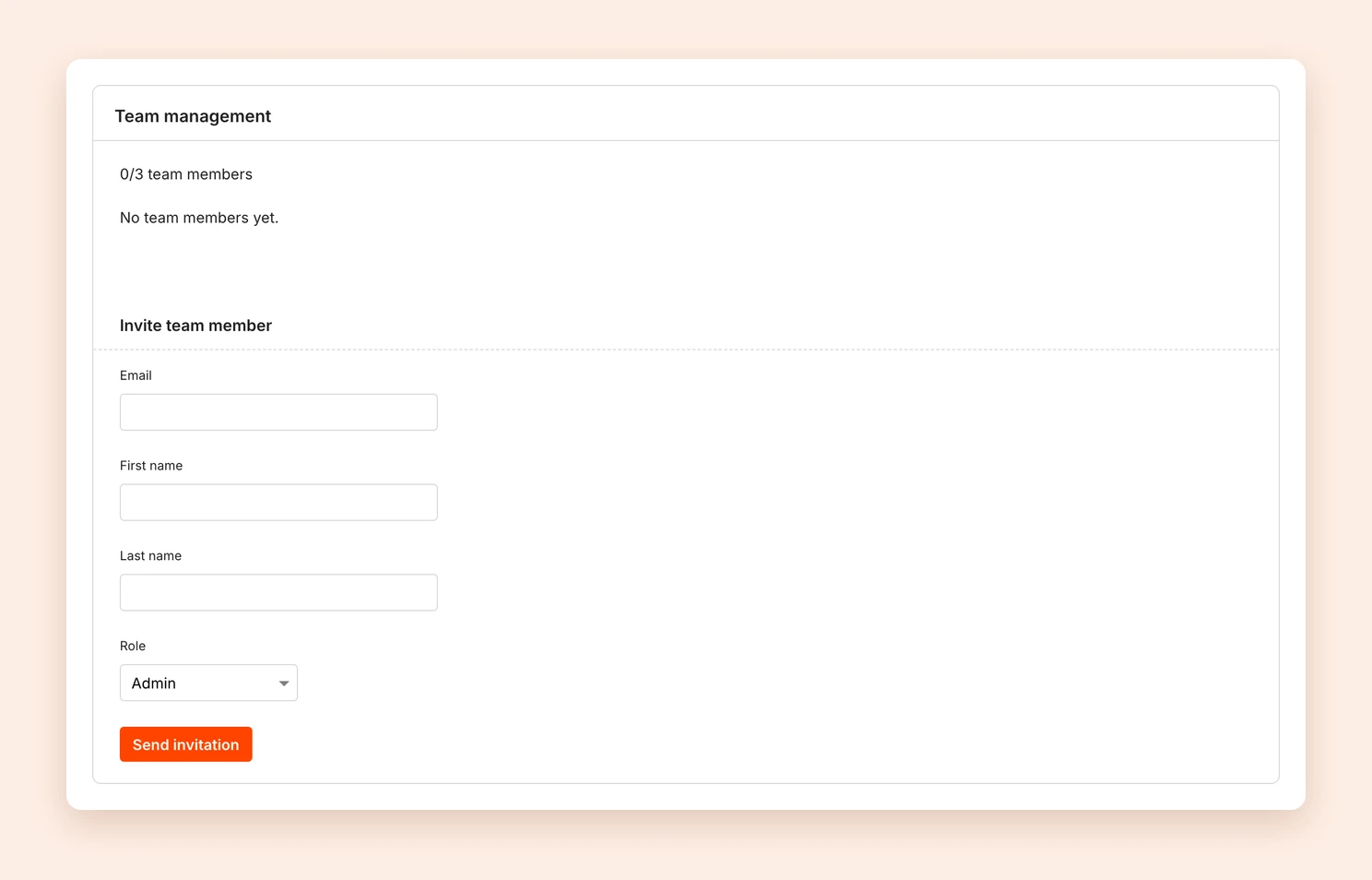
- Open your Settings and click Team in the Account area.
- Under Invite team member, enter the Email, First name and Last name and choose a Role.
- Click Send invitation.
The invited person receives an email with a link to set a password and join the team. The link is valid for 7 days. After that, they sign in through the normal Tentary login with their own email address and password.
Note: Team members are available on the Grow plan (up to 3) and on the Scale plan (unlimited). They are not included in the Start plan.
Roles and permissions
Every team member gets one of six predefined roles. The role decides which areas the member sees, and whether they can only view or also edit them. The full overview is on the Team page under Role permissions.
| Role | Description |
|---|---|
| Admin | Full access to almost everything, including team management, revenue data, data export and import, and the activity log. An admin can only view the invoice and tax settings, and only the account owner can delete the account. |
| Accounting | View-only access to sales, customers, claims, reports, invoice settings and revenue data. |
| Marketing | Edits products, categories, discounts, order bumps, emails, affiliates, landing pages and the shop. Does not see revenue data. |
| Product editor | Edits products, categories, order bumps, discounts and emails. Does not see revenue data. |
| Support | Edits customers, sales, claims and affiliates. Does not see revenue data. |
| Support (read-only) | Like Support, but view-only. |
Note: For roles without revenue access, Tentary hides all revenue figures: in the dashboard, on the statistics page, on individual product pages, in the affiliate dashboards and in the sales list.
Managing team members
Changing a role
In the member list under Settings > Team, you can change a member’s role at any time with the selector in the Role column. The change applies immediately.
Resending an invitation
If a member has not accepted the invitation yet (status Invited), send a new one with Resend. The link in it is valid for another 7 days.
Removing a team member
Click Remove next to the member and confirm. The member is removed immediately and can no longer sign in.
Reactivating a team member
You can bring back a member with the status Deactivated using Reactivate, as long as your plan still has a free seat.
FAQ
Do deactivated members count towards the limit?
No. Only members with the status Invited or Active count towards your plan’s limit.
What happens if I switch to a smaller plan?
A downgrade takes effect at the end of your billing period. If the new plan allows fewer team members than you currently have, Tentary automatically deactivates the most recently invited members at that point. Their accounts are kept, and you can reactivate them later. See Change your plan.
Can I create my own roles?
No, there are six predefined roles. You can change a member’s role at any time, though.
Can team members invite other members?
Only members with the Admin role can manage the team.
A team member forgot their password. What now?
The member resets the password themselves with Forgot password? on the login page, using the email address they were invited with. See Forgot Password and Resetting It.
Can I see what my team members changed?
Yes. The activity log shows day by day who changed what in your account.
Last updated October 13, 2026